

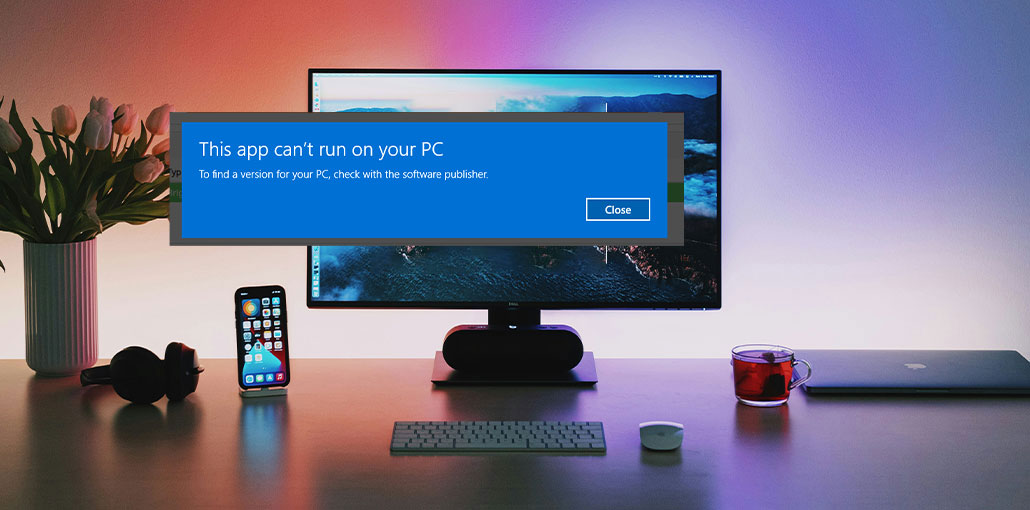
In some instances, when you try to launch the software application on Windows 10, you can see the error message “this app can’t run on your PC”.
This situation is extremely annoying; however, in this article, we provide solutions to address it.
Why Does “This App Can’t Run on Your PC” Appear?
Here are common reasons you might encounter this “this app can’t run on your PC” error message:
- Access is denied. You’ll see this error when your administrator account is not set up correctly. Setting up a new administrator profile is the best way to fix it.
- Game bugs – It’s impossible to start some of your most loved games.
- Windows Store error – the system is blocking access to certain Windows Store applications.
- Batch file: Batch file with administrator privileges. If the issue persists, then follow the steps in our tutorial.
- Software publisher error: Contact the software publisher” message is common among Windows users and prevents them from using specific software applications.
- Antivirus software: You may be able to spot this error in Antivirus products.
Best Ways to Fix “This App Can’t Run on Your PC”
1. Create a Copy of the EXE File
If you’re getting the “this app can’t run on your PC” error, you might try to fix it by creating a copy of the application you are trying to run.
To do this, right-click the file and select “Copy”. Within the same folder or space, right-click once more and choose “Paste”. Then try to run the copy file and check whether the error shows up.
2. Disable Windows SmartScreen
Windows SmartScreen may block apps it considers unsafe or unrecognized.
- Press the Windows key, and then in the search box, type SmartScreen.
- Click on the Change SmartScreen button from the displayed results.
- Find Security in the menu and select Windows SmartScreen
- Select Change settings and then choose ” Do not do anything.”
- Make sure to click OK before saving the changes.
- The SmartScreen feature was designed to protect you from malware infections and phishing attacks.
Many users have complained that this feature was preventing applications from running.
Also read: Is Windows Update Stuck? 7 Easy Fixes for Windows Users
3. Update Microsoft Store Apps
In certain cases, you can’t open Microsoft Store apps on your PC. This could be due to an issue that corrupts the latest version of the store. To fix this, you must check for updates and then install the latest Windows Store version:
- Launch Microsoft Store using the Microsoft Store app via the Start Menu
- Choose to open the three dots and then open Updates and downloads
- Click the ” Get Updates” button.
4. Create a New Administrator Account
A damaged user profile can trigger the “This app can’t run on your PC” error.
- Open the Settings app. Select the Accounts tab, then Family and other users
- Go to the ” Other users” section, and then select Add someone else to this PC.
- Click ” I don’t have this person’s sign-in information.”
- Select ” Add a user without a Microsoft account.”
- Enter the username and password you want to use to access the account.
- The new account will be listed in the Other Users Section
- Choose the new account, then hit the ” Change account type” button
- Select Administrator in the ” Account type” menu, then click OK.
There have been reports that, at times, “This app can’t run on your PC” error messages appear even when users attempt to perform simple tasks like accessing their task manager.
Most of the time, the error was corrected by creating an administrator account from scratch.
5. Disable Proxy or VPN
Proxy servers and VPN connections can block Microsoft services and applications.
- Open the Control Panel from the Start Menu.
- Click Internet Options
- Open the Connections tab
- Click on Lan(Settings)
- Uncheck the box next to ” Use a proxy server for your LAN.”
- Make sure to click OK before confirming the change. Then try logging in again to the account you created in Microsoft Account
If you’re using this feature, there’s a big chance your link to Microsoft Store servers is being blocked. If the apps you’re using don’t work on your PC, turn off these settings.
6. Run an SFC Scan
Corrupted Windows system files can stop apps from launching properly.
- Open the Start Menu. In the Search Bar, type cmd. Then right-click Command Prompt and choose Run as Administrator.
- Type the sfc/scannow Command
- Allow the process to end, then reboot your system. This process should repair the corrupted files on your computer.
7. Enable App Side-Loading
Developer settings can sometimes interfere with app installations.
- Open Start Menu and then click PC Settings.
- Navigate to ” Update&Security”
- Go to the ” For developers” tab, and then turn off Developer Mode.”
This fix can prevent from causing “this app can’t run on your PC” error from popping up again.
8. Check Your Disk for Errors
Another reason for a “this app can’t run on your PC” error may be disk problems. To fix them, open the Command Prompt as described in the previous section and then type chkdsk C (/f)
9. Clear Browser Cache
There are occasions when the downloaded files get damaged. This can cause files and folders not to be downloaded completely. This happens most often if you don’t clear your browser cache frequently.
10. Delete Temporary Files
These temporary data files, in some circumstances, can cause problems for your system. If your computer is overloaded with these files, it could cause slow processing speeds and trigger other issues. Clean up your temporary files, and then install the app that is currently showing “this app can’t run on your PC” error.
So, how do you get rid of your temporary file?
- Open your Windows Start Menu, then search for Disk Cleanup, and then open the program.
- Choose the partition you want to cleanse
- Choose ” Clean up system files.”
Also read: How to Clean Up Junk Files and Speed Up Your PC
11. Run a Full Windows Defender Scan
We all know that malware is extremely harmful to the PC we use. It could cause many errors and can hinder many applications from running or being installed.
To ensure that your system isn’t affected by malware, run a system scan using Windows Defender.
- Click on the Start Menu and search for Windows Defender, and open the program.
- In the left-hand pane, choose the shield icon.
- In the following window, click ” Advanced scan.”
- Make sure to select the “full scan” option to begin the full system scan
12. Upgrade Your Windows
If some apps can’t run on your computer, it could be because your Windows OS is not running the latest version.
To update your Windows:
- Open the ‘ Start Menu and then click PC Settings.
- In the search bar, type ” Windows Updates.”
- Select”Check for Updates” or click on the ” Check for Updates” button.
- Install the latest Windows updates
13. Check Whether Your PC Is 32-Bit or 64-Bit
Windows OS comes in two versions: 32-bit and 64-bit. There’s a possibility that you’re running a 32-bit version of Windows; however, the application is 64-bit.
To verify if this is the case, verify the specifications of your PC:
- Open Start Menu and then click PC Settings.
- Select System
- Click on ” About “
- In the right-hand pane under the Device specification, check your System type.
How to Prevent “This App Can’t Run on Your PC” Error
Follow these best practices:
- Download apps from trusted sources
- Keep Windows updated
- Avoid unofficial software builds
- Use compatible app versions
- Maintain antivirus protection
Final Words
If you encounter an “this app can’t run on your PC” error message is extremely frustrating. The solutions mentioned above will usually resolve this issue easily.
FAQs About This App Can’t Run on Your PC” Error
What does “This App Can’t Run on Your PC” mean?
The “This App Can’t Run on Your PC” error means Windows is preventing an application from opening because of compatibility issues, security restrictions, corrupted files, or unsupported system architecture.
Why does Windows 11 say “This App Can’t Run on Your PC”?
Windows 11 may show this error if the application is outdated, incompatible, blocked by Windows Security, or not supported on your device architecture.
Can corrupted files cause “This App Can’t Run on Your PC” error?
Yes, corrupted or incomplete installation files are one of the most common reasons for this error. Re-downloading the application from the official website usually fixes the problem.
Is “This App Can’t Run on Your PC” a serious problem?
Usually, the error is not serious and can be fixed easily. However, repeated issues may indicate system corruption, malware infections, or software conflicts that require advanced troubleshooting.









Leave a comment