

This article provides a detailed overview of Find and Replace in Word for new Microsoft Office users. It is built into the Windows operating system. It is applicable for Microsoft 365, Word 2019, Word 2016, Word 2013, Word 2010, Word Starter 2010, and Word 2007.
About Find and Replace in Word
Microsoft Word Find and Replace is a content search, find, and replace feature built into the Microsoft Word application. It allows you to quickly and efficiently discover what you need and replace the original content with the desired item.
Find in Word
Besides Find and Replace Word, there is another function that will find the information you’re looking for within the targeted Word document. To use it, simply press Find in the menu on the Home tab or click Ctrl+F.
Beyond text, you’ll also discover headings, pages, tables, graphs, and equations, footnotes/endnotes, and even comments.
Also read: Top 10 Microsoft Project Viewer Software
Where Is Find and Replace in Word?
Find Replace Word is in the submenu from the Home menu, located in the upper portion of the Word document. The exact location is in the upper part of the editing section, which is behind the Styles section. It is also on the right side if there are no other add-ins in the Word program.
How to Find and Replace in Word?
How to do find and replace in Word? Just follow the guide below.
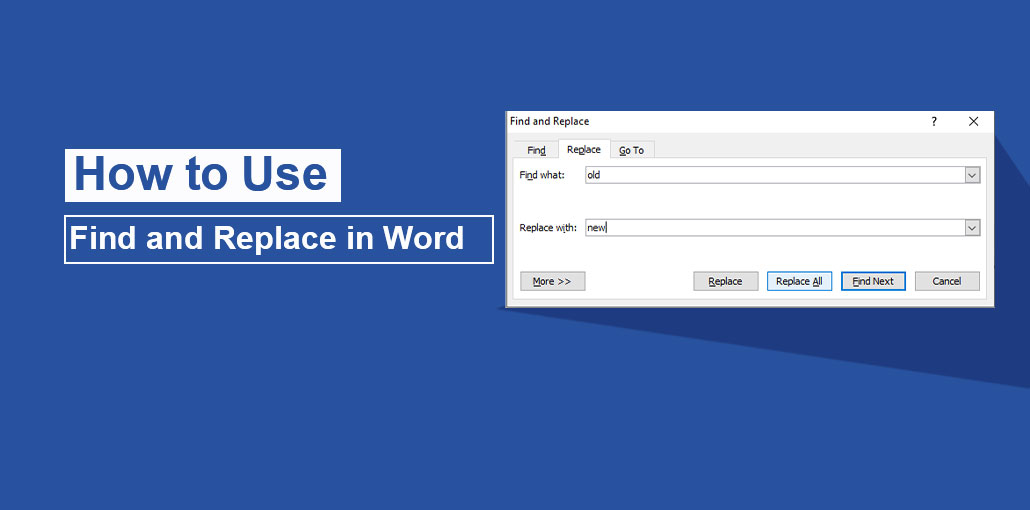
Step 1. While you’re in Word, click the Replace button option in the menu at the top to launch the Find and Replace dialog box. Click the inverted triangle next to the Find tool and choose the Advanced Find option to open this dialog. Alternatively, you can quickly open it using the Microsoft Word shortcut key Ctrl + H.
Step 2. In the Find and Replace dialogue box, add the content you wish to find to the Find What column.
Step 3. Enter the new content you intend to replace with the original content into the Replace with column.
Step 4. Click on the “Replace or Replace All” button.
Replace: The program will replace the next match constant with the new content, searching from the current position in the Word document (where the cursor appears). If you’re at the end of the file, the document will begin searching from the beginning.
Replace All: This will replace all match content with the new content. It will inform you of the number of replacements that occur. There is no confirmation that the replacement actually takes place. Therefore, you must verify before clicking on the replacement button.
The Find Next button is located beneath the Replace All button. It allows you to find the next match without performing the replacement.
Advanced Find and Replace Options
Furthermore, you can click the “More” button at the lower-left corner to open advanced options for the find and replace in Word.
Search: You can search the targeted content using all (default) contents beginning from the current place (cursor), up or down.
Match case: Find and replace the content using case sensitivity.
Find words in whole: Only find the words that match, and exclude the part that matches the word to prevent partial matches. This means that the word matched to the target content will be skipped over. For example, if you are searching for” with”, it will only find the word” with” for you; the words that include “with,” like “within,” are not shown to you.
Use wildcards: Wildcards can help you find partially matched content. For example, you could count on “with*n” to find within, with the new, with column”, and the like throughout this piece.
Sounds similar to (English): When you search for a word using the option, it’ll find not only the exact word but also words that resemble it. For instance, if you are searching for “at” in this article, it will also include “it”, “out,” and “add” for you. However, this feature will only work for English content.
Find all words (English): It will give you not just”match” but also “matched,” and “matches” in this post.
Match prefix: You can also look for words with the same prefix as the target word.
Suffix Match: By selecting this option, you can find additional words with the same suffix as the target word.
Half-width forms that match: Search the content that uses the same half or full-width forms as the target content.
Ignore punctuation characters: If there are punctuation characters in the content, when you search the document, simply ignore the punctuation characters.
Ignore white-space characters: If you are searching for matched content for target content, simply ignore the white-space characters in the target content, if there are.
In the Replace advanced settings, you can specify the format (font paragraph, tabs frame, language style, highlight) and several Special elements (paragraph mark, tab characters, caret, etc.). Also, you can eliminate any format by clicking “No formatting”.
Also read: How to Recover Unsaved Excel File: 5 Best Methods to Get Your File
Why Use Find and Replace in Word?
Using Find and Replace in Word helps you:
- Save time while editing long documents
- Avoid manual errors
- Maintain consistency in writing
- Improve productivity
- Edit large files in seconds
Difference Between Find and Replace in Word
The general rule is that Find will only find content that matches the targeted content. Replace does not just find the content, but replaces it with new content. In the Find and Replace dialogs, you can switch to the Find tab to set the settings exclusively for finding. Most of the settings are identical to those on the Replace tab.
Conclusion
Find and Replace in Microsoft Word is one of the most powerful editing tools available for users. It allows you to search for and update content across entire documents.
Whether you are a student, teacher, writer, or office professional, mastering this tool will significantly improve your document editing speed and accuracy.
FAQs: Find and Replace in Word
How do I open Find and Replace in Word?
You can open it by pressing Ctrl + H or by going to Home → Replace in the Editing group.
What is the shortcut for Find and Replace in Word?
The shortcut for Find and Replace is Ctrl + H. For only Find, you can use Ctrl + F.
Can I replace all words at once in Word?
Yes, you can use the Replace All option to update every matching word in the document instantly.
Is Find and Replace useful for large documents?
Yes, it is very useful for large documents because it can update multiple words instantly, saving a lot of time.









Leave a comment