

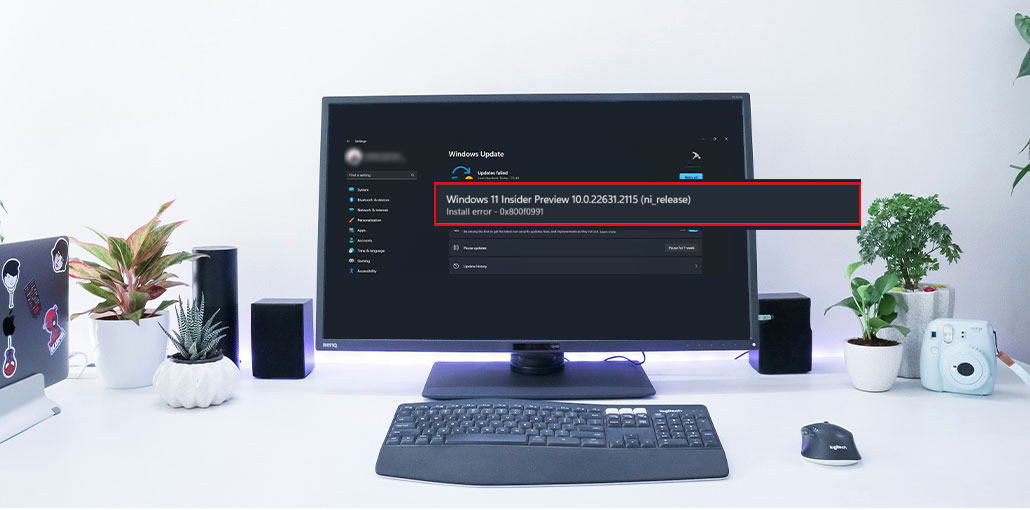
Windows updates provide greater security and a more robust operating system once downloaded and then installed on a PC. Unfortunately, sometimes Windows install error – 0x800f0991 can be displayed during installation, which could be the reason for this procedure. Windows 11 and 10 automatically receive updates; this issue prevents the installation from completing, denying users enhancements and bug fixes. There’s no need to fret because solutions may be simpler than you think.
What Causes Install Error – 0x800f0991?
Several factors can trigger Install Error – 0x800f0991, including:
- Corrupted or missing system files
- Damaged Windows Update components
- Failed or incomplete previous updates
- Outdated or incompatible device drivers
- Insufficient disk space
- Third-party software interference
- Malware infections
- Network connectivity interruptions
- Incorrect Windows service configurations
- Corrupted registry entries
Identifying the root cause can help you apply the right solution and restore the update process.
Also read: Windows Operating System Not Found Error: 6 Proven Fixes Guide
How to Fix Install Error – 0x800f0991? (Step-by-Step)
Here are the steps to solve the 0x800f0991 install error.
1. Run System File Checker (SFC) and DISM Scans
To fix the troublesome Windows Update error (Install Error – 0x800f0991), our first approach is to use command-line utilities SFC Scan and DISM. The System File Checker can repair corrupted files, and the Deployment Image Servicing and Management (DISM) tool can fix any problems in the Windows image structure.
If you follow these specific commands, you will be able to find and eliminate obstacles hindering the process in Windows updates.
- Press the Windows key and R.
- Type cmd.
- After that, press Ctrl + Shift + Enter.
- This will launch the Command Prompt as an administrator.
- Click Yes in the UAC dialog box.
- Use the following command to type it in and click “Enter” – Sfc /Scannow.
- Once the check is complete, you may see “Verification 100% completed. Windows Resource Protection did not detect any integrity issues.” Restart the system.
- Go to Settings > Windows Update and then click “Check for updates”.
- When the installation fails, then again open Command Prompt as administrator.
- Then, run the commands below one at a time:
DISM /Online /Cleanup-Image /CheckHealth
DISM /Online /Cleanup-Image /ScanHealth
DISM /Online /Cleanup-Image /RestoreHealth
- After each command has been run, take a few minutes to rest.
- At the end, restart your computer and then install the Windows update.
2. Reset Windows Update Components
Have you ever considered that something as simple as renaming a folder could help resolve your Windows update error (install error – 0x800f0991 )? If you’re not familiar with the SoftwareDistribution directory, it’s where Windows stores temporary files related to updates.
Sometimes they can get connected, resulting in Windows updates failing. Thus, by giving an entirely new name for this folder, you’re basically fixing all the issues.
- Open Command Prompt as an administrator as described in earlier methods.
- Copy-paste the commands below sequentially, then press Enter.
net stop wuauserv
net stop bits
net stop msiserver
net stop cryptsvc
- Once you’ve finished, run the command:
ren %systemroot%SoftwareDistribution softwaredistribution.old
- Then, you can start the Windows update BITS, the Windows Installer service, and the Cryptographic Services:
net start wuauserv
net start bits
net start msiserver
net start CryptSvc
- Exit the Command Prompt and reboot your PC.
3. Run the Windows Update Troubleshooter
This is a highly effective solution to fix the Install Error – 0x800f0991: run Microsoft’s Windows Update Troubleshooter. This tool helps identify and automatically fix common issues that may be causing the update error.
- Click on Start and then select Settings.
- Choose the System from the right pane.
- Go towards the right, then select Troubleshooting.
- Select other troubleshooting methods.
- Find Windows Update and click on the button that says “Run.”
4. Verify Windows Update Services
If you haven’t found a solution, we suggest checking with your Windows Update Service. If this feature is disabled on your computer, updates may become stuck, which can result in an install error – 0x800f0991. If you confirm that the service is active, it will allow smooth updates.
- Press the Windows and the S key.
- Type Services and hit enter.
- Click twice on Cryptographic Services to open it.
- On the “Startup type” dropdown, choose Automatic.
- See the “Running status” if the Service is running. If not, click on Start.
- Click Apply and Ok, then save your changes.
Changes to your Startup type and the Running Status for Background Intelligent Transfer Service and Windows Update in the same ways mentioned in the above steps.
5. Remove Corrupted Registry Entries
An outdated file in the Windows registry might also be the cause which causes the update error. By eliminating the files, you create a clear base for your updates. This means that Windows installs updates without encountering difficulties due to outdated ones, and resolves the issue during the process.
- Press Winkey and R.
- Type regedit.exe and hit the “Enter” key.
- Click here to access the next string:
HKEY_LOCAL_MACHINE\SOFTWARE\Policies\Microsoft\Windows\WindowsUpdate
- In the right panel, find on the left side, select DWORD WIStatusServer and WUServer.
- Right-click on each and select delete.
- Reboot the device and verify whether the update has been successfully installed.
6. Download the Update Manually from Microsoft Update Catalog
Windows Update Catalog serves as a specific repository where you can download important updates and solutions. The website is also a platform for hosting drivers and hotfixes offered by OEMs.
If you encounter an error message like Windows Update Error 0x800f0991 when trying to install an update or build using automated means, you need to find the exact update in the catalog. This alternative method involves the manual installation procedure. Here’s how:
- Go to “Settings > Windows Update > Update history” and copy the KB number that fails to install.
- Copy your copied KB number into the Search box and press”Enter. “Enter” key.
- Find the update file that is suitable for the processor on your device (x86 or x64, also known as ARM64).
- Click the button to download. to download.
- Once a page is displayed, click on the link that appears.
- After the update has been downloaded, start your .msu file and choose “Yes for confirmation.
Also read: Windows 11 Media Creation Tool: A Complete Guide to Download and Install
7. Perform an In-Place Upgrade
In-place upgrades resemble bestowing your current device with a transformation. This method lets you upgrade or replace obsolete software with the latest version while retaining all your personal files, including preferences and applications. So, with this in mind, you can follow these steps to install the update successfully:
- Download the latest Windows 11 ISO from Microsoft’s official website
- Select the appropriate language and version.
- Click the option for 64-bit download.
- Once completed, right-click the ISO and select mount.
- Select ” Open” in the dialog for warnings.
- From the new folder, right-click Setup.exe and choose Open.
- Choose “Yes” on the User Account Control pop-up.
- ” Windows 11 Setup” window will open. Click on next.
- In the “Applicable Notices and License Terms” window, click “Accept” to continue.
- In just a short time, the update will be available along with the new version.
Tips to Prevent Install Error – 0x800f0991
To reduce the likelihood of encountering this error in the future:
- Keep your device drivers updated.
- Maintain sufficient free disk space.
- Run regular malware scans.
- Avoid interrupting Windows updates.
- Periodically perform SFC and DISM scans.
- Keep Windows Update services enabled.
Conclusion — Fix Install Error – 0x800f0991
The install error – 0x800f0991 in Windows 10 or 11 can result from several causes, such as missing features, broken services, or incompatible hardware. Starting with troubleshooting and performing in-place upgrades to manual installations, many solutions are available to fix the problem.
FAQs: Install Error – 0x800f0991
What is Install Error - 0x800f0991?
Install Error - 0x800f0991 is a Windows Update error that occurs when Windows fails to install an update successfully due to system file corruption, update component issues, or software conflicts.
Can corrupted system files cause Error 0x800f0991?
Yes. Damaged or missing system files can prevent Windows updates from installing properly and trigger Error 0x800f0991.
Can I install Windows updates manually if they fail automatically?
Yes. You can download the update package from the Microsoft Update Catalog and install it manually.
Why does Windows Update get stuck at a certain percentage?
This can occur due to corrupted update files, internet interruptions, hardware compatibility issues, or insufficient system resources.







Leave a comment