

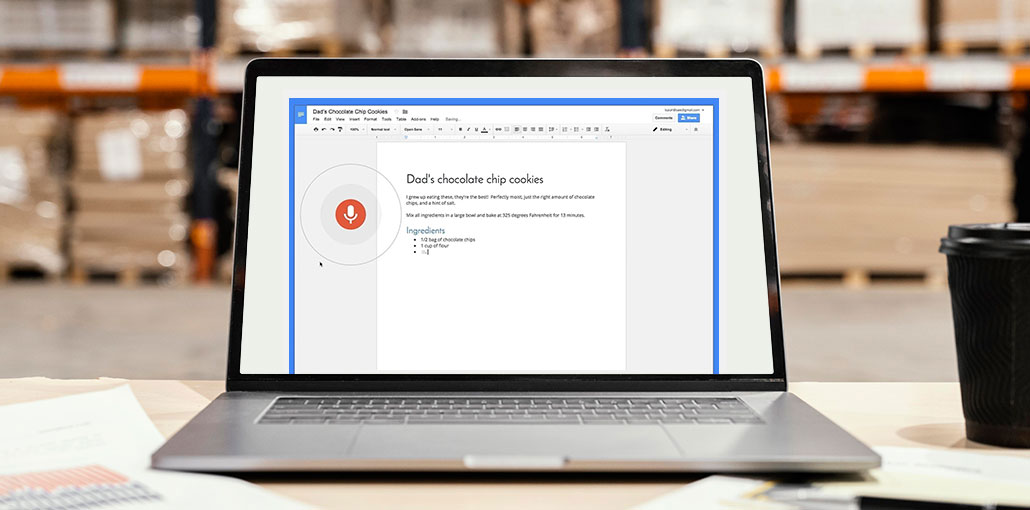
Google Docs has a built-in voice typing feature that most people don’t even touch. It is located beneath the Tools menu, and it allows you to type text hands-free using only Chrome and a microphone. No additional software to install, and no money to invest. For writing tasks, it is surprisingly effective.
But I’ve spent months pushing Google Docs voice typing to its limits, and the flaws are evident when you move beyond simple note-taking. This is everything you should learn about voice typing in Google Docs, what it can do, and when it’s better to use an additional application.
How to Use Google Docs Voice Typing
This section will provide you with a guide on how to type voice in Google Docs.
- Open a document in Google Docs with the Chrome browser (this is only available in Chrome)
- Select “Tools” on the Menu Bar.
- Choose the option to type in voice (or hit the keys Ctrl+Shift+S for Windows, Cmd+Shift+S on Mac)
- A microphone icon is displayed on the left-hand side of your document.
- Click the microphone and start talking
That’s it. No account upgrades, no extensions, no API keys. Google processes your speech on its servers and types the words into your documents in almost real-time.
Also read: Top 5 Text-to-Speech Apps
Google Docs Voice Typing Commands You Should Know
Google Docs voice typing goes beyond simple dictation. You can manage the formatting, navigation, and editing using voice commands. Here are the commands I often use:
Add Punctuation:
- Period
- Comma
- Exclamation mark
- Question mark
- New line
- New paragraph
Edit Your Document:
- Copy
- Cut
- Paste
- Delete
- Delete last word
- Delete (word or phrase)
- Insert link (then say the URL)
- Copy link
- Delete link
- Insert table of contents
- Delete table of contents
- Update table of contents
- Insert comment (then say the comment)
- Insert bookmark
- Insert equation
- Insert footer
- Insert footnote
- Insert header
- Insert horizontal line
- Insert page break
The complete list is larger -it is Google supports more than 100 voice commands; however, many of them are clunky. For example, saying “select the word before the cursor and apply bold formatting” is slower than clicking. I use punctuation and basic formatting, and then repair everything else with my mouse.
Limitations of Google Docs Voice Typing
When I tried this function every day for three weeks, I continued to encounter the same issues.
Accuracy Decreases With Technical Vocabulary
The general conversational voice? Google does a great job with 90 percent accuracy. However, try dictating anything that uses technical terms — medical terminology, programming concepts, or product names. The error percentage increases dramatically. Dedicated voice-to-text tools built on Whisper can handle the specialized vocabulary better.
I wrote a paragraph on “React hooks and useState” and received “React hooks, and you state.” It’s not too bad, but spread this across a full document, and editing overhead can add up quickly.
Privacy Concerns for Sensitive Content
This is the biggest issue for many professionals. Each word you speak is sent to Google to process. The company’s security policy governs how they process audio information. When you’re typing medical notes, client data, or legal documents, or anything else that is confidential, cloud-based voice typing could be an actual compliance problem.
If you are working within HIPAA, SOC 2, or similar frameworks, Google Docs voice typing is not a good idea without a thorough legal review.
No Intelligent Text Formatting
Google offers a literate transcription. If you write “so um I was thinking maybe we should move the meeting to Wednesday,” it’s exactly what appears in your document — filled words, false starts, and so on.
Your job is to edit. Each “um,” “uh,” and rambling tangent requires manual cleaning. For short-form messages, it’s not a problem. Writing long-form, it can cause actual friction.
No Offline FunctionalityThe
Internet goes down? Voice typing stops. This is a major drawback of cloud-based technology. If one travels or works in areas with poor connectivity or is looking for reliability, this dependency is an issue.
Who Should Use Google Docs Voice Typing?
Despite its limitations, Google Docs Voice Typing remains useful in several situations.
- Quick brainstorming sessions. Dumping ideas into documents without worrying about the formatting or precision. The friction-free setup (no installation, already in your browser) makes it great for capture-first-edit-later workflows.
- Student Essays and Academic Writing. Free, accessible, and no need to install any software. If you are a student at college and are required to write your essay, Google Voice Typing does the job.
- Casual Note-Taking. Meeting notes you’ll clean up later, journals, personal entries, or grocery shopping lists. Anything where a polished product isn’t the aim.
- Collaborative Google Docs Workflows. If your team already uses Google Docs, keeping the transcription within the same environment helps avoid context switching.
Tips to Improve Google Docs Voice Typing Accuracy
If you’re using speech recognition in Google Docs, this guideline will help make your experience better:
- Use a Quality Microphone. The laptop microphone works by using a USB condenser ($30-50 range), which significantly reduces transcription mistakes. It’s the Blue Snowball Ice, which is a good budget option.
- Speak in Complete Sentences. Pause, form your thought, and then talk the whole sentence. A fragmented voice produces a distorted text. Tools that use whispers handle messy speech better; however, with Google, the clarity is rewarded.
- Edit After Dictating. Do not stop to correct mistakes while you’re dictating. Start by putting your thoughts out before you go back to tidy up in one run. Switching between editing and speaking can disrupt your flow.
- Close Background Tabs. Chrome tabs consume CPU and memory. With fewer tabs competing for the same resources, voice recognition responds more quickly and precisely.
- Verify Microphone Permissions. If your voice isn’t functioning randomly, your Chrome microphone permissions could have been suspended. Go to Options > Security and Privacy > Settings for Sites > Microphone and verify that docs.google.com is accessible.
Also read: Top 10 Voice Changer Apps
Supported Languages in Google Docs Voice Typing
Google Docs voice typing supports more than 100 dialects and languages. This is one of its main strengths. English (US, UK, Australian, Indian), Spanish, French, German, Portuguese, Japanese, Korean, Mandarin, Hindi. The list is endless.
To switch between languages, simply click the dropdown that is above the microphone icon and choose the language you want to use. Only one language is used during dictation sessions. There is no mid-sentence switching as with Whisper handles.
Google Docs Voice Typing vs Dedicated Dictation Software
I tried the same test paragraph using Google Docs voice typing and two alternatives to compare them. A 200-word paragraph with technical terms, natural pauses, and one intentionally filler word.
| Feature | Google Docs Voice Typing | Apple Built-in Dictation | AI Dictation |
|---|---|---|---|
| Accuracy (General Speech) | ~89% | ~88% | ~96% |
| Accuracy (Technical Terms) | ~82% | ~80% | ~94% |
| Filler Word Removal | No | No | Yes |
| Privacy | Cloud-based | Cloud or Local | Fully Local |
| Offline Support | No | Partial | Yes |
| Cost | Free | Free | Free Tier / $9 per Month |
| Platform | Web (Chrome) | macOS & iOS | macOS |
The gap in accuracy is substantial in the real world. In a 1,000-word document, 89% accuracy is about 110 errors that need to be corrected. At 96%, this decreases to 40 errors. About half of the editing tasks.
The difference in formatting matters more. With Google, I spent about 15 minutes cleaning up a 1000-word draft I dictated. Thanks to AI Dictation, the output came out tidy enough that I only needed five minutes of editing. This time savings is averaging over the course of weeks and months.
Final Verdict: Is Google Docs Voice Typing Worth Using?
Google Docs voice typing is an affordable and free option for casual dictation. Zero cost, zero setup, decent accuracy for everyday speech. If you have a simple need – notes, brainstorming, and first drafts, it can handle the task.
However, free comes at a cost. Cloud-only processing can lead to privacy compromises and no offline access. Literal transcription is the process of cleaning up each document. The only way to do this is to reshuffle your Chrome routine. The accuracy of technical information leaves gaps that grow with each specialized word.
FAQs: Google Docs Voice Typing
Is Google Docs Voice Typing free?
Yes, it is completely free to use. You only need a Google account, Chrome browser, and a working microphone.
Can Google Docs Voice Typing recognize different accents?
Yes, but accuracy may vary depending on your accent, pronunciation, and background noise.
Is Google Docs Voice Typing good for long writing?
It works well for drafts and notes, but long-form content usually requires manual editing afterward.
How accurate is Google Docs Voice Typing?
It is fairly accurate for general speech but may struggle with technical words and complex terminology.






Leave a comment