

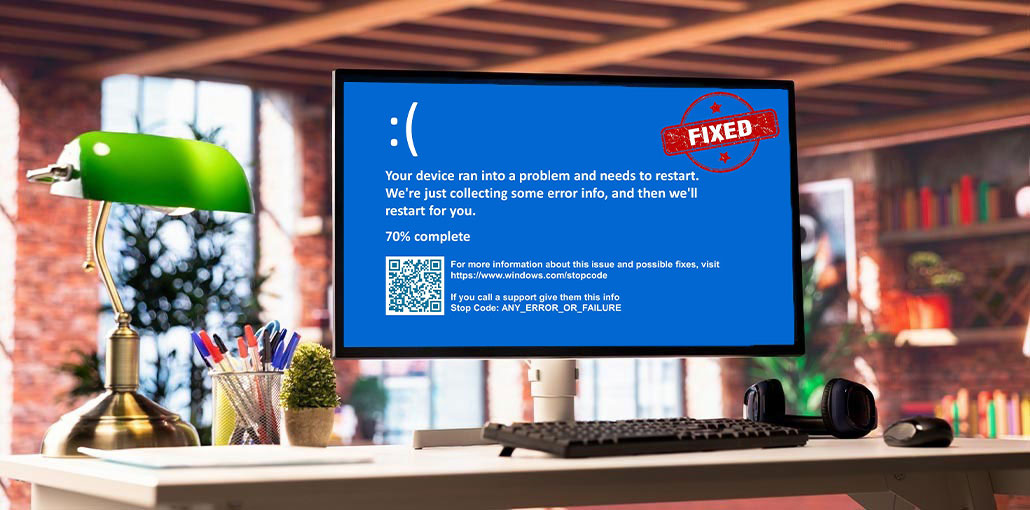
Have you ever encountered the ” Your device ran into a problem and needs to restart” message when working on your Windows computer? The issue is known as the Blue Screen of Death(BSoD) and can often prevent your computer from booting. Are you curious about what causes this problem and how to solve it? If so, then you’re on the right track. Through this post, you’ll see the causes and signs of the problem, and ways to fix it.
Symptoms of the “Your Device Ran Into a Problem and Needs to Restart” Error
If your computer encounters an issue when you are starting to work on it, a blue screen with an error and a stop code appears. There are a variety of stop codes you can see along with that “Your device ran into a problem and needs to restart” message, among them:
You may also see one of the following stop codes:
- WHEA_UNCORRECTABLE_ERROR
- KERNEL_SECURITY_CHECK_FAILURE
- FAULTY_HARDWARE_CORRUPTED_PAGE
- MEMORY_MANAGEMENT
- CRITICAL_PROCESS_DIED
Other general symptoms include irregular behavior, slow speed, auto restarts, and more. You must take action immediately if you experience any of these symptoms.
Common Causes of the “Your Device Ran Into a Problem and Needs to Restart” Error
The “Your device ran into a problem and needs to restart” error can occur for several reasons, including:
- Corrupted or damaged Windows registry files
- Missing or corrupted system files
- Outdated, faulty, or incompatible device drivers
- Virus or malware infections
- Faulty external devices or peripherals
- Unexpected system shutdowns or power failures
- Hardware issues such as faulty RAM or storage drives
- Incomplete or problematic Windows updates
Also read: Windows Operating System Not Found Error: 6 Proven Fixes Guide
How to Fix “Your Device Ran Into a Problem and Needs to Restart”
No matter what the issue is, there is always a way to solve the issues that you encounter on a Windows computer. Here are the most effective solutions to try fix your device ran into a problem and needs to restart error.
1. Update Drivers
A driver update could cause trouble and cause your computer to experience the issue without revealing the cause. If you can start successfully on your Windows PC, we recommend that you look for updates to your driver using these steps:
- Click the Start button and search for Device Manager.
- Open Device Manager.
- Right-click the device and select Update Driver.
- Choose Search automatically for drivers.
Your computer will scan for any driver updates and install them. Then reboot your PC to check if it still crashes with the your device ran into a problem error.
2. Uninstall Recently Installed Programs
If you have installed any new program on your PC, it could be causing it to fail to function. It is possible to determine whether the program is causing problems by removing it:
- Go to your Start Menu. Enter uninstall programs. Select the Apps and Features option.
- Choose the program you have recently installed and select the Uninstall button.
3. Run System File Checker (SFC)
The System File Checker is a program that allows you to search for any corrupted or damaged system files and repair them. The SFC can be utilized to fix the following issues:
- Open Command Prompt as Administrator.
- Type the following command: sfc /scannow
- Press Enter.
- Wait for the scan to complete.
- Restart your computer.
This process can repair damaged Windows files that may be causing the BSOD.
4. Update your Windows
Any Pending Windows update may cause you to get the “PC ran into a problem and needed to restart” Windows 10/11 error. But you can repair the problem by updating Windows according to the following:
- Open Settings, go to Windows Updates, and click on the Check for updates button.
- Install the latest updates if needed and then restart your PC.
We hope you don’t see a BSoD error the next time you start your computer.
5. Perform a System Restore
Imagine you find that your Windows system is inaccessible and you’re unable to log into it. In that situation, you’ll need to perform a system restore to fix this “Your device ran into a problem and needs to restart ” error. The following is the sequence:
- Enter the Windows Recovery Environment.
- Select Troubleshoot.
- Click Advanced Options.
- Choose System Restore.
- Select a restore point created before the issue occurred.
- Follow the instructions to complete the restoration process.
It is recommended that Windows restore to its previously selected state. After this is complete, restart your device to see whether the issue is resolved.
Also read: Fix Preparing Automatic Repair Error in Windows: 10 Quick Solutions
6. Restore Registry Configuration
The slightest change in the system registry can trigger numerous BSoD issues similar to those we’re addressing. We recommend that you restore your registry’s configuration file to restore it to its default settings in the following manner:
- Select Troubleshoot > Advanced Options > Command Prompt.
- Sign in with your administrator account if prompted.
- Navigate to the Registry Backup (RegBack) folder using Command Prompt.
- Verify that backup registry files are available.
- Replace the current registry files with the backup copies.
- Exit Command Prompt and restart your computer.
How to Prevent the Error in the Future
To reduce the chances of seeing this message again:
- Keep Windows updated.
- Install drivers from trusted sources.
- Monitor system temperatures.
- Run periodic disk checks.
- Avoid unstable overclocking settings.
- Use reliable antivirus software.
- Back up important files regularly.
Bottom Line
This article lists a variety of commonly encountered BSOD stop codes and their common reasons. It also provides 6 typical solutions for this “your device ran into a problem and needs to restart” BSOD.
Frequently Asked Questions (FAQs)
What does “Your device ran into a problem and needs to restart” mean?
It means Windows has detected a serious system error (BSOD) and restarted your PC to prevent damage or data loss.
Is “Your device ran into a problem and needs to restart” serious?
Yes, it can be serious if it happens repeatedly. It may indicate hardware failure (RAM, SSD) or system corruption.
What is the stop code in this error?
The stop code is a technical message (like WHEA_UNCORRECTABLE_ERROR) that helps identify the exact cause of the crash.
What should I do if Safe Mode also crashes?
If Safe Mode crashes too, it usually indicates a serious hardware issue like RAM, SSD, or motherboard failure.




Leave a comment