

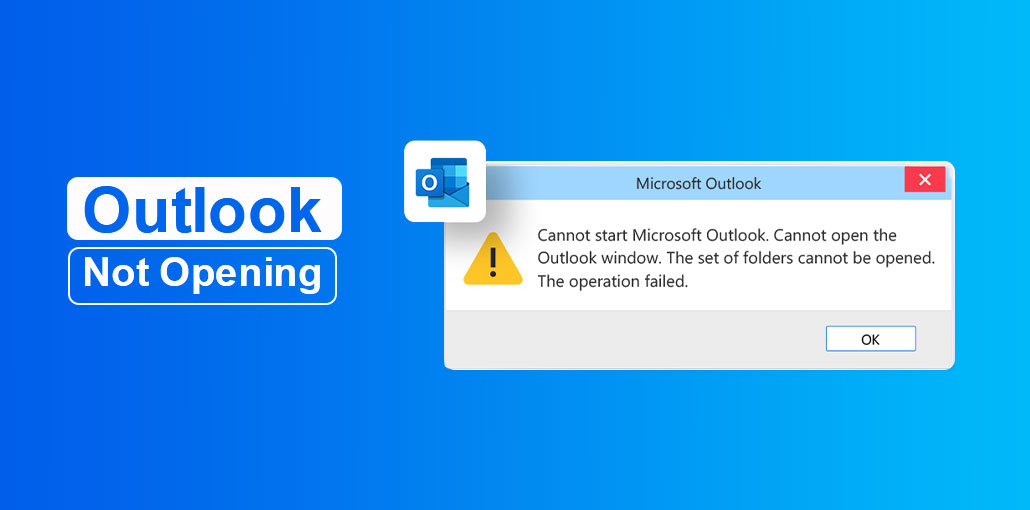
If Outlook is not opening on your Windows PC, you are not alone. Many users experience this issue due to corrupted Outlook files, damaged profiles, faulty add-ins, or Windows update conflicts. In some cases, Outlook may freeze on the loading screen, crash during startup, or fail to open completely.
Fortunately, most Outlook startup issues can be fixed using simple troubleshooting steps. In this guide, we will explain why Outlook won’t open and share the best solutions to fix the issue quickly.
Why Is Outlook Not Opening?
Before applying the fixes, it is important to understand the possible reasons behind the Outlook not working or opening problem. Below are the most common causes of Outlook not opening:
- Corrupted PST or OST files
- Faulty or incompatible Outlook add-ins
- Outdated Outlook or Windows version
- Damaged Outlook profile
- Antivirus or firewall conflicts
- Corrupted Microsoft Office installation
- Incorrect Outlook configuration settings
- Windows updates causing compatibility issues
These issues may cause Outlook to freeze, crash, stop responding, or get stuck on the loading profile screen.
Common Symptoms of Outlook Startup Issues
You may be facing the Outlook not opening issue if you notice any of the following symptoms:
- Outlook gets stuck on “Loading Profile”
- Outlook crashes immediately after launch
- Nothing happens when clicking the Outlook icon
- Outlook freezes during startup
- Error messages appear while opening Outlook
- Outlook keeps processing but never opens
If you are experiencing any of these problems, follow the troubleshooting methods below.
Also read: Outlook Search Not Working: 6 Easy Ways to Restore Email Search
How to Fix Outlook Not Opening Issue
1. Restart Your Computer and Reopen Outlook
Temporary system glitches or memory issues can sometimes prevent Outlook from opening properly. Restarting your computer refreshes system processes and may instantly fix the Outlook not opening issue.
Steps to Restart Outlook:
- Close Outlook completely.
- Restart your computer.
- Open Outlook again.
This simple method often resolves minor Outlook startup problems.
2. Open Outlook in Safe Mode
Outlook add-ins can sometimes interfere with startup and cause Outlook to stop opening. Launch Outlook in Safe Mode disables all add-ins temporarily.
Steps to Open Outlook in Safe Mode:
- Press Windows + R
- Type:
outlook.exe /safe - Press Enter
If Outlook opens successfully in Safe Mode, the issue is likely caused by a problematic add-in.
Disable Outlook Add-ins:
- Open Outlook
- Go to File > Options > Add-ins
- Select COM Add-ins
- Click Go
- Uncheck suspicious or unnecessary add-ins
- Click OK
- Restart Outlook normally
This method usually fixes Outlook loading and startup issues quickly.
3. Update Outlook and Windows
Using outdated software can create compatibility issues that prevent Outlook from opening properly. Keeping both Outlook and Windows updated helps fix bugs and improves performance.
Update Microsoft Outlook:
- Open Outlook
- Go to File > Office Account
- Click Update Options
- Select Update Now
- Update Windows:
- Open Settings
- Go to Windows Update
- Click Check for Updates
Install all available updates and restart your system.
4. Create a New Outlook Profile
A corrupted Outlook profile is another major reason why Outlook not opening. Creating a new profile can solve the issue without affecting your mailbox data.
Steps to Create a New Outlook Profile:
- Open Control Panel
- Select Mail
- Click Show Profiles
- Click Add
- Enter a new profile name
- Configure your email account
- Select Always use this profile
- Choose the newly created profile
- Restart Outlook
This method is highly effective for fixing profile-related Outlook errors.
5. Disable Compatibility Mode
Compatibility Mode can sometimes interfere with newer versions of Outlook and prevent the application from opening correctly.
Steps to Disable Compatibility Mode:
- Right-click the Outlook shortcut
- Select Properties
- Open the Compatibility tab
- Uncheck:
- Run this program in compatibility mode
- Click Apply
- Restart Outlook
Disabling compatibility mode often improves Outlook startup performance.
6. Repair Microsoft Office Installation
A damaged Microsoft Office installation may also trigger the Cannot start Microsoft Outlook error. Repairing Office can fix missing or corrupted program files.
Steps to Repair Microsoft Office:
- Open Settings
- Go to Apps > Installed Apps
- Find Microsoft Office
- Click Modify
- Choose:
- Quick Repair
- Online Repair
- Follow the on-screen instructions
After the repair process is complete, restart your computer and open Outlook again.
7. Remove or Rename the Outlook AppData Folder
Corrupted Outlook AppData files can prevent Outlook from launching. Renaming the Outlook folder forces Outlook to create fresh configuration files automatically.
Steps to Remove Outlook AppData Folder:
- Close Outlook completely
- Press Windows + R
- Type:
%localappdata%\Microsoft\Outlook - Press Enter
- Locate the Outlook folder
- Right-click the folder and select Rename
- Rename it to:
- Outlook.old
- Restart Outlook
Outlook will automatically create a new clean folder during startup.
Also read: Outlook Inbox Repair Tool Not Responding? Here Are 6 Proven Fixes
Recommended Solution for Corrupted PST Files
After recent Windows updates, many Outlook users have reported PST file corruption and Outlook freezing issues. If Outlook still refuses to open, your PST file may be damaged.
In such situations, using a professional PST repair tool can help recover inaccessible Outlook data without opening Outlook itself.
Preventing Future Outlook Startup Issues
To minimize the chances of Outlook not opening again:
- Keep Outlook and Windows updated.
- Regularly back up PST files.
- Avoid installing unnecessary add-ins.
- Maintain sufficient disk space.
- Run periodic Office repairs.
- Use antivirus software to protect Outlook data files.
Final Thoughts
The “Outlook Not Opening” issue can be frustrating, especially when you rely on Outlook for daily communication. Fortunately, most startup problems can be fixed using simple troubleshooting methods such as Safe Mode, profile repair, Office repair, or updating Outlook.
By following these 7 effective solutions, you can easily fix Outlook not opening issues and restore smooth email access.
FAQs: Outlook not opening
Why is Outlook not opening after a Windows update?
Some Windows updates may create compatibility issues with Outlook or affect PST file handling. Updating Outlook to the latest version and repairing Office can usually fix these problems.
Can I access my Outlook emails if Outlook won't open?
Yes. If Outlook cannot open but your PST file is available, you can use a PST viewer or PST repair tool to access, recover, and export your emails without opening Outlook.
Is Outlook not opening a sign of PST file corruption?
Not always, but PST corruption is one of the most common reasons Outlook fails to start. Running a PST repair utility can help determine whether the file is damaged.
How do I fix Outlook not opening after an update?
If Outlook stops opening after a Windows or Office update, install the latest Outlook updates, repair Microsoft Office, disable add-ins, or create a new Outlook profile to restore normal functionality.





Leave a comment