

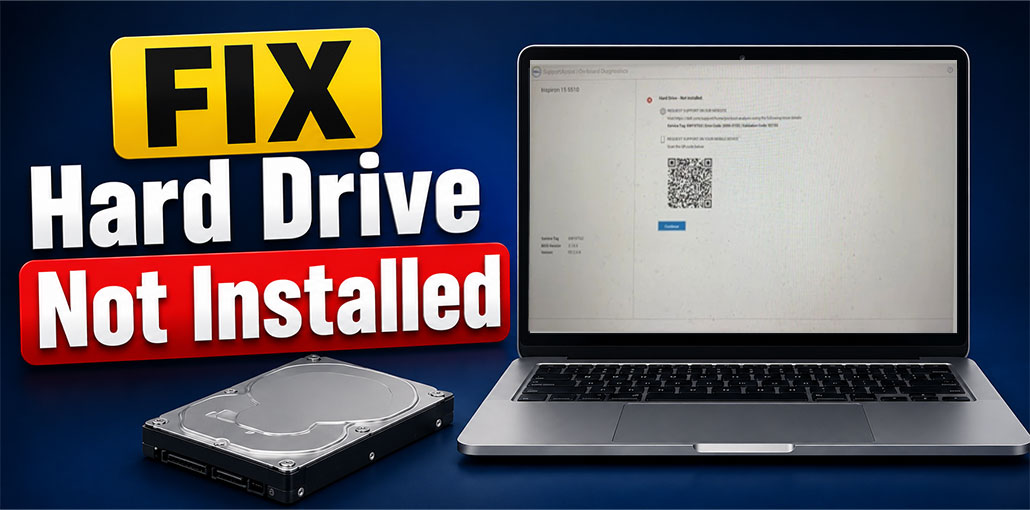
“Hard Drive Not Installed” is a system-wide error that can be caused by many reasons, including a faulty hard drive cable, incorrect boot order, or hardware failure. This error is typically seen on Dell laptops and computers. Other brands such as HP and Lenovo could also be affected by this problem.
The error can prevent access to Windows and the files stored on the drive. The good news is that you can fix the issue yourself. In this article, we’ve presented a few methods to help you fix Hard Drive Not Installed error.
Keep reading to learn about the hard drive not installed error on your Windows system!
What Does “Hard Drive Not Installed” Mean?
A Hard Drive Not Installed error shows occasionally when booting your system. This error indicates that your system cannot communicate with your hard disk. It can happen after a fresh restart of your system or after running it again after putting it in sleep mode for some time.
What Causes the Hard Drive Not Installed Error?
The probable causes behind the problem could be:
- Damaged or loose hard drive cables
- Incorrectly connected storage devices
- File system corruption
- Problematic Windows updates
- Outdated BIOS firmware
- Insufficient storage space
- Hard drive corruption or physical damage
- Power interruptions or sudden shutdowns
- Malware infections affecting the drive
- General hardware malfunctions
Also read: Hard Drive Not Showing Up? Fix It Fast with These 7 Easy Solutions
How to Fix the Hard Drive Not Installed Error on Windows
There are a variety of reasons for the “Hard Drive Not Installed ‘ error to occur. We’ve listed all options to solve this problem. We’ll get it fixed right now!
1. Check the Cables and Connections
Warning: This method requires you to open your computer’s back case and ensure the cables are connected properly. Only try this method if you have experience. Otherwise, you should consult an expert.
For everyone using PCs, ensure that your hard drive is properly connected to your PC. Open the back of your PC and verify that all cables connecting your drive to your motherboard are connected and functioning. Reconnect the hard drive by first removing the motherboard’s cables and reconnecting them. Try using the cable for your hard drive on a different computer and verify whether it’s working. Also, check for any scratches, cracks, or wear and tear on the cable.
2. Perform a Hard Reset
Hard resetting your PC is effective in resolving numerous system issues and returning the system to its working state. If your computer fails to boot properly or produces errors, for example Hard Drive not installed on boot, you could attempt a uni-directional reset to correct the problem by following these steps:
- Shut down your computer and disconnect the power cable (for computer users) or remove the AC adapter, and then remove your batteries (for laptops with a removable battery).
- Take out all external devices connected, including USB drives or printers, media cards, and more.
- Hold your power button for about 15 seconds, then attach the power connector (PC users) or the adapter and the battery (Laptop Users).
- Turn on your computer and see whether the issue is still there.
3. Run Windows Startup Repair
The hard disk not installed error is triggered when starting the system. Try fixing this boot-up or startup problem using this Windows integrated Startup Repair tool. The tool can fix frequent problems in the system. In addition, it can detect and repair more difficult startup issues.
You can run and access this program through Windows RE (Recovery Environment). To do this, follow the steps below:
- Start your system by pressing your Power button.
- If you notice three dots moving or the Windows logo appearing in the background, hit the Power button to stop it from running.
- Repeat the steps three times; after that, you will access the recovery environment.
- Click Advanced options to continue.
- Next, click Troubleshoot > Advanced options.
- On the next prompt, select Startup Repair.
- If required, provide admin credentials and then click Continue.
- After the process, reboot your system to check if the issue is solved.
4. Change the Boot Priority Order in BIOS
You may encounter the “hard drive is not installed’ error if the hard drive installed in the system is not identified as the primary source to load it from. You can test and change the boot priority order in the BIOS menu to resolve the issue. Follow these steps to achieve this:
Start your system, and then press the buttons in the BIOS Menu (F2, F12, F10, Del, ESC, and F2). The key may be different depending on the brand or manufacturer.
- Once you enter the BIOS menu, you will find the Boot/Startup or similar tab.
- Then, search for Boot Option Order, Boot Device Priority, or similar options.
- Verify whether the drive is displayed on the Device Priority menu, and if so, confirm its location.
- Check that the disk is identified as your primary Boot Device. Setting it as the primary boot device makes it easy for the system to find the drive, boot from it, and repair the problem.
- Then you can save the changes and quit to exit the BIOS menu. Restart your computer and see whether the issue is resolved.
5. Run Hardware Diagnostics
Dell users who are experiencing a “HDD not installed’ error can detect hardware problems by analyzing various system components. This can be done using the following steps:
- Start your system, and then press F12 to see the Dell logo appear across the screen.
- Then, select the Diagnostics option from the one-time boot menu.
- The test is expected to last a couple of minutes and will show the progression.
- If there’s any issue detected, an error code will appear, and you’ll need to contact a technician for further assistance.
6. Check Whether the Hard Drive Appears in BIOS
Enter the BIOS or UEFI settings by pressing an appropriate key during startup, like F2, F10, F12, or Delete. Go through the Storage section and verify whether your SSD or hard drive is included.
If the drive shows up in the BIOS, but Windows cannot load, the issue could be caused by boot files rather than the hardware.
Also read: Repair External Hard Drive Using CMD: 4 Easy Fixes That Work
7. Run CHKDSK to Repair
Logical or physical damage to the drive could be a reason for the “Hard Drive Not Installed ” error on your system. You can run CHKDSK to fix the problems with the hard drive.
- Start the Command Prompt and run it as an administrator.
- Then enter the command chkdsk/f/r D: and press Enter.
- After the scan, you can look up any additional instructions to be followed.
- Finally, reboot the system and check whether your system is now error-free.
8. Replace Faulty Hard Drive
If none of the solutions above resolve the Hard Drive Not Installed error or No Hard Disk Installed message, that means the hard drive is corrupted or physically damaged. If that is the scenario, you may seek out the manufacturer for repairs or simply replace the defective hard drive. It will fix the issue.
How to Prevent Hard Drive Detection Issues
You can reduce the chances of encountering the Hard Drive Not Installed on PC error by following these best practices:
- Shut down your PC properly.
- Keep your system protected from sudden power outages.
- Regularly update BIOS and drivers.
- Monitor hard drive health using diagnostic tools.
- Back up important files frequently.
- Avoid overheating by cleaning dust from your computer.
Final Thoughts
These solutions can help you fix the Hard Drive Not Installed error. Once you have fixed the issue, you’ll have access to the hard disk. If you’ve lost data when fixing the problem, don’t worry. You can make use of the repair tool for your hard drive.
FAQs: Hard Drive Not Installed
Why does my PC say Hard Drive Not Installed?
This error can occur due to loose hard drive cables, incorrect boot order settings, outdated BIOS, corrupted system files, or a failing hard drive.
Does the Hard Drive Not Installed error mean my hard drive is dead?
Not always. In many cases, the problem is caused by loose cables or incorrect settings. However, if the drive is not detected in BIOS or fails diagnostics, it may be damaged.
How do I know if my hard drive has failed?
Signs of a failing hard drive include clicking noises, slow performance, frequent crashes, missing files, and the drive not appearing in BIOS.
Does this error only happen on Dell laptops?
No. While the Hard Drive Not Installed error is commonly seen on Dell systems, it can also occur on HP, Lenovo, ASUS, Acer, and other Windows PCs.







Leave a comment