

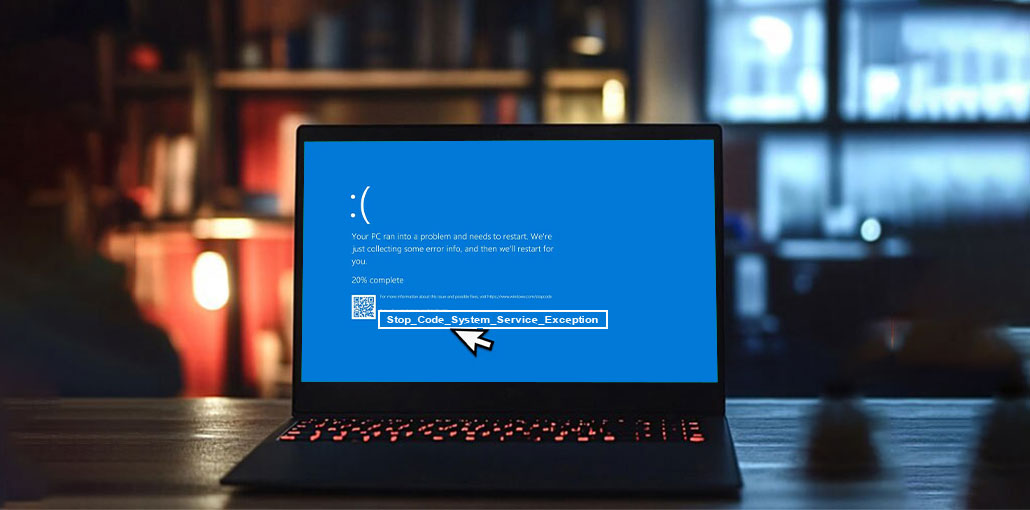
There are few things more annoying than having the Blue Screen of Death (BSOD) occur when you’re gaming, working, or browsing the internet. A very frequent BSOD problem users experience is the System Service Exception error.
In this article, we’ll look at one particular BSOD error, known as the System Service Exception. By discussing this error in depth, we will show possible causes and solutions to fix it.
What Is SYSTEM_SERVICE_EXCEPTION (0x0000003B)?
SYSTEM_SERVICE_EXCEPTION (0x0000003B) is a Windows Blue Screen of Death error that users frequently encounter while using the system. People have experienced BSOD errors on their systems for a long time, and the issue has become frustrating as it causes the system to restart in a loop, which can interfere with operation and efficiency.
Common Causes of the System Service Exception Error
Before applying fixes, it’s helpful to understand what triggers the problem.
- Corrupted or outdated drivers
- Damaged Windows system files
- Faulty RAM
- Corrupted hard drive sectors
- Incompatible software
- Antivirus conflicts
- Overclocking issues
- Windows update problems
- Malware infections
- GPU driver corruption
How to Fix System Service Exception Error in Windows 10/11
There are a variety of methods to resolve the stop code system service exception error, including a variety of scans and fixes listed below:
1. Update Windows
To determine the cause or fix the issue, make sure you check whether a Windows update is needed. Unexpected errors may be caused by an outdated system. An efficient or quick method for determining the cause is checking for any pending updates. Follow the steps below to find out if you have any pending updates
Also read: How to Fix Windows Update Errors in Windows 10
2. Update Drivers
Drivers are important software that plays a crucial role in making all the components in your hardware function effectively and smoothly. If drivers are updated, your system will function smoothly. Also, ensure your drivers are up to date so you do not experience any glitches or issues while working.
Steps:
- Press Windows + X.
- Select Device Manager.
- Expand a hardware category.
- Right-click the device.
- Select Update Driver.
- Click Search automatically for drivers.
- Install available updates.
- Restart your PC.
3. Run SFC
Windows gives its users a System File Scan feature. It scans your system for errors and fixes them if they’re found. This procedure can be useful while troubleshooting errors and fixing system_service_exception.
Steps:
- Type Command Prompt in Windows Search.
- Right-click it and select Run as administrator.
- Enter the following command:
sfc /scannow - Wait for the scan to complete.
- Restart your computer.
4. Run DISM
DISM is a built-in Windows tool that repairs corrupted system files and Windows components. This feature can check the disk’s space, disk utilization, and other processes.
Steps:
- Open Command Prompt as Administrator.
- Type:
DISM /Online /Cleanup-Image /RestoreHealth - Wait for the process to finish.
- Restart your PC.
- Open Command Prompt as Administrator again.
- Run the SFC scan:
sfc /scannow - Restart your computer after the scan finishes.
5. Check Your Hard Drive
Memory corruption can be one of the reasons for the numerous errors that occur when operating your system. So, it’s essential to check that your HDD is in great working order both physically and technically. Also, make sure to check for malware or malicious files within the system.
Steps:
- Open Command Prompt as Administrator.
- Type:
chkdsk C: /f /r - Press Enter.
- If Windows says the drive is currently in use and asks whether you want to schedule the scan for the next restart, type Y and press Enter.
- Restart your computer.
Windows will scan and repair drive errors during startup.
6. Run Windows Memory Diagnostic
Windows Memory Diagnostic Tool is free memory test software that allows you to scan memory and find corrupted data on the system and fix system_service_exception.
Steps:
- Press Windows + R.
- Type:
mdsched.exe - Press Enter.
- Select Restart now and check for problems.
- Wait for Windows to complete the memory test.
7. Temporarily Disable Antivirus Software
Antivirus software performs various scans and checks in the background. These can cause issues in your system. So, it is essential to disable or uninstall the antivirus on your system to fix this issue.
8. Run a Full Malware Scan
A virus or malware can disrupt the normal functioning of the computer. This is why you should run an antivirus scan to identify malware or infected files on your system and then remove them to ensure your system runs smoothly and efficiently. It is possible to run a complete system scan to ensure the system remains secure and free of infected and unwanted files.
Steps:
- Open Windows Security.
- Click Virus & Threat Protection.
- Select Scan Options.
- Choose Full Scan.
- Click Scan Now.
- Remove detected threats.
- Restart your PC.
9. Uninstall Recently Installed Software
If the error started after installing a new application, that software may be incompatible with your system.
Steps:
- Open Control Panel.
- Select Programs and Features.
- Click Installed On to sort by date.
- Locate recently installed software.
- Click Uninstall.
- Restart your computer.
10. Update BIOS
BIOS (basic input/output system) is crucial software that allows the system’s microprocessor to start the computer after it is powered on. It also regulates the flow of data through the operating system and any connected devices.
Steps:
- Press Windows + R.
- Type:
msinfo32 - Check your BIOS version.
- Visit your motherboard or laptop manufacturer’s website.
- Download the latest BIOS update.
- Follow the manufacturer’s installation instructions carefully.
Also read: 6 Easy Ways to Fix BIOS ID Check Error During a BIOS Update
11. Perform a Clean Boot
A clean boot helps identify software conflicts that may trigger the System Service Exception Error.
Steps:
- Press Windows + R.
- Type:
msconfig - Press Enter.
- Open the Services tab.
- Check Hide all Microsoft services.
- Click Disable all.
- Open Task Manager.
- Disable startup applications.
- Restart your PC.
12. Reset Windows
There is a high chance the error could have occurred due to recent changes to the system’s settings. Thus, by resetting the system to its default settings, you can reverse the modifications made and restore it to its default settings.
Steps:
- Open Settings.
- Navigate to System > Recovery.
- Click Reset this PC.
- Choose Keep my files or Remove everything.
- Follow the on-screen instructions.
NOTE: Remember to back up your data before resetting the computer.
How to Prevent the System Service Exception Error
To reduce the chances of future crashes:
- Keep Windows updated
- Install drivers from official sources
- Avoid unstable overclocking
- Scan for malware regularly
- Create restore points before major changes
- Monitor hardware health
- Uninstall unnecessary software
These habits can significantly improve system stability.
Conclusion
In this article, we’ve looked at how to fix the Windows 10 system service exception error and methods to resolve it. The steps we’ve described in this article will assist you with the troubleshooting process any time a system service exception BSOD occurs on your system.
Most of the time, avoid the error by keeping your system updated unless there are more severe hardware problems.
FAQs: System Service Exception
Why does System Service Exception Error happen?
The System Service Exception Error can occur due to corrupted drivers, damaged system files, faulty RAM, disk errors, software conflicts, malware infections, outdated Windows updates, or hardware compatibility issues. Identifying the root cause is essential for applying the correct fix.
Can faulty RAM cause System Service Exception Error?
Yes. Faulty or failing RAM is one of the most common causes of the System Service Exception Error. Damaged memory modules can corrupt data being processed by Windows, resulting in frequent BSOD crashes. Running the Windows Memory Diagnostic tool can help detect memory-related issues.
Is System Service Exception Error a hardware problem?
System Service Exception can be caused by either software or hardware problems. Common causes include faulty drivers, corrupted Windows files, RAM problems, disk errors, incompatible software, and sometimes failing hardware.
How do I stop System Service Exception BSOD?
To stop the System Service Exception BSOD, update Windows and all device drivers, repair corrupted system files using SFC and DISM, check your hard drive with CHKDSK, test your RAM, remove conflicting software, and perform a malware scan. These steps resolve most BSOD-related issues.









Leave a comment