

Key Takeaways:
YouTube is available as a free channel on Roku – add it from Roku Channel Store before activating
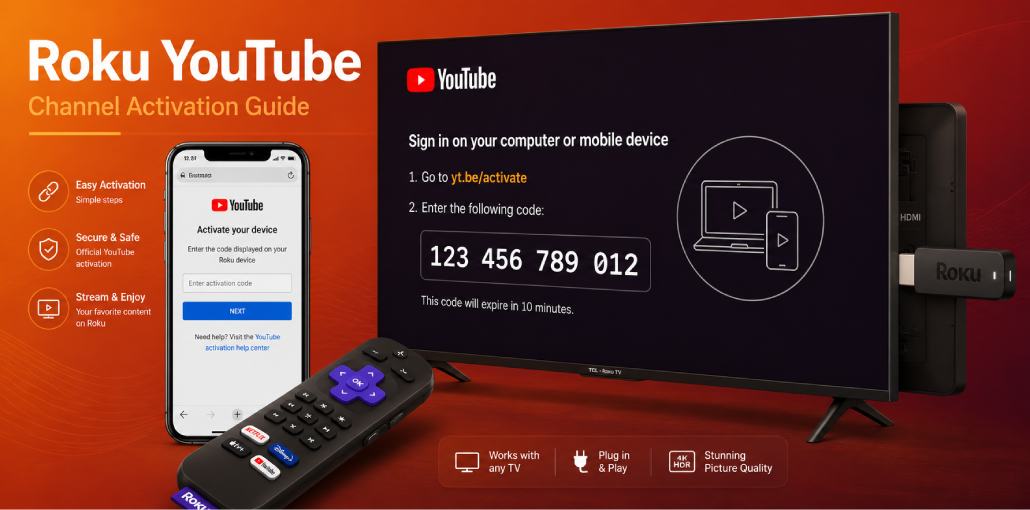
Open YouTube channel > Sign In > Link with TV Code > get 12-digit code > visit yt.be/activate > enter code > done in 60 seconds
Works on all Roku devices – Express, Streaming Stick, Ultra, Roku TV, and Smart Soundbar
I have set up YouTube on 4 different Roku devices – Express, Streaming Stick 4K, Ultra, and a Roku TV. The process is identical across all of them, but Roku’s channel-based system has a few quirks that differ from Fire TV, Xbox, or Smart TVs.
On Roku, YouTube is not an app. It is a channel. You add it from the Roku Channel Store. Once added, activation at yt.be/activate takes under 60 seconds.
Complete process:
- Go to Roku Channel Store > search YouTube > Add Channel
- Open YouTube channel
- Press Sign In > select Link with TV Code
- Note the 12-digit code on screen
- Visit yt.be/activate on your phone
- Sign into Google > enter code > done
Important: Roku has both YouTube and YouTube TV as separate channels. YouTube is free. YouTube TV is a paid live TV service. Make sure you add the right one.
Before You Start: Roku YouTube Activation Checklist
- Roku device powered on and connected to Wi-Fi
- Roku home screen accessible
- YouTube channel added from Channel Store (not YouTube TV)
- Phone or PC nearby with browser open
- Google account credentials available
- Roku remote with working buttons
Roku note: Roku devices need a Roku account before adding channels. If not set up: go to roku.com/link on phone – takes about 2 minutes.
The Short Answer:
Go to Roku Channel Store, search YouTube, add it free. Open YouTube channel, press Sign In, select Link with TV Code, note 12-digit code, visit yt.be/activate on phone, sign into Google, enter code. Done in 60 seconds. Add YouTube – not YouTube TV which is separate and paid.
How Do You Add YouTube Channel on Roku?
Method 1 – From Roku Home Screen (Easiest):
- Scroll to Streaming Channels in left menu
- Select Search Channels
- Type YouTube using on-screen keyboard
- Select YouTube – make sure it shows Free not Subscription
- Click Add Channel
- Wait 10-15 seconds for install
- Select Go to Channel
Method 2 – From Roku Website:
Go to channelstore.roku.com on phone or PC, sign into Roku account, search YouTube, click Add Channel. Installs on Roku automatically within 1 minute.
You will know it worked when: YouTube appears in your Roku channel list on home screen.
Roku tip: If you see YouTube and YouTube TV in results – always choose YouTube (first result). YouTube TV is separate paid live TV. Double-check before adding.
How Do You Activate YouTube on Roku Using yt.be/activate?
I have done this on Roku Express, Streaming Stick 4K, Ultra, and Roku TV – identical process each time.
- Open YouTube channel from Roku home screen
- Scroll left or press Back to open sidebar
- Select Sign In from sidebar menu
- Choose Link with TV Code
- Roku displays 12-digit code – keep screen open
- On phone or PC go to yt.be/activate
- Sign into Google account
- Enter 12-digit code – no spaces
- Click Continue
You will know it worked when: YouTube home screen shows subscriptions and profile picture top-right corner.
Roku remote tip: Newer Roku remotes have a purple YouTube button. Press it to open YouTube directly – skips channel navigation entirely.
YouTube vs YouTube TV on Roku – What is the Difference?
| Feature | YouTube (Free) | YouTube TV (Paid) |
| Cost | Free | $72.99/month |
| Activation URL | yt.be/activate | tv.youtube.com/start |
| Content | Videos, channels | Live TV, sports |
| Availability | Worldwide | USA only |
Did you know? Roku was the first major streaming platform to carry YouTube TV in 2017. Both YouTube and YouTube TV remain available on all Roku devices in 2026.
How Do You Activate YouTube on Different Roku Devices?
Roku Express and Express 4K+: Entry-level streamers. Basic remote – no shortcut buttons. Navigate to YouTube manually. In my testing, activation on Roku Express completed in about 45 seconds.
Roku Streaming Stick 4K and 4K+: Best-selling stick. 4K HDR YouTube supported. Newer 4K+ remote has dedicated purple YouTube button – press to open YouTube directly.
Roku Ultra: Flagship device. Fastest YouTube load – under 2 seconds. Ethernet port available for wired connection – more reliable for 4K YouTube streaming.
Roku TV (built-in): Roku built into TCL, Hisense, Sharp TVs. Same activation process. If YouTube not in Channel Store: Settings > System > System Update first.
Roku Smart Soundbar: Full Roku OS built-in. Identical activation. Great for bedroom YouTube setup.
Can You Use YouTube Premium on Roku?
Yes – works automatically after activation. Benefits: no ads, background audio, YouTube Music, 4K content.
Important: Buy Premium at youtube.com/premium on phone first. Cannot purchase through Roku.
Did you know? Roku Ultra supports Dolby Audio for YouTube. After activation go to YouTube Settings > Playback Quality > highest available.
Common Roku YouTube Problems Users Face
Problem 1: YouTube channel not appearing in Roku Channel Store
What you see: Search YouTube in Channel Store but does not appear in results.
Why: Outdated Roku software or region setting mismatch.
Fix: Settings > System > System Update > Check Now. After updating check Channel Store again.
Confirm: YouTube appears in Channel Store search showing Free.
Problem 2: YouTube on Roku keeps buffering or drops to low quality
Why: Weak Wi-Fi signal or Roku network prioritization issue.
Fix: Move Roku closer to router. For Roku Ultra use ethernet port for wired connection. Check: Settings > Network > Check Connection.
Problem 3: Trouble activating your device error at yt.be/activate
Why: YouTube channel lost connection to Google activation servers after update.
Fix: Home > YouTube > Star button > Remove Channel. Restart Roku (Settings > System > System Restart). Re-add YouTube. Activate fresh.
Problem 4: YouTube sign-in does not save – asks every time
Why: Roku channel data does not persist after standby – common on older Roku devices.
Fix: Settings > System > Power > Auto Power Savings > change Turn off after to longer period. Do not fully unplug Roku between uses.
yt.be/activate Roku Not Working? 6 Fixes
Fix 1: Code Expired – Codes expire in 10 minutes. Open YouTube on Roku > Sign In > Link with TV Code for fresh code. Go straight to yt.be/activate.
Fix 2: Wrong Google Account – Check top-right of yt.be/activate. Switch to correct account first.
Fix 3: Roku Not Connected – Settings > Network > Check Connection. Restart router and reconnect if needed.
Fix 4: YouTube Channel Needs Update – Home > YouTube > Star button > Check for Updates. Install and retry activation.
Fix 5: Remove and Re-add Channel – Home > YouTube > Star > Remove Channel > restart Roku > re-add from Channel Store > activate fresh.
Fix 6: System Restart – Settings > System > System Restart. Open YouTube and try activation again.
FAQs:
Can I add YouTube to Roku for free?
Yes. YouTube is a free channel on Roku. Go to Channel Store, search YouTube, add at no cost.
Why are YouTube and YouTube TV separate channels on Roku?
They are completely different products. YouTube is free video platform. YouTube TV is paid live TV service at $72.99/month. Both made by Google but separate apps.
Can I use yt.be/activate on Roku without a smartphone?
Yes. Any browser device works - laptop, tablet, PC. Go to yt.be/activate and enter the code.
Does activation require a Roku account?
Roku account needed to add channels. But YouTube activation only requires Google account at yt.be/activate. Roku and Google accounts are separate.
Can I link multiple Roku devices to one YouTube account?
Yes. Each Roku generates unique code. Multiple devices link to one Google account simultaneously.
What happens if I remove YouTube channel from Roku?
Removing signs you out automatically. Re-add and activate again via yt.be/activate. Account data in Google cloud - nothing lost permanently.
Does YouTube 4K work on Roku after activation?
Yes on compatible Roku devices like Streaming Stick 4K and Ultra. Go to YouTube Settings > Quality > 4K. YouTube Premium required for most 4K content.
Related article: yt.be/activate: How to Activate YouTube on Android TV & Smart Devices
YouTube Fire TV Stick Setup: Activate Using yt.be/activate
Roku YouTube Activate: Add & Sign In via yt.be/activate
PlayStation YouTube Activate: PS3, PS4 & PS5 via yt.be/activate
LG Smart TV YouTube Setup: Activate via yt.be/activate
Apple TV YouTube Sign In: Activate via yt.be/activate
Sony Smart TV YouTube Setup: Activate via yt.be/activate






Leave a comment