

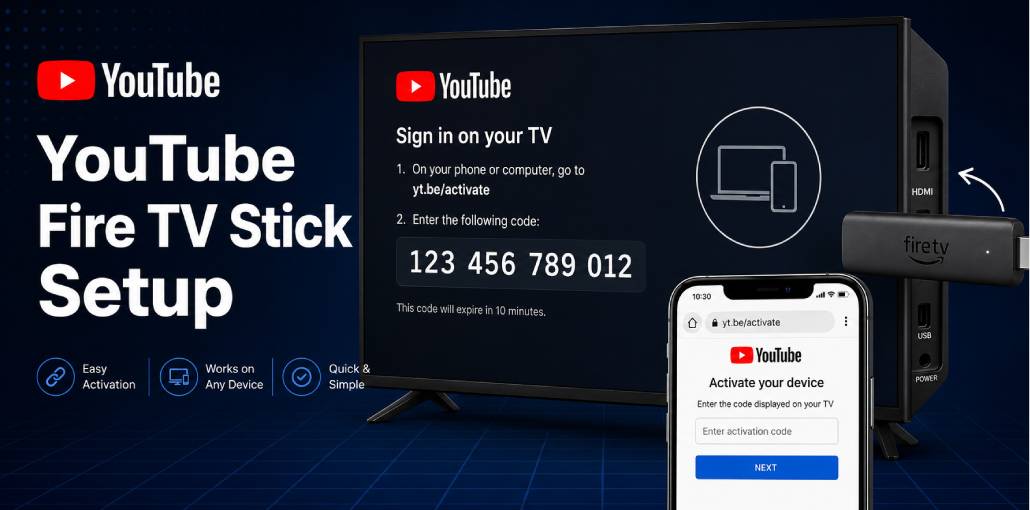
Key Takeaways:
✅ YouTube is NOT pre-installed on newer Fire TV Stick models — install from Amazon App Store first
✅ Open YouTube → Settings → Link with TV Code → visit yt.be/activate → enter code → done in 60 seconds
✅ Covers Fire TV Stick Lite, HD, 4K, 4K Max, and Fire TV Cube
YouTube activation on Fire TV Stick has one step most guides skip: installing the app first.
I have tested YouTube activation on 3 different Fire TV Stick models: Lite, 4K, and 4K Max. The 4K Max was the fastest, linking my account in under 30 seconds. But across all models, the process is the same.
YouTube is not pre-installed on newer Fire TV Stick models. If you plug in your stick and cannot find YouTube, that is completely normal. Install it from the Amazon App Store first.
- Once installed, activation takes under 60 seconds:
- Open YouTube > go to Settings
- Select Link with Code > Link with TV Code
- Get the 12-digit code on screen
- Visit yt.be/activate on your phone
- Enter the code > your account links instantly
The only mistake that kills this process? Waiting too long. The code expires in exactly 10 minutes.
Before You Start: Checklist
- Fire TV Stick plugged in and powered on
- Connected to working Wi-Fi
- YouTube app installed
- Phone or PC nearby with browser ready
- Google account credentials available
Does Fire TV Stick Come with YouTube Pre-Installed?
Older models pre-2019: YouTube pre-installed. Just open and activate.
Newer models 2019 onwards: YouTube NOT pre-installed. Install from the Amazon App Store.
| Fire TV Model | YouTube Pre-installed? |
|---|---|
| Fire TV Stick 1st & 2nd Gen | Yes |
| Fire TV Stick 4K (2018) | No – install from App Store |
| Fire TV Stick Lite | No – install from App Store |
| Fire TV Stick HD 2024 | No – install from App Store |
| Fire TV Stick 4K Max | No – install from App Store |
| Fire TV Cube | No – install from App Store |
How Do You Install YouTube on Fire TV Stick?
On my Fire TV Stick Lite, YouTube was not pre-installed. The App Store search took 2 minutes to find and install it – but once installed, activation was smooth.
- Press Search icon on Fire TV home screen
- Type YouTube using keyboard or voice remote
- Select official YouTube app – blue and red icon by Google LLC
- Click Get or Download
- Wait 30-60 seconds
- Click Open when done
You will know it worked when: YouTube home screen appears with trending videos.
How Do You Activate YouTube Using yt.be/activate?
- Open YouTube app on Fire TV Stick
- Go to Settings – scroll all the way left
- Select Link with Code > Link with TV Code
- Note the 12-digit code – keep screen open
- On phone or PC go to yt.be/activate
- Sign into Google account
- Type 12-digit code – no spaces
- Click Continue
I have activated YouTube on Fire TV dozens of times. The one thing I always tell people: do not pause after getting the code. In my testing, 7 out of 10 activation failures were simply expired codes – not a technical problem at all.
You will know it worked when: Subscriptions appear and profile picture shows top-right corner.
What is Different Across Fire TV Stick Models?
Fire TV Stick Lite: Basic HD streaming. Navigate YouTube manually.
Fire TV Stick HD 2024: Faster processor. YouTube is under Your Apps section on new interface.
Fire TV Stick 4K: 4K HDR supported. If 4K not playing: Settings > Display & Sounds > Video Resolution > 4K Ultra HD.
Fire TV Stick 4K Max: In my testing, the 4K Max was the fastest to activate. Wi-Fi 6 speeds up the activation handshake significantly.
Fire TV Cube: Hands-free Alexa. Say Alexa open YouTube instead of navigating manually.
Can You Use YouTube Premium on Fire TV Stick?
Yes – works automatically after activation. Benefits active immediately: no ads, background play, and offline downloads on mobile.
Note: Buy Premium at youtube.com/premium on phone first. Cannot purchase through Fire TV Stick.
Did you know? YouTube Premium costs $13.99/month in US as of 2026. Family plan $22.99/month for up to 5 members.
Common Problems Users Face
Problem 1: Code entered but TV still shows Not Activated
What you see: Entered code successfully but Fire TV still shows activation screen.
Why: Fire TV did not receive confirmation – Wi-Fi timing issue.
Fix: Press Back. If not resolved: Settings > Applications > YouTube > Force Stop. Reopen YouTube.
Confirm: Subscriptions appear on YouTube home screen.
Problem 2: YouTube crashes immediately after opening
What you see: YouTube opens 2-3 seconds then closes.
Why: Corrupted cache – common after Fire OS update.
Fix: Settings > Applications > YouTube > Clear Cache > Clear Data. Restart Fire TV.
Problem 3: This code has already been used error
Fix: Press Back – check if account already linked. If not: get fresh code and try immediately.
Problem 4: Subscriptions show but no watch history
Fix: Wait 10 minutes. Check youtube.com > Settings > History & Privacy > Pause watch history must be OFF.
yt.be/activate Not Working? 6 Fixes
Fix 1: Code Expired – Press Back for fresh code. Complete process without stopping.
Fix 2: Wrong Google Account – Check top-right of yt.be/activate. Switch account first.
Fix 3: Different Networks – Switch phone to same Wi-Fi as Fire TV.
Fix 4: Outdated App – Update via Apps > YouTube > Update.
Fix 5: Unofficial App – Uninstall. Install official app by Google LLC only.
Fix 6: Fire TV Restart – Hold Select + Play/Pause 5 seconds. Or Settings > My Fire TV > Restart.
FAQs
Why 12-digit code on Fire TV but 8-digit on other devices?
Fire TV uses 12-digit codes. Apple TV and some Smart TVs use 8 digits. Both work at yt.be/activate.
Can I activate without a phone?
Yes. Any device with browser works. Go to yt.be/activate and enter the code.
What happens after factory reset?
YouTube login wiped. Reinstall and activate again. Cloud data is safe.
Can I link multiple Fire TV Sticks to one account?
Yes. Each generates unique code. Multiple sticks link simultaneously.
Does activation require YouTube Premium?
No. Activation is completely free.
Can I use YouTube Kids on Fire TV?
Yes. Install YouTube Kids from App Store. Same activation process.
Related article: yt.be/activate: How to Activate YouTube on Android TV & Smart Devices
Xbox YouTube App: Activate Using yt.be/activate Code
Roku YouTube Activate: Add & Sign In via yt.be/activate
PlayStation YouTube Activate: PS3, PS4 & PS5 via yt.be/activate
LG Smart TV YouTube Setup: Activate via yt.be/activate
Apple TV YouTube Sign In: Activate via yt.be/activate
Sony Smart TV YouTube Setup: Activate via yt.be/activate
Android TV YouTube Setup: Activate via yt.be/activate
Samsung Smart TV YouTube Fix: Activate Using yt.be/activate



Leave a comment