

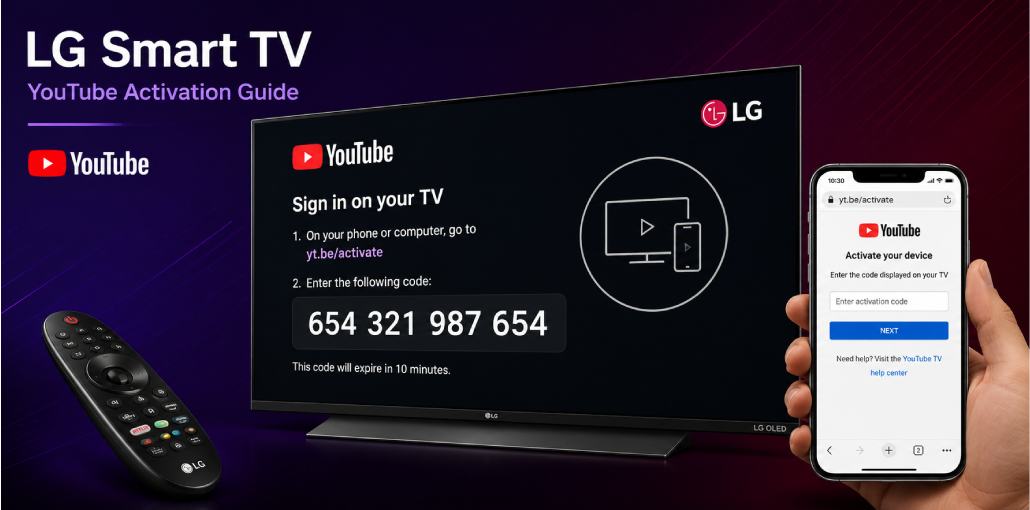
Key Takeaways:
YouTube comes pre-installed on all LG Smart TVs running WebOS – no separate installation needed
Open YouTube > profile icon > Sign In > Link with TV Code > visit yt.be/activate > enter code > done in 60 seconds
Works on all LG WebOS TVs including OLED, QNED, NanoCell, and UHD series from 2016 onwards
LG Smart TVs run WebOS – and WebOS has one quirk that catches almost everyone off guard when activating YouTube.
I have set up YouTube on several LG TVs – from a 2019 NanoCell to a 2024 LG OLED C4. The activation process works the same across all of them, but LG’s WebOS menu structure is different from Samsung’s Tizen or Android TV. If you know where to look, it takes under 60 seconds.
Here’s the complete process:
- Open YouTube on your LG Smart TV
- Click the profile icon > select Sign In
- Choose Link with TV Code
- Note the code shown on screen
- Visit yt.be/activate on your phone or PC
- Sign into Google > enter the code > done
One thing most guides miss – on older LG WebOS TVs (2016-2018), Sign In is under Settings, not the profile icon. Both paths covered below.
Before You Start: LG TV YouTube Activation Checklist
- LG Smart TV powered on and connected to Wi-Fi
- YouTube app visible on LG home screen
- Phone or PC nearby with browser open
- Google account credentials available
- Magic Remote or standard remote – both work
LG-specific note: LG TVs before 2016 may run NetCast OS. This guide covers WebOS only. Check Settings > Support > TV Information to verify.
The Short Answer:
Open YouTube on LG TV, click profile icon top-right, select Sign In > Link with TV Code. Note the code, visit yt.be/activate on phone, sign into Google, enter code. Done in 60 seconds. On older WebOS 3.x TVs, find Sign In under Settings gear icon instead.
Does LG Smart TV Come with YouTube Pre-Installed?
Yes – YouTube comes pre-installed on all LG Smart TVs running WebOS. No installation needed.
Did you know? LG has used WebOS since 2014. LG acquired WebOS from HP in 2013 specifically for their Smart TV platform – making it one of the longest-running Smart TV OS still in use.
| LG TV Series | YouTube Pre-installed? | WebOS Version |
| 2024 OLED evo (G4/C4) | Yes | WebOS 24 |
| 2023 OLED C3/G3 | Yes | WebOS 23 |
| 2022 QNED/NanoCell | Yes | WebOS 22 |
| 2021 OLED C1/G1 | Yes | WebOS 6.0 |
| 2019-2020 models | Yes | WebOS 4.5-5.0 |
| 2016-2018 models | Yes | WebOS 3.0-3.5 |
| Pre-2016 models | NetCast OS – different process | N/A |
How Do You Activate YouTube on LG Smart TV Using yt.be/activate?
I have done this on multiple LG TVs. Here are the exact steps including the WebOS-specific path most guides skip:
For newer LG TVs (2019 onwards – WebOS 4.5+):
- Press Home button on LG remote
- Open YouTube app from home screen
- Click profile icon in top-right corner of YouTube
- Select Sign In
- Choose Link with TV Code
- LG TV displays activation code – keep screen open
- On phone or PC go to yt.be/activate
- Sign into Google account
- Enter code – no spaces
- Click Continue
For older LG TVs (2016-2018 – WebOS 3.x):
- Open YouTube on LG TV
- Press Settings icon (gear icon) from left sidebar
- Select Sign In from settings menu
- Choose Link with TV Code
- Note the code and go to yt.be/activate on phone
- Enter code and click Continue
You will know it worked when: Subscriptions appear and profile picture shows top-right.
LG Magic Remote tip: If pointer drifts inside YouTube, press the scroll wheel button directly instead of using the pointer.
Why Can’t I Find Sign In Option on LG TV YouTube?
Reason 1: On newer WebOS TVs, Sign In is inside profile icon top-right – not in main Settings menu.
Fix: Look for circular profile icon in YouTube top-right. Click it.
Reason 2: On older WebOS 3.x TVs, profile icon does not exist. Sign In is under gear/Settings in left sidebar.
Fix: Open YouTube > press left arrow > gear icon > Settings > Sign In.
Reason 3: LG TV already signed into different Google account.
Fix: Profile icon > Switch Account or Sign Out > sign in with correct account via yt.be/activate.
How Do You Activate YouTube on Different LG TV Models?
LG OLED evo C4/G4 2024: Fastest YouTube load – under 2 seconds. Profile icon clearly visible. Activation completes almost instantly after code entry.
LG OLED C3/G3 2023: Same process. Home screen layout changed slightly in WebOS 23 – YouTube app may be in different position. Check edit home screen if not visible.
LG QNED 2022-2023: Mid-to-high range. Same WebOS. Supports 4K YouTube after activation. In my testing, QNED activated in about 40 seconds total.
LG NanoCell 2019-2022: Sometimes shows Refresh Recommended popup when opening YouTube first time. Click Refresh then proceed with activation.
LG UHD Entry Level: Same WebOS. Less RAM means YouTube may take 3-5 seconds longer to load. Be patient – it will load.
Can You Use YouTube Premium on LG Smart TV?
Yes – works automatically after activation. Benefits: no ads, background audio, YouTube Music, 4K content unlocked.
Important: Buy Premium at youtube.com/premium on phone first. Cannot purchase through LG TV.
Did you know? LG WebOS 22 and newer support Dolby Vision and Dolby Atmos for YouTube on compatible LG TVs. Go to YouTube Settings > Playback Quality > enable highest available.
Common LG Smart TV YouTube Problems Users Face
Problem 1: Please check your network connection error – but Wi-Fi works fine
What you see: YouTube shows network error even though other LG apps work.
Why: LG YouTube app loses DNS settings independently from rest of TV – known WebOS quirk.
Fix: Settings > Network > Advanced Wi-Fi Settings > DNS Server > Manual > enter 8.8.8.8 > Connect. Reopen YouTube.
Confirm: YouTube home screen loads with trending videos.
Problem 2: Activation code accepted but YouTube still shows Sign In
What you see: yt.be/activate showed success but LG TV YouTube still shows Sign In screen.
Why: WebOS caches old login state – does not refresh automatically.
Fix: Press Home > wait 10 seconds > reopen YouTube. If still showing: hold Home 3 seconds > Close App > reopen YouTube.
Problem 3: LG Magic Remote pointer freezes inside YouTube
What you see: Magic Remote pointer stops working inside YouTube app.
Why: YouTube interface and Magic Remote pointer conflict – common after YouTube app update.
Fix: Press scroll wheel button once to re-center pointer. If still frozen: remove batteries 10 seconds, reinsert, press Home to re-pair.
Problem 4: YouTube plays in low quality on fast Wi-Fi
Why: LG YouTube app defaults to lower quality to save bandwidth.
Fix: While video plays: gear icon > Quality > select highest available. Permanent: YouTube Settings > Playback > Quality > Auto or Highest.
yt.be/activate LG Smart TV Not Working? 6 Fixes
Fix 1: Code Expired – Codes expire in 10 minutes. Back on LG TV to get fresh code. Go straight to yt.be/activate.
Fix 2: Magic Remote Not Responding – Use directional buttons instead of pointer inside YouTube.
Fix 3: Wrong Google Account – Check top-right of yt.be/activate. Switch to correct account first.
Fix 4: TV Not Connected – Settings > Network > Network Connection > run test. Restart router if needed.
Fix 5: YouTube App Needs Update – LG Content Store > My Apps > YouTube > Update. Force close and reopen.
Fix 6: Clear YouTube App Data – LG Content Store > My Apps > YouTube > Delete > reinstall from Content Store.
FAQs:
Difference between LG WebOS and Android TV for YouTube activation?
Both use yt.be/activate. On WebOS: Sign In is under profile icon top-right. On Android TV: it is in left sidebar under Settings.
Can I activate without a smartphone?
Yes. Any device with browser works. Go to yt.be/activate and enter the code.
Does activation require LG account?
No. Only Google account needed. LG ThinQ account is completely separate.
Can I link multiple LG TVs to one account?
Yes. Each LG TV generates unique code. Multiple TVs link simultaneously.
What happens after factory reset?
YouTube login removed. Activate again via yt.be/activate. Cloud data is safe.
Does YouTube 4K work on LG OLED after activation?
Yes. Supports 4K Dolby Vision. Go to YouTube Settings > Quality > 4K. YouTube Premium required for most 4K content.
Why different YouTube interface on LG TV vs phone?
LG YouTube app is optimized for TV viewing - left sidebar instead of bottom tab bar. All features same, just different layout.
Related article: yt.be/activate: How to Activate YouTube on Android TV & Smart Devices
YouTube Fire TV Stick Setup: Activate Using yt.be/activate
Roku YouTube Activate: Add & Sign In via yt.be/activate
PlayStation YouTube Activate: PS3, PS4 & PS5 via yt.be/activate
LG Smart TV YouTube Setup: Activate via yt.be/activate
Apple TV YouTube Sign In: Activate via yt.be/activate
Sony Smart TV YouTube Setup: Activate via yt.be/activate



Leave a comment