

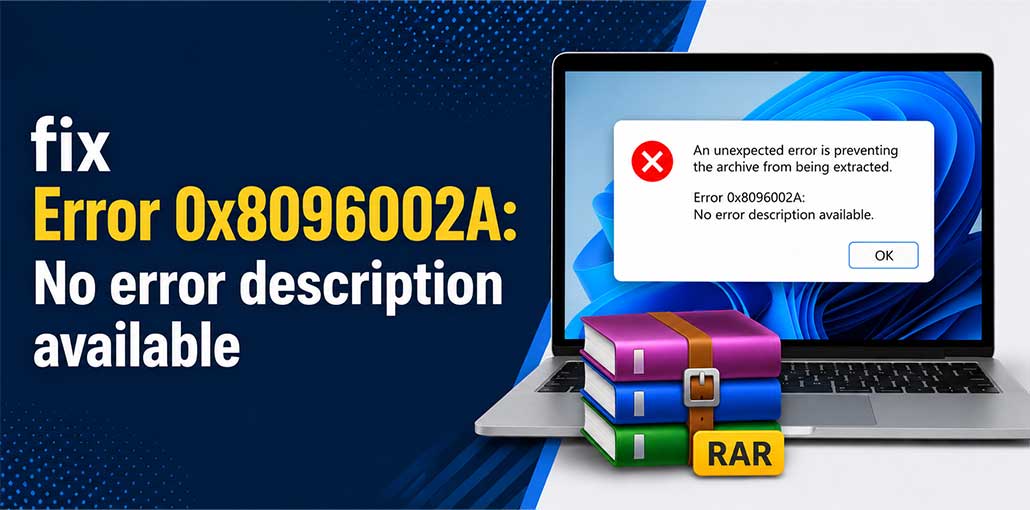
Error code 0x8096002A can be highly frustrating when extracting RAR files, with warning messages such as “An unexpected error has prevented this archive from extracting properly: Error 0x8096002A: No error description available”.
The error occurs due to corrupt files or system file issues; additionally, this error indicates that Windows cannot read the contents of an encrypted.rar file.
Below, we’ll look at efficient solutions to fix this extraction error on your Windows system.
What Is Error 0x8096002a?
Error 0x8096002a is a Windows extraction error that occurs when the operating system fails to open or extract the contents of a compressed archive such as a RAR or ZIP file.
Common causes of Error 0x8096002a include:
- Corrupted RAR or ZIP archives
- Damaged system files
- Encrypted archive files
- Unsupported compression methods
- Bad sectors on the storage drive
- File permission issues
- Problems with Windows File Explorer
- Outdated Windows versions
Windows may encounter difficulties extracting an archive entirely or display an error message; no error description is available.
Also read: Error 0x80010135: Path Too Long – Step-by-Step Troubleshooting Guide
How to Fix the Error 0x8096002a?
If you encounter error code 0x8096002a, fixing any issues with file integrity is essential to ensuring data integrity.
1. Use SFC and DISM Scans
To fix system file corruption, Windows provides two handy utilities – SFC and DISM – which you can utilize.
System File Checker (SFC) allows for an efficient way of scanning Windows for corrupt files and restoring them, while Deployment Image Servicing and Management (DISM) uses Windows Update to download any required fixes to repair damage caused by their operation.
Follow these steps:
- Open the Windows Search bar and type Command Prompt.
- Right-click Command Prompt and select Run as administrator.
- Enter the following command and press Enter:
sfc /scannow - Wait for the scan to complete.
- After the SFC scan finishes, run the following command:
DISM.exe /Online /Cleanup-Image /RestoreHealth - Allow DISM to complete the repair process.
- Restart your computer and try extracting the archive again.
2. Update Your Windows
Maintaining an up-to-date Windows operating system will help to fix error 0x8096002A. Microsoft often releases updates to fix bugs and improve compatibility between software packages.
- Open Settings.
- Navigate to Windows Update.
- Click Check for updates.
- Download and install all available updates.
- Restart your PC after installation is complete.
Updating Windows resolves many extraction-related issues automatically.
3. Install the Latest Windows Insider Preview Build
You should consider installing the Windows Insider Program, which is Microsoft’s test platform for new Windows releases and features before their official launch.
If you encounter the error code 0x8096002A related to Windows Update, switching to an Insider version could solve the issue.
- Open Settings.
- Select Windows Update.
- Click Windows Insider Program.
- Select Get Started and follow the setup instructions.
4. Use a Third-Party Archive Extraction Tool
Windows File Explorer may not support all compression methods used in modern archive files.
If you are having difficulties extracting an encrypted or highly compressed RAR archive, using an extraction tool often provides immediate resolution.
Popular archive tools include:
- 7-Zip
- WinRAR
- WinZip
- PeaZip
Use an application similar to the one used when creating the archive file; this is especially helpful when dealing with encrypted archives or damaged RAR headers.
5. Run CHKDSK to Scan for Disk Errors
Another possible reason could be that there’s an errant sector on your drive where the affected file resides; the CHKDSK utility can identify these problematic spots and recover files from them.
Use caution when employing the CHKDSK command’s /x parameter, as it erases everything on a drive – this could potentially result in data loss if an OS application or other program relies on that drive for storage purposes.
It’s therefore recommended to use this feature when the system isn’t currently accessing the drive.
To run CHKDSK:
- Open Command Prompt as Administrator.
- Enter the following command:
chkdsk C: /f /r - Replace C: with the drive letter where the archive file is stored.
- Press Enter and follow the on-screen instructions.
Also read: Fix DiskPart Virtual Disk Service Error: 5 Reliable Solutions for Windows
Additional Fixes for Error 0x8096002a
If the error still occurs, try the following:
- Download the archive file again in case the original download was incomplete.
- Move the archive to a shorter file path, such as C:\Temp.
- Verify that you have permission to access the file.
- Disable antivirus software temporarily and test extraction again.
- Ensure enough free disk space is available for extraction.
How to Prevent Error 0x8096002a
You can reduce the chances of seeing this error again by:
- Keeping Windows updated
- Avoiding extremely long folder names
- Downloading files from trusted sources
- Using reliable archive software
- Regularly checking your drive for errors
Bottom Line:
After reading this article about the error code 0x8096002A, you can find a suitable solution. I hope this article will be helpful to you.
FAQs: Error 0x8096002A
Can a corrupted RAR file cause Error 0x8096002a?
Yes. Damaged or incomplete archive files are one of the most common causes of this error.
Is WinRAR better than Windows File Explorer for RAR files?
Yes. WinRAR and other archive managers support more compression methods and recovery options than the built-in Windows extraction tool.
Can long file paths trigger Error 0x8096002a?
Yes. If the folder structure is too long, Windows may fail to extract the archive properly.
Does 7-Zip fix Error 0x8096002a?
In many cases, yes. Third-party extraction tools support more archive formats than Windows File Explorer.






Leave a comment