

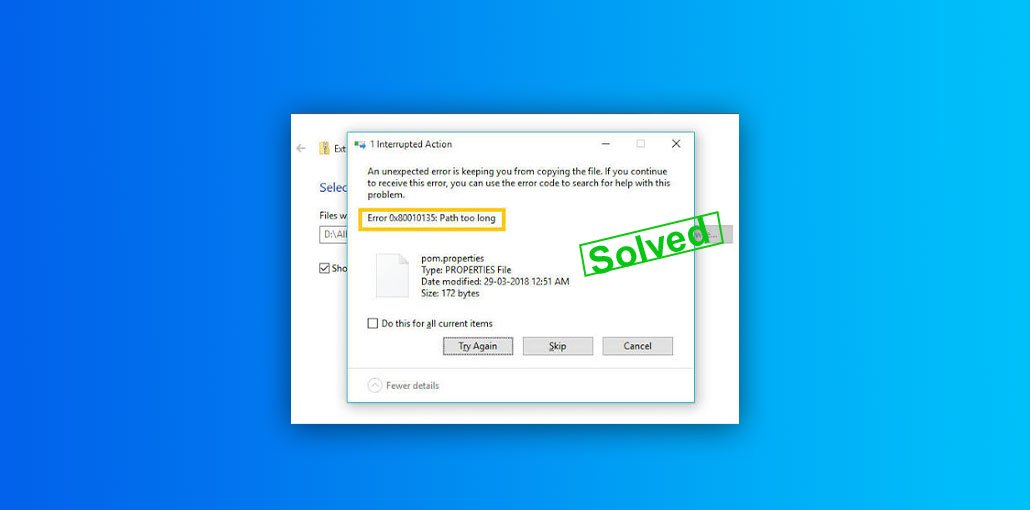
Last week, I was extracting a ZIP file on my Windows PC when an unexpected error stopped the process halfway through. The message on the screen was “Error 0x80010135: Path Too Long.”
This frustrating Windows error appears when the file path exceeds the maximum length that Windows can handle. While the issue may seem complicated at first, the good news is that there are several simple ways to fix it.
In this guide, we’ll explain what Error 0x80010135 means, why it happens, and the most effective solutions to resolve it.
What Causes Error 0x80010135: Path Too Long?
Before trying any fixes, it’s helpful to understand what’s causing the error. In most cases, Error 0x80010135 appears when Windows cannot process a file because the file path is longer than the system or application supports. However, there are a few other situations that can also trigger the ZIP extraction error 0x80010135.
- File path exceeds the Windows character limit.
- Too many nested folders inside a directory.
- Long file or folder names.
- ZIP archives contain complex folder structures.
- Long path support is disabled in Windows.
- Windows File Explorer cannot handle the archive properly.
- Corrupted or improperly created ZIP files (less common).
- File system or software-related issues (rare).
These are the most common causes behind the Error 0x80010135: Path Too Long message.
Also read: Top 15 Websites to Transfer Large Files
How to Fix Error 0x80010135: Path Too Long
Here are the most effective methods to solve the error Path Too Long.
1. Move the File Closer to the Root Directory
Before trying any advanced fixes, move the ZIP file to a location closer to the root directory, such as C:\Temp. Deep folder structures often cause Windows to exceed its path length limit. By shortening the starting location, you reduce the total file path and give Windows a better chance of processing the files without errors.
Steps:
- Locate the ZIP file that is showing the error.
- Right-click the file and select Cut.
- Open the C: drive.
- Create a new folder called Temp.
- Paste the ZIP file into the Temp folder.
- Right-click the ZIP file and select Extract All.
- Check whether the extraction completes successfully.
2. Rename Folders and Files
Long file names and deeply nested folders can quickly push a path beyond Windows’ limit. Take a few minutes to rename folders using shorter, simpler names. Even small changes can make a big difference. Once you’ve reduced the path length, try the operation again and see if the error disappears.
Steps:
- Open the folder containing the problematic files.
- Identify folders with very long names.
- Right-click the folder and select Rename.
- Replace lengthy names with shorter versions.
- Repeat the process for nested folders if necessary.
- Try copying, moving, or extracting the files again.
3. Enable Long Paths in Windows
Modern versions of Windows support longer file paths, but this feature isn’t always enabled by default. Activating the “Enable Win32 Long Paths” setting allows Windows and compatible applications to work with larger directory structures. This is a useful long-term solution if you regularly work with archives or project files.
Steps:
- Press Windows + R.
- Type gpedit.msc and press Enter.
- Navigate to:
Computer Configuration > Administrative Templates > System > Filesystem
- Double-click Enable Win32 Long Paths.
- Select Enabled.
- Click Apply.
- Click OK.
- Restart your computer.
After the restart, test the file operation again.
4. Enable Long Paths Through Registry Editor
If your version of Windows doesn’t include the Group Policy Editor, you can achieve the same result through the Registry. Updating the LongPathsEnabled value tells Windows to allow extended file paths. Although it requires a system restart, this method can permanently reduce the chances of seeing the error again.
Steps:
- Press Windows + R.
Type regedit and press Enter. - Navigate to:
HKEY_LOCAL_MACHINE\SYSTEM\CurrentControlSet\Control\FileSystem
- Locate LongPathsEnabled.
- Double-click the entry.
- Change the value from 0 to 1.
- Click OK.
- Close Registry Editor.
- Restart your computer.
This enables long path support for compatible applications.
5. Use an Alternative ZIP File Extraction Tool
In my experience, switching to a third-party tool is often worth trying before making system-level changes. Programs like 7-Zip and WinRAR support a wider range of archive formats and can sometimes extract files that Windows Explorer fails to process. If the error appears only during extraction, using one of these tools may help you access the files without any issues.
Steps:
- Download and install 7-Zip or WinRAR.
- Locate the ZIP file that is causing the error.
- Right-click the archive.
- Select Extract Here or Extract to Folder.
- Wait for the extraction process to complete.
- Check whether the files are extracted successfully.
Many users find this method works when Windows Explorer fails.
Also read: Error Opening File for Writing in Windows 10? Quick Solutions Guide
6. Use Command Prompt
For users comfortable with command-line tools, utilities such as Robocopy can handle long file paths better than File Explorer. These tools are especially useful when moving large folders or backup files. While this method is slightly more advanced, it’s often successful when other approaches fail.
Steps:
- Press the Windows key.
- Search for Command Prompt.
- Right-click Command Prompt.
- Select Run as Administrator.
- Enter the following command:
robocopy “C:\SourceFolder” “D:\DestinationFolder” /E - Press Enter.
- Wait for the process to complete.
- Verify that all files were copied successfully.
This method is especially useful for large folders containing many subdirectories.
How to Prevent Error 0x80010135 in the Future
Preventing the issue is easier than fixing it later.
Follow these best practices:
- Keep folder structures simple.
- Avoid excessively long file names.
- Store project files closer to the drive root.
- Enable long path support on Windows.
- Use archive tools that support extended paths.
- Regularly organize and clean up nested directories.
Bottom Line
Seeing Error 0x80010135: file path too long can really mess up transferring files, unzipping stuff, or organizing folders. But don’t worry, it’s usually a quick fix! You can make the file paths shorter, move your files closer to the main folder, turn on long path support, or use programs like 7-Zip to help out.
If this keeps happening, try tidying up your folder structure and make sure Windows is enabled to handle long paths. With these tricks, you can get rid of Error 0x80010135 and keep working without any file path restrictions.
FAQs About Error 0x80010135: Path Too Long
Why do I get Error 0x80010135 while extracting ZIP files?
The error usually appears because the ZIP archive contains long file names or multiple nested folders, causing the total file path to exceed Windows' character limit during extraction.
Is Error 0x80010135 caused by a virus?
No. In most cases, Error 0x80010135 is not related to malware or viruses. It is typically caused by file path length limitations, folder structure issues, or archive extraction problems.
What is the maximum file path length in Windows?
Traditionally, Windows has a path length limit of 260 characters. However, newer versions of Windows allow longer paths when the Win32 Long Paths feature is enabled.
What is the fastest way to fix Error 0x80010135?
The quickest solution is usually moving the ZIP file to a simple location such as C:Temp and trying the extraction again. This reduces the overall path length immediately.









Leave a comment