

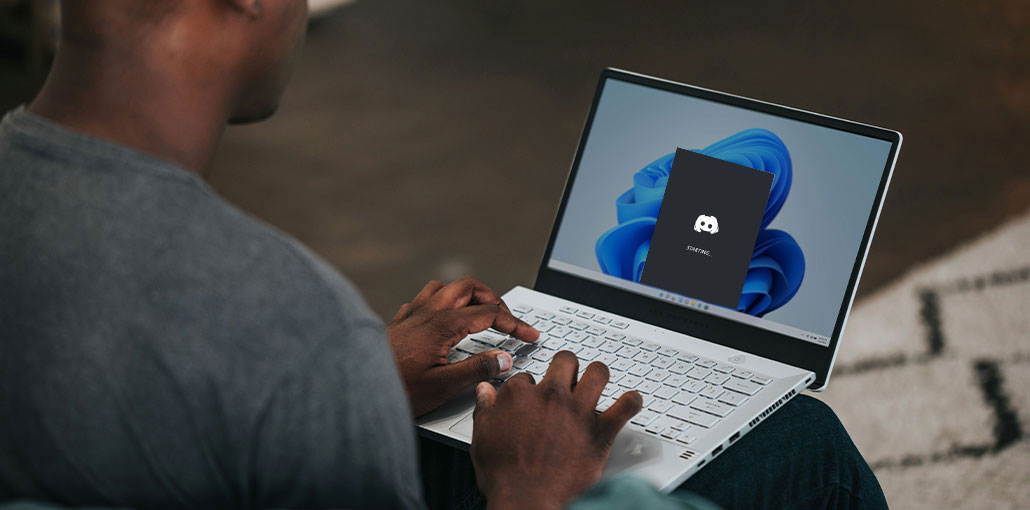
If the ” Discord stuck on starting screen or not opening” error occurs, these quick fixes will help restore Discord app access. You will learn how to fix it. Therefore, be sure to follow the steps carefully and avoid problems in the future without fear.
Why Is Discord Stuck on Starting?
Before you try fixes to solve Discord stuck on starting screen, see the common causes listed below:
- Corrupted Discord cache files
- Discord processes running in the background
- Failed or incomplete updates
- Internet or DNS issues
- Antivirus or firewall blocking Discord
- Corrupted installation files
- Windows compatibility conflicts
Also read: How to Fix the RTC Connecting Discord Error: 6 Simple Methods
How to fix Discord Stuck on Starting Screen issue
If you’re now aware of the reasons, let’s explore how to fix Discord stuck on starting screen below:
1. Check Discord Server Status
Discord stuck on starting screen due to a server outage; checking server status helps identify whether the issue lies within Discord itself or with your device.
- Open the Discord Status website in your browser.
- Check for any ongoing outages or maintenance.
If the servers are down, wait until Discord restores the service before trying again.
2. Restart Discord and Your PC
Sometimes, system malfunctions can stop Discord from loading properly. Restarting clears memory, refreshes background services, and also resets blocked processes. This straightforward action can solve many startup issues without changing the settings.
- To do this, click the “Windows” icon and press the “Power” icon to choose the “Restart” option.
3. Close Discord Using Task Manager
Discord can be active in memory, despite being shut down by the user. This is often the cause of the ” Discord stuck on starting screen” problem during relaunch attempts. Task Manager enables users to close all related Discord processes completely. Follow the steps below to fix the Discord stuck issue.
- Then, right-click on the Windows taskbar and select “Task Manager” from the menu.
- Once you have that, search for Discord in “Apps,” right-click it to choose “End Task” to close the program completely.
4. Check Internet Connection and Firewall Settings
Discord depends on internet connectivity to display the main interface properly. Blocked connections can cause the ” Discord won’t open issue. Additionally, firewall rules and weak signals can block updates or login checks from completing. A reliable network will allow Discord to pass initial checks and load normally. Follow the steps below:
- The first step is to restart your router, connect to Wi-Fi, and confirm that other websites are loading correctly.
- Once you’ve done that, click “Settings > Privacy & Security > Windows Security” to continue.
- Next, look for the “Firewall & network protection” section, and then select “Allow an app through the firewall.”
- Afterwards, click “Change settings,” select “Allow another app,” browse to “Discord/Update.exe,” and press “Add” to allow it through the firewall.
5. Check and Repair Corrupted System Files
Damaged Windows system files may stop applications from running properly. The result is usually ” Discord stuck on starting screen” issues. System File Checker scans and repairs broken or missing Operating system components. Repairing these damaged Windows System Files increases overall stability and application performance. To figure out how to utilize this command-line-based fix, stick to the instructions below:
- First, type “Command Prompt” and then click “Run as administrator” from the left panel.
- Then, you can type “sfc /scannow” and hit the “Enter” key to scan and fix corrupted files.
6. Clear Code Cache and GPUCache Folders
Compatibility Mode may prevent Discord from opening correctly on newer versions of Windows. Disabling this setting allows Discord to run with its latest Windows configuration (and possibly resolve startup issues). Please follow these steps to disable Compatibility Mode:
- Start by pressing “Windows + R”, type “%APPDATA%\Discord”, and click “OK” to open the Discord folder.
- After that, locate the “Cache,” “Code Cache,” and “GPUCache” folders, then delete all three folders.
- Finally, restart Discord and check if it loads normally.
7. Update Discord to the Latest Version
Outdated Discord versions may contain unresolved bugs affecting startup behavior. Updates often resolve the Discord stuck on starting screen issue. Installing the latest version improves performance and compatibility.
8. Reinstall Discord
Reinstalling Discord cleans up corrupted files or resets incorrectly configured settings. This method is effective in cases where Discord stuck on loading and remains there. A new installation will provide a clean application for stable startup performance. Move on to the steps below to find out how to reinstall Discord:
- Press “Windows + R” and start typing “appwiz.cpl” and select “OK” to proceed.
- After that, find Discord on the list and right-click to choose the ” Uninstall ” option.
- After uninstalling, visit the official Discord website and click “Download for Windows,” then launch the installer to reinstall Discord.
Also read: Discord Update Failed? Here’s How to Fix It in 5-Minutes
9. Run Discord as Administrator
If Discord does not open, restricted permissions could hinder access to the system’s resources. Running Discord as an administrator provides access to the system files and services. Follow the steps below to apply this fix quickly:
- To begin, right-click “Discord” and navigate to the “Properties” option from the menu.
- Next, go to your “Compatibility” tab, check “Run this program as an administrator,” and then click “OK.”
10. Disable Compatibility Mode
Compatibility Mode allows older applications to run on newer versions of Windows, but it can sometimes interfere with Discord’s startup process. If Compatibility Mode is enabled, Discord stuck on starting screen or fail to launch correctly. Disabling this setting ensures Discord runs using the latest Windows compatibility settings. Follow the steps below to disable Compatibility Mode:
- First, right-click the “Discord” shortcut and choose “Properties.”
- Next, open the “Compatibility” tab and uncheck “Run this program in compatibility mode for.”
- Afterward, click “Apply” and then “OK.” Launch Discord again to verify that the startup issue has been resolved.
11. Check Proxy and VPN Settings
Network routing through proxy or VPN services may transmit Discord traffic incorrectly. This routing issue can cause the Discord app stuck on the startup screen while establishing a connection. By turning off the proxy or VPN, you can determine whether routing is the reason for the loading issue. Follow the steps below to check the proxy and vpn settings:
- To begin, press “Windows + R,” then type “inetcpl.cpl,” then press “Enter.” Then, go to the “Connections” tab, click “LAN settings,” uncheck the proxy options, and confirm the setting by selecting “OK.”
- After that, click “Settings > Network & Internet > VPN,” unblock any VPN currently active, and then close and reopen Discord to verify that loading is working.
What If Discord Is Stuck on Starting After an Update?
This specific scenario is very common.
Best solution
- End all Discord processes in Task Manager.
- Delete %localappdata%\Discord.
- Download the latest installer.
- Reinstall Discord.
This fixes most Discord stuck on starting after update problems.
Tips to Prevent Discord From Getting Stuck on Starting
Follow these tips to prevent future issues and to ensure that you keep Discord running:
- Keep Discord updated to receive the latest bug fixes and performance improvements.
- Avoid force-closing Discord while it is updating or launching.
- Clear the Discord cache periodically to remove outdated temporary files.
- Use a stable internet connection to prevent startup and login issues.
- Keep Windows updated for better compatibility with Discord.
- Avoid enabling Compatibility Mode unless it is specifically required.
- Add Discord to your antivirus or firewall allow list if it is being blocked.
Summing Up
To sum up, Discord loading issues can interrupt gaming, chat, and collaboration. This article discussed the reasons, fixes, and suggestions to prevent future issues. These steps will show how to resolve Discord stuck on stating screen using easy working methods.
FAQs: Discord Stuck on Starting
Why is Discord stuck on starting after an update?
Discord may get stuck after an update because old cache files or incomplete update files conflict with the new version. Deleting Discord cache and reinstalling the latest version usually fixes the issue.
How long should Discord take to start?
Normally, Discord should open within a few seconds. If it remains on the starting screen for several minutes, troubleshooting is required.
Is Discord stuck on starting a server problem?
It can be, but most cases are caused by local Windows or Discord installation issues.
How do I fix Discord stuck on starting Windows 11?
On Windows 11, try clearing Discord cache, running Discord as administrator, disabling compatibility mode, updating Windows, and reinstalling Discord.






Leave a comment