

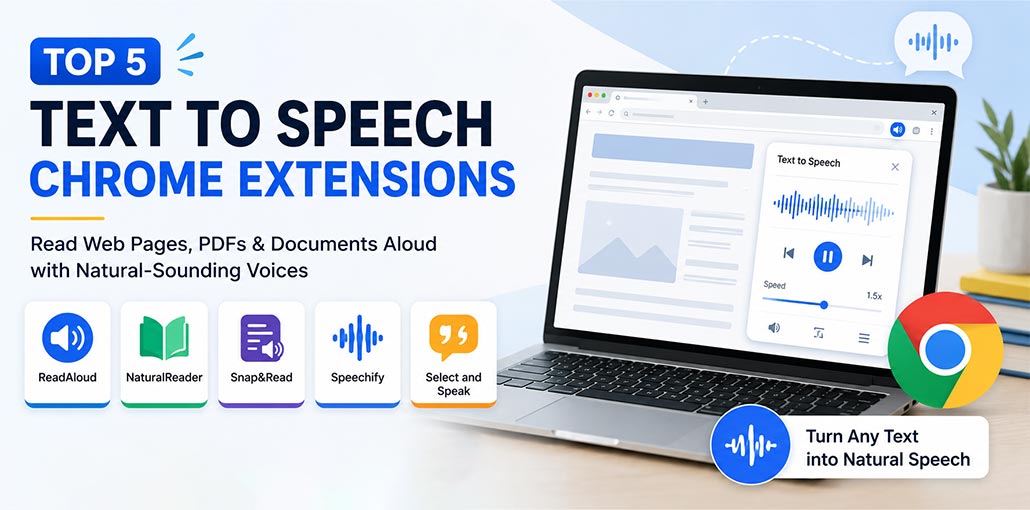
This is the scenario: You’re reading a long research paper or perhaps a news stream that has been going on for many days. You’d like to hear it, not stare at it. A Text to Speech Chrome extension can make it quick. There is no copying. No pasting. Simply press a button and then listen.
Which one is actually reliable? We tested five of the best Text to Speech Chrome Extensions. Here to see.
Why Use a Text to Speech Chrome Extension?
Good question. You can copy your text and paste it into the Text to Speech app. But this is a lot of steps. In addition, extra steps destroy habits.
A Chrome extension is a part of your toolbar. One click. Whatever page you’re currently on, it will read it. Emails, articles, Reddit threads, Wikipedia documentation- it does not matter. The extension can handle it all within the browser without ever leaving the page.
This is the reason. Friction-free listening. What do you want to be able to hear? Click. Done.
Another reason? Multitasking. You can have your tab on, then switch to another program while listening to the article playing in the background. If you’re trying to finish a long article, online document, or PDF while working on something else — this can be extremely beneficial.
What to Look for in a Text to Speech Chrome Extension
Voice quality. This matters more than anything else. If the voice is robotic, you’ll have to uninstall it in a matter of one week. Modern AI voices are excellent. Some extensions still rely on your computer’s built-in voices, while others use cloud-based AI voices that sound much more natural.
Compatibility with different websites. Some extensions break on paywalled articles, PDFs opened in Chrome, and active JavaScript pages. The best ones can handle all of this.
No mandatory account. You shouldn’t need to sign up for an account and sign in to listen to the webpage read out loud. This doesn’t serve the purpose of “instant.”
Speed controls. 1x speed is too slow for most users who use Text to Speech. You’re looking for 1.25x, 1.5x, maybe 2x. Your voice should be natural even at higher speeds.
Highlights when you read it. The best extensions highlight every phrase or word when you read them out to the user. This makes it simpler to follow, particularly for long content.
Also read: 15 Best Google Chrome Security Extensions You Should Use
Best Text to Speech Chrome Extensions
1. ReadAloud
ReadAloud is a text to speech chrome extension for every page you can give it. Research papers, news articles, blogs, and even PDFs can be read directly from Google Chrome. Click the extension icon, and it will start reading without creating an account or going through any setup.
The voices sound surprisingly natural. They aren’t perfect, but they’re comfortable enough for listening to long articles. You can listen to an entire article without feeling like you’re listening to a robot. Speed controls range from 0.5x to 3x. Word highlight is smooth. The whole program is completely free.
Key Features
- Reads webpages, PDFs, and eBooks aloud
- Supports multiple languages and voice options
- Adjustable reading speed, pitch, and volume
- No account or sign-up required
Pros
- Completely free to use
- Easy one-click playback
- Works on most websites and PDFs
Cons
- Voice quality varies depending on the selected voice
- Premium AI voices require third-party services
2. NaturalReader
NaturalReader’s Chrome extension has been refined. It has a clean interface and Good voice quality. It highlights text as it reads and handles PDFs in Chrome fairly well, and it integrates seamlessly with Google Docs. If you are a student studying academic documents, this is an excellent option.
The free version has usage limits and reserves its best AI voices for paid plans. When you reach that limit, it’s over. There’s no more to come until next week. It requires you to sign up to get access to even the free version. Two friction points ReadAloud does not offer.
Key Features
- AI-powered natural-sounding voices
- Reads webpages, PDFs, and Google Docs
- Word highlighting during playback
- Supports multiple languages
Pros
- High-quality AI voices
- Clean and user-friendly interface
- Great support for documents and PDFs
Cons
- Best voices require a paid subscription
- Some features are limited in the free version
3. Snap&Read
Snap&Read’s text to speech Chrome extension functions as a floating toolbar on any laptop or desktop application. Any words, phrases, or paragraphs, including Microsoft Word documents, PDF images, or text in a dialog box, can be read aloud using this extension.
Key Features
- Reads webpages, PDFs, and Google Docs aloud
- OCR support for reading text from images and scanned PDFs
- Adjustable reading speed and voice selection
- Built-in translation and annotation tools
Pros
- Excellent for students and educators
- Supports scanned documents with OCR
- Includes helpful accessibility features
Cons
- Most advanced features require a paid subscription
- More expensive than many competing TTS extensions
4. Speechify
Speechify’s Chrome extension is really great, provided you pay for it. The voice quality is excellent. The UI is easy to use. It works with documents, PDFs, emails, and Google Docs. The free version, however, is very limited. Most of the great voices are locked to the premium.
If you’re already an existing Speechify subscriber, this text to speech Chrome extension is a great add-on. If not, There’s no reason for you to install it if ReadAloud provides you with better access for free to the same essential features.
Key Features
- Premium AI voices in multiple languages
- Reads webpages, PDFs, and Google Docs
- Playback speeds up to 4.5×
- Cross-device synchronization
Pros
- Excellent natural-sounding voices
- Easy-to-use interface
- Works across desktop and mobile devices
Cons
- Premium subscription needed for most AI voices
- Free version has limited features
Also read: Top 10 Voice Changer Apps
5. Select and Speak
Select and Speak is a Text to Speech Chrome extension that highlights the text on any webpage and, when you press the keyboard shortcut, it will read the selection. That’s it. There’s no toolbar pop-up. There is no settings screen. Select and speak.
Voice quality utilizes system voices. It’s a lot like the Tim Nguyen extension on Mac, but not as impressive on Windows. For those who need to hear the paragraph you’ve picked quickly? This is the best option.
Key Features
- Reads selected text from any webpage
- Supports keyboard shortcuts
- Adjustable reading speed
- Uses built-in browser or system voices
Pros
- Lightweight and simple to use
- No complicated setup required
- Ideal for reading selected text quickly
Cons
- Cannot read entire webpages automatically
- Limited advanced features compared to AI-powered alternatives
Comparison of the Best Text to Speech Chrome Extensions
| Extension | Best For | Voice Quality | Document Support | Free Version |
|---|---|---|---|---|
| ReadAloud | Everyday reading | ⭐⭐⭐⭐☆ | ✅ PDFs, Google Docs | ✅ Yes |
| NaturalReader | Students & professionals | ⭐⭐⭐⭐⭐ | ✅ PDFs, Google Docs, Word | ✅ Limited |
| Snap&Read | Education & accessibility | ⭐⭐⭐⭐⭐ | ✅ PDFs, Google Docs, Word, OCR | ❌ Free Trial |
| Speechify | Premium AI voices | ⭐⭐⭐⭐⭐ | ✅ PDFs, Google Docs, Word | ✅ Limited |
| Select and Speak | Reading selected text | ⭐⭐⭐☆☆ | ❌ Selected text only | ✅ Yes |
How to Install a Text to Speech Chrome Extension
There are many ways to install the Text to Speech Chrome extension on your browser. You can either go directly to the web pages of the various Chrome extensions listed in this article and then install them from there.
You could also:
- Open Google Chrome and search for the Chrome Web Store.
- After that, you are there; you can type in “text to speech” or “TTS” in the “Search Extensions” search bar located in the upper left-hand edge of your screen.
- Explore the available extensions and select which you think is the most appropriate Text to Speech Chrome extension for your particular requirements.
- You’ll be directed to a dedicated page for the Chrome extension, which contains details regarding the extension and its privacy policies. There’s an additional section where you can review the extension.
- If you are satisfied, click the “blue Add to Chrome” button at the top right part of the display, and then you’re done.
- Once the installation is completed, you will notice the extension icon at the top-right of your Chrome browser, next to the address bar.
Conclusion
Choosing the best Text to Speech Chrome extension depends on how you use it. If you want a free solution that works with almost any webpage, ReadAloud is a great choice. If natural AI voices are your priority and you’re willing to pay, Speechify and NaturalReader are worth considering. No matter which extension you choose, a good text-to-speech tool can make reading articles, research papers, and online documents much easier.
FAQs: Text to Speech Chrome Extension
Is there a free Text to Speech Chrome Extension?
Yes. Extensions like ReadAloud and Select and Speak offer free versions. Some premium extensions, such as NaturalReader and Speechify, also provide limited free plans.
Can a Text to Speech Chrome Extension read PDFs?
Yes. Many extensions, including ReadAloud, NaturalReader, Snap&Read, and Speechify, can read PDFs opened in Google Chrome. Support for scanned PDFs may vary by extension.
Which Text to Speech Chrome Extension has the most natural voices?
Speechify and NaturalReader are known for their high-quality AI voices that sound more natural than standard system voices.
Can I change the reading speed?
Yes. Most Text to Speech Chrome Extensions let you adjust the playback speed, allowing you to listen at a pace that suits your preference.







Leave a comment