

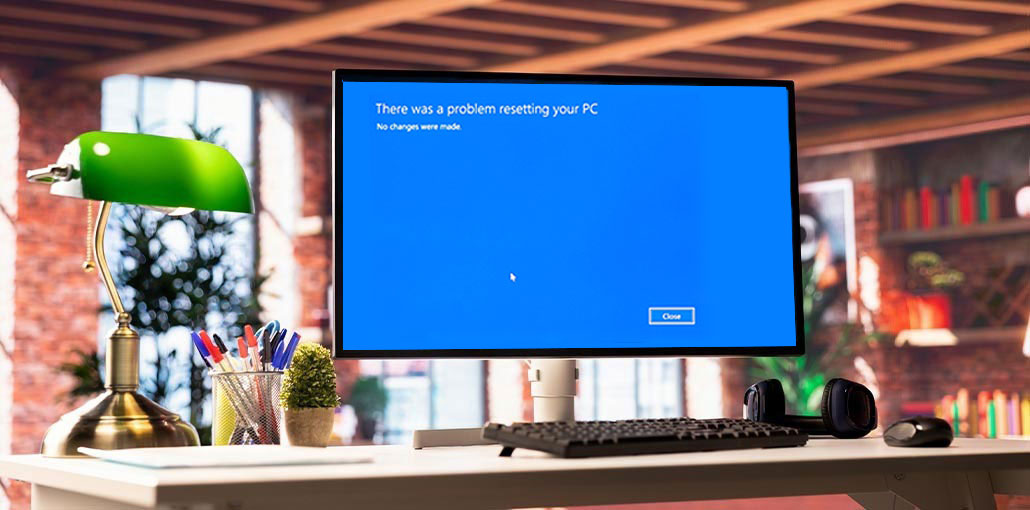
If you’re getting a “There was a problem resetting your PC” error when you reset Windows, there are a variety of reasons why this occurs. It could be that you want to reset your computer to remove malware or to install a new Windows installation. Perhaps you need to get rid of everything since you’re selling your PC. In any case, the PC reset error is annoying and too difficult to solve. Find our simple solutions below to fix the ” There was a problem resetting your PC issue.
What Does “There Was a Problem Resetting Your PC” Mean?
The “There was a problem resetting your PC” error usually appears when Windows cannot complete the Reset this PC process.
Windows may display variations such as:
- “There was a problem resetting your PC. No changes were made.”
- “There was a problem resetting your PC.”
- “Unable to reset your PC.”
Problems often occur when Windows system files become damaged, corrupted recovery files, or the operating system cannot access the files required for reset.
Why Does Windows Say There Was a Problem Resetting Your PC?
Several issues can cause this error, including:
- Corrupted or missing Windows system files
- Damaged recovery files
- Problems with the Windows Recovery Environment
- Corrupted boot configuration
- Failed Windows updates
- Hard drive or SSD errors
- Malware or unwanted software
- Unexpected system shutdowns
- Problems with Windows installation files
Before trying advanced solutions, make sure your important files are backed up whenever possible.
Also read: PC Fix: Your Device Ran Into a Problem and Needs to Restart (6 Steps)
How to Fix “There Was a Problem Resetting Your PC”
Here’s how you can fix the “there was a problem resetting your PC” problem:
1. Run the SFC Scan
Corrupt or damaged Windows system files may prevent your PC from completing its reset process. Using the Windows System File Checker (SFC) tool, you can scan for missing or corrupted system files and try to repair them. Follow these steps to run an SFC scan and address “There was a problem resetting your PC”.
- Type “Command Prompt. in the search bar, and run it as Administrator.
- Type “sfc /scannow.” and press Enter.
- Wait until the scan has completed. It will correct any errors detected in the scan.
Shut down and restart your computer. Try to reset it. If the method above fails, then try Solution 2.
2. Check Windows Recovery Environment
This is the most renowned and effective solution for fixing the “Windows 10, There was a problem resetting your PC, no changes were made” error: Disable this feature within the Windows Recovery Environment, then enable it again (here’s how).
- Find “Command Prompt.” Run it as Administrator.
- Type the “reagentc /disable” command. Hit “Enter.”
- Type the reagentc /enable” command to allow you to re-enable. Hit “Enter.”
Close your “Command Prompt” and restart your computer. Try to reset your PC once more.
3. Try Cloud Download or Local Reinstall
Windows may provide two options when you use Reset this PC: Cloud download and Local reinstall.
To access these options:
- Open Settings.
- Go to System > Recovery.
- Select Reset this PC.
- Choose Keep my files or Remove everything.
- Select Cloud download or Local reinstall, if available.
- Follow the instructions displayed on the screen.
Important: Before resetting, ensure all important files have been backed up, as the Remove All option could delete personal files, applications, and settings
4. Check the Drive for Errors
Hard drive or SSD issues may obstruct Windows recovery or reset operations, so use CHKDSK’s built-in utility to check for file system errors on the system drive.
- Open Command Prompt as Administrator.
- Type the following command and press Enter:
chkdsk C: /f - If prompted to schedule the scan for the next restart, type Y and press Enter.
- Restart your PC and let Windows complete the disk check.
- Once finished, try Reset this PC again.
5. Run System Restore Point Setup
You can reset your computer to a previous date when you have a System Restore Point. These points are created whenever you install new software and drivers. You can also create points by hand in the system. Be sure to remember all the applications and drivers that you downloaded after creating this restore point. Additionally, this fix will only be effective until the “There was a problem resetting your PC no changes were made Windows 11 error occurs. Here’s how you can restore your system to get rid of the issue:
- Enter “System Restore” In the search bar. From the choices shown on the screen, choose “Create a restore point.” After that, open “System Protection” in the “System Properties” window.
- Select “System Restore.” Hit “Next” and select a place you’d like your PC to be restored to. Click “Next” and follow the on-screen instructions.
Check if you can restart your computer. If you do not have a System Restore Point, try another method.
6. Run Startup Repair on Your PC
Windows users can use Startup Repair, an integrated feature that fixes system errors and repairs startup files. This feature can be used to solve issues like the “Reset this PC: There was a problem resetting your PC” issue. Follow the steps below:
- Press your “Shift” key and press the “Power> Restart” button to reboot your PC.
- A screen will be displayed with a “Troubleshoot” option. Click it.
- It will take you to another page. Select “Advanced Options.” Next, choose “Startup Repair.”
Your system will begin searching for ways to repair the file. The system will then restart after repairs are completed. You should reset your computer immediately.
Also read: Windows Operating System Not Found Error: 6 Proven Fixes Guide
7. Perform a Fresh Windows Installation
If none of these strategies work to remove this “there was a problem resetting your PC, no changes were made” error, try reinstalling Windows. Sometimes you’ll need a fresh installation. Beware of installing a pirated copy of Windows since it can make your system more vulnerable to malware or viruses. Always opt for authentic Windows.
Before reinstalling Windows, make sure you:
- Back up your important personal files.
- Have a reliable internet connection.
- Use official Windows installation media.
- Check that your PC meets the requirements for the Windows version you want to install.
Wrap Up
After resetting your computer, the issue “There was a problem resetting your PC” may occur suddenly. The error can have many variations because of the various situations in which it can appear. To get rid of this problem, you can try the methods mentioned above, and one of them might work for you.
FAQs: There was a problem resetting your PC
Why does Reset this PC say no changes were made?
Windows may show this message when it cannot access or use the files required to complete the reset. Corrupted system files, recovery components, or storage errors can contribute to the problem.
Can DISM fix There was a problem resetting your PC?
DISM can repair problems with the Windows component store. Running DISM followed by SFC can help when corrupted Windows components are contributing to the reset failure.
What should I do if Reset this PC still doesn't work?
If the standard troubleshooting methods fail, consider using Windows Recovery Environment, System Restore, Cloud download, or official Windows installation media to reinstall Windows.
How do I fix 'There was a problem resetting your PC' without losing files?
If available, choose Keep my files when using Reset this PC. However, always back up important data before attempting a reset because unexpected problems can result in data loss.




Leave a comment