

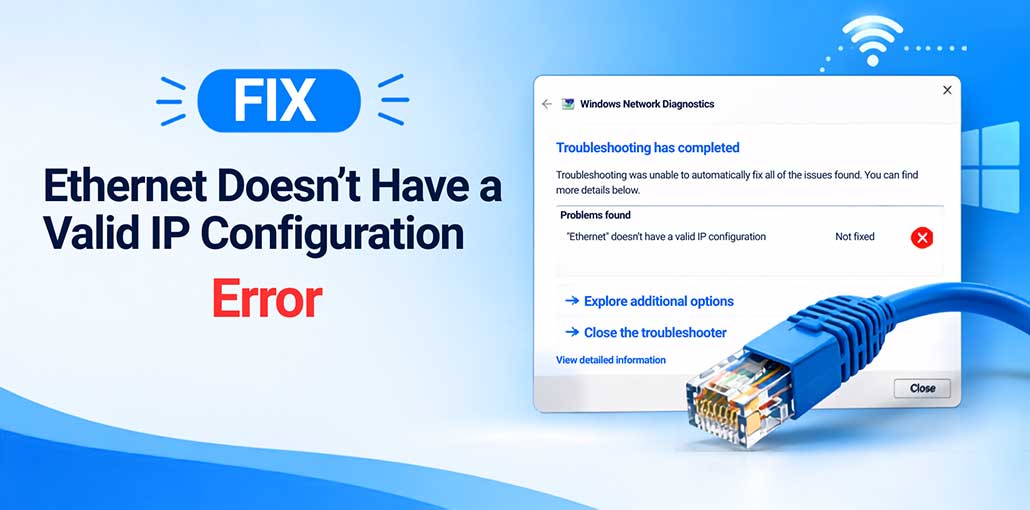
Are you seeing the “Ethernet Doesn’t Have a Valid IP Configuration” Error when connecting a Windows PC to the internet? This error indicates your PC is receiving invalid IP addresses from its Router, thus rendering Windows incapable of creating an Ethernet Connection properly.
Here, you’ll learn 10 effective methods to solve Ethernet Doesn’t Have a Valid IP Configuration on Windows 10 and 11.
What Does “Ethernet Doesn’t Have a Valid IP Configuration” Mean?
This error indicates that the system is unable to access the Ethernet IP configuration. For some critical reason, There’s a possibility that the system is failing to establish a connection, and verifying the IP address on both sides of the connection becomes required.
Why Does Ethernet Say It Doesn’t Have a Valid IP Configuration?
The Ethernet Doesn’t Have a Valid IP Configuration error can happen when Windows fails to receive a valid IP address from your router. Common causes include:
- Incorrect TCP/IP settings
- Problems with DHCP
- Outdated or corrupted network drivers
- Faulty DNS settings
- A temporary router or network issue
- Corrupted Windows network configuration
- Problems with the Ethernet adapter
- Incorrect IP or DNS configuration
Before trying advanced solutions, restart your computer and router. If the error remains, move on to the fixes below.
Quick Diagnosis
| What You’re Experiencing | Possible Cause |
|---|---|
| Wi-Fi works but Ethernet doesn’t | Cable, adapter, driver, or IPv4 settings |
| No device can access the internet | Router, DHCP, or ISP problem |
| Ethernet shows “Unidentified network” | IP or DHCP configuration |
ipconfig /renew fails |
DHCP communication problem |
| Problem started after an update | Network driver or Windows configuration |
| Another cable fixes the problem | Faulty Ethernet cable |
Also read: Can’t Connect to This Network Error: 13 Quick Fixes to Restore Wi-Fi
How to Fix Ethernet Doesn’t Have a Valid IP Configuration Error
Follow any of the suggestions outlined in the article to resolve the ” Ethernet doesn’t have a valid IP configuration error on your computer.
1. Restart Your Router and Computer
One of the most effective ways to fix an Ethernet doesn’t have a valid IP configuration error is to restart the router or computer.
2. Reset TCP/IP
The protocols for TCP/IP are essential to maintain Internet use and function effectively.
Follow these steps:
- Click on the “Windows” button and type “Command Prompt” in the search bar. Then right-click Command Prompt and click on “Run as Administrator”.
- A black window will appear, and you can type “netsh winsock reset“.
- Now type “netsh int ip reset” and hit Enter. A message will appear: “Restart the computer to complete this action”. Restart your computer, and your TCP/IP settings will change.
So, TCP/IP protocols on this system will be restored to default settings. By following the steps above, you may fix the problem.
3. Clear Network Cache and Refresh IP
Network cache is yet another cause of network-related errors. It is therefore recommended to clear your browser cache to experience better, faster Internet performance.
Follow these steps:
- Click on the “Windows” button and type “Command Prompt” in the search bar. Then, right-click on Command Prompt and click on “Run as Administrator”.
- A black window will open. Type “ipconfig /flushdns“. Press Enter and wait for the confirmation message, then type ipconfig /release and Press Enter, then type ipconfig /renew and Press Enter
If you follow the steps mentioned above, the error could be corrected.
4. Reinstall or Update Network Adapter Driver
Windows offers its users the ability to upgrade and access their drivers. Users will need to follow the instructions below to update the network drivers on the system.
Follow these steps:
- Right-click on the Windows button, and then click “Device Manager”.
- Now, right-click on the driver and select “Uninstall Device”.
- A window will be displayed. Then, click “Uninstall”.
- Right-click on the DESKTOP option and then click “Scan for hardware changes”.
- In the next step, right-click on the driver, and then click “Update driver”.
- Click on “Browse my computer for driver software,” and the driver will be upgraded.
Following the steps outlined in the above method, you may be able to fix the issue on your computer.
5. Check IPv4 Settings
Incorrect IP settings can prevent Windows from receiving a valid IP address from your router.
Follow these steps:
- Press the Windows key and R key together. A window will appear. Type ncpa.cpl and click OK.
- Right-click Ethernet and click Properties.
- Now, select Internet Protocol Version 4 (TCP/IPv4) and click Properties.
- Select Obtain an IP address automatically.
- Select Obtain DNS server address automatically.
- Finally, click OK to save the changes.
6. Restart DHCP Client Service
DHCP Client Service helps Windows obtain an IP address from the router. If this service is not working properly, it can cause the Ethernet Doesn’t Have a Valid IP Configuration error.
Follow the steps below to restart the DHCP Client Service:
- Press Windows + R and type services.msc in the search box.
- Press Enter. A Services window will open.
- Find DHCP Client from the list and right-click on it.
- Select Restart.
- If the service is not running, right-click DHCP Client, select Properties, and set the Startup type to Automatic.
- Click Apply and then OK.
Restart your computer and check whether the Ethernet connection is working properly.
7. Run Network Adapter Troubleshooter
Windows provides a network troubleshooter feature to identify and fix network-related problems on the system. Users can run the network troubleshooter on the system and fix the error by following the steps outlined below.
Follow these steps:
- Search for Network troubleshooter in the search bar, and then select “Identify and repair network problems”.
- Windows will launch the Network troubleshooter. It will begin searching for issues in the operating system. This is the most effective way to resolve these errors.
- If the troubleshooter discovers the issue, it will present the solution; otherwise, it will give the warning “Troubleshooting couldn’t identify the problem”.
If you follow the steps in the above method, you can get the issue fixed on your computer.
Also read: Solved: WiFi Doesn’t Have a Valid IP Configuration in 7 Easy Steps
8. Disable and Re-enable Ethernet Adapter
Sometimes, temporarily disabling and enabling the Ethernet adapter can refresh the network connection and fix the error.
Follow the steps below:
- Press Windows + R and type ncpa.cpl.
- Press Enter. A Network Connections window will open.
- Right-click Ethernet and click Disable.
- Wait for a few seconds and right-click Ethernet again.
- Click Enable.
Reconnect the Ethernet cable and check whether the Ethernet Doesn’t Have a Valid IP configuration ” error has been resolved.
9. Temporarily Disable the Antivirus
Sometimes, antivirus software can interfere with the network connection and cause this error. Temporarily disable the antivirus from its settings and check whether the Ethernet connection is working properly.
To turn off the antivirus software, go to the antivirus settings and disable it on your system.
This approach could solve the Ethernet doesn’t have a valid IP configuration error.
10. Reset Windows Network Settings
If the above methods do not fix the problem, resetting the network settings can help restore the default network configuration.
Follow the steps below:
- Click the Windows button and open Settings.
- Click Network & Internet.
- Select Advanced network settings.
- Click Network reset.
- Click Reset now.
- Windows will restart the computer after resetting the network settings.
After the computer restarts, reconnect the Ethernet cable and check whether the Ethernet Doesn’t Have a Valid IP configuration ” error has been fixed.
Ethernet Doesn’t Have a Valid IP Configuration but Wi-Fi Works
If Wi-Fi works normally but Ethernet doesn’t, your internet connection itself is probably fine.
Focus on the Ethernet-specific components:
- Test another Ethernet cable.
- Try another router port.
- Disable and enable the Ethernet adapter.
- Check IPv4 settings.
- Update or reinstall the Ethernet driver.
- Check the Ethernet adapter in Device Manager.
If another computer works with the same cable and router port, the issue is likely specific to your Windows PC.
How to Prevent Ethernet IP Configuration Problems
Once your Ethernet connection is working again, a few simple habits can reduce future problems:
- Keep Windows and network drivers updated.
- Use a reliable Ethernet cable.
- Avoid frequently unplugging the cable while transferring data.
- Restart your router when network problems appear.
- Keep router firmware updated.
- Don’t change IPv4 settings unless necessary.
- Avoid installing questionable network optimization software.
- Check the Ethernet adapter if connection problems repeatedly return.
Conclusion
We showed the reason why Ethernet doesn’t have a valid IP configuration error. We also discussed various methods to correct the issue. Ethernet doesn’t have a valid IP configuration error.
Ethernet cables are extremely useful for providing network access to devices and creating strong connectivity between these devices.
FAQs: Ethernet Doesn’t Have a Valid IP Configuration
Why does Ethernet work but Wi-Fi doesn't have this problem?
Wi-Fi and Ethernet use separate network adapters and configurations. If Wi-Fi works but Ethernet doesn't, the issue may be with the Ethernet cable, adapter, driver, IPv4 configuration, or router port.
Can a bad Ethernet cable cause an invalid IP configuration?
Yes. A damaged or faulty Ethernet cable can prevent your computer from communicating properly with the router. Try another Ethernet cable to see whether the problem is resolved.
How do I reset my Ethernet IP configuration?
Open Command Prompt as Administrator and run ipconfig /release, followed by ipconfig /renew. You can also reset TCP/IP with netsh int ip reset and restart your computer.
How do I fix Ethernet Doesn't Have a Valid IP Configuration on Windows 11?
Try running netsh winsock reset, netsh int ip reset, and ipconfig /renew. You can also check IPv4 settings, restart DHCP Client, update the Ethernet driver, or reset Windows network settings.








Leave a comment