

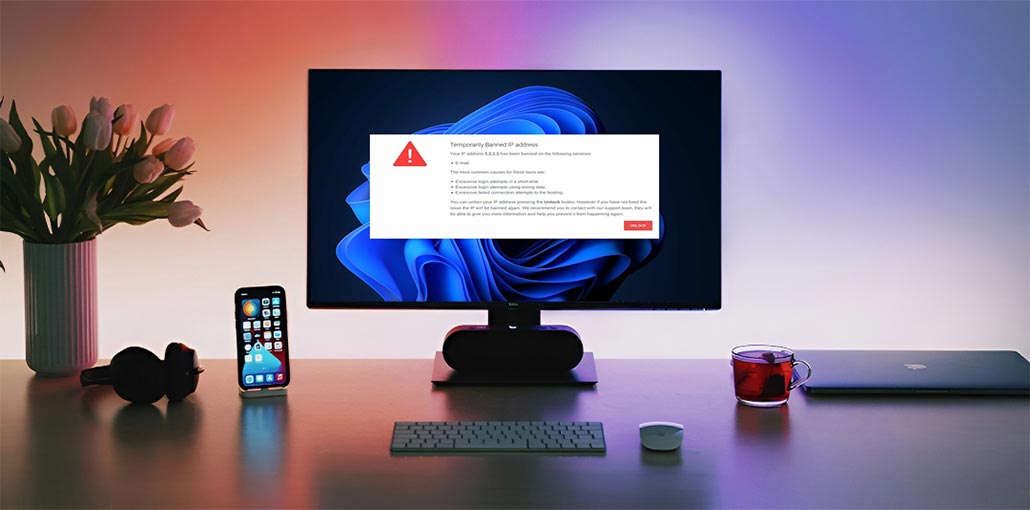
If you’ve encountered the message “your IP has been temporarily blocked”, you’re likely to be confused and perhaps frustrated. But knowing what this means and the best way to fix the issue can help you manage your IP address more effectively. This blog will provide a deeper review of the ” Your IP Has Been Temporarily Blocked” issue and the root cause.
What is IP Blocklisting?
IP blacklisting addresses is a security feature used to block access to a system or network by specific IP addresses. IP blacklisting may be an efficient and simple method of blocking access on the Internet. Blacklists contain IP address ranges, or even individual addresses you want to block. They use firewalls and intrusion prevention systems (IPS) and other traffic-filtering software when securing systems.
What Does “Your IP Has Been Temporarily Blocked” Mean?
This means the website or server has denied access because it believes that your device (or anyone else using the same connection) may be doing something suspicious. However, it doesn’t mean you’re forever restricted; usually, the block will be lifted after a short time.
Why Is My IP Address Blocked?
There are several typical reasons:
- You attempted to log in several times, but you were blocked for brute-force attacks.
- You accessed or refreshed the website too fast. Some websites consider this to be bot behavior.
- You’re using a VPN or proxy that has been blacklisted or flagged.
- Someone else connected to your network may have triggered the block (especially in public Wi-Fi areas).
- The website employs region-based restrictions and blocks all traffic coming from your IP address or country.
- Your device is infected with malware and is sending out a suspicious signal without your knowing it.
What Are The Types of IP Blocks?
- Temporary Block: It’s only for a brief period, from minutes to hours. Most often, it is triggered by unusual activity.
- Permanent Block: A long-term blockage for repeated breaches or security issues.
- Geo-Blocking: Access is restricted based on the region where your IP is geographically located.
- Blacklist-Based: Your IP is listed in a group that includes “bad” addresses, like bot networks or spammers.
Types of IP Addresses
- Public IP: The IP address visible on the internet — what websites display after you connect. Most blocks happen here.
- Private IP: Utilized within your own network. Doesn’t affect website access.
- Static IP: Fixed IP address that doesn’t change unless manually updated. It’s more difficult to “get a new one.”
- Dynamic IP: Changes frequently and often require a router restart. It is much easier to move through blocks.
Also read: Shared IP Address vs. Dedicated IP Address
How to Tell If Your IP Is Blocked
Uncertain of how this was blocked? There are several possibilities:
- This message appears on the screen: “Your IP has been temporarily blocked”.
- The site is not connected to the Wi-Fi network, but can operate on mobile data or a different network.
- You’ve been asked for several CAPTCHA codes.
- Contact the site’s support team, and they can tell you the exact reason for the IP address temporarily blocked.
- You can verify your IP address at whatismyip.com, and check blacklist checker tools, such as Spamhaus.
8 Ways to Fix the “Your IP Has Been Temporarily Blocked” Issue
Once you’ve figured out what’s wrong, let’s go to what you’re seeking to resolve it:
1. Wait It Out
Sometimes, the ” Your IP has been temporarily blocked” issue will only last for a short time, and it will clear by itself.
What to do: Take a break for 40 hours to several hours before reloading the website.
Why it works: Many websites on their own release temporary IP blocks after a set period of time.
2. Restart Your Router
Restarting your router may give an additional IP address, particularly when your ISP uses dynamic IPs.
What to do: switch off the router, wait 30 seconds, and then turn it back on.
Verify: Use a site such as whatismyip.com before and after to verify that your IP has changed.
3. Try a Different Network
Moving networks could be the best thing to do.
What to do: Connect with the mobile hotspot, home Wi-Fi network, or a public Wi-Fi network.
What it does: A different network assigns a separate IP address.
4. Use a Trusted VPN
If your IP has been blocked for a site, using a VPN (Virtual Private Network) is the best way to bypass the restrictions. A VPN hides your IP address and also updates it, helping you access what you want without hassle.
5. Contact the Website’s Support
Direct contact can frequently help to resolve the issue.
What to do: Find the website’s Contact or Support page.
Information to share: Give your IP address and politely describe the problem.
6. Clear Browser Cookies & Cache
The stored browser data could be the reason behind the block.
What to do:
- In Chrome: Click Settings> Privacy and Security> and Clear browsing history.
- Choose “Cookies” and “Cached images and files,” then delete the information.
7. Scan Your Device for Malware
Malicious software could be sending suspicious messages through your device.
What to do: Run a complete malware scan using tools such as:
- Windows Defender
- Malwarebytes
- Norton or Bitdefender
After that, remove any threats identified and restart your PC.
8. Turn Off Proxy Settings
Proxy settings may interfere with your connection and cause blockages.
1. On Windows:
Click Settings, Network and Internet, and then Proxy. Turn off any settings.
2. In Chrome:
Click Settings – System, open proxy settings, and disable any proxy you have configured.
Also read: 10 Best Proxy Websites for Secure Browsing and Data Access in 2025
How to Prevent IP Blocking in the Future
- Avoid refreshing pages too frequently
- Do not attempt repeated incorrect logins
- Use trusted and secure VPN services
- Keep your device free from malware
- Follow website rules and usage policies
Conclusion on solving Your IP Has Been Temporarily Blocked
Seeing “Your IP has been temporarily blocked” is a bit annoying, but it’s usually not permanent. These blocks exist to guard websites against abuse. With some troubleshooting, you will usually be able to return to normal in a flash.
FAQs About “Your IP Has Been Temporarily Blocked”
Why does “Your IP Has Been Temporarily Blocked” appear?
The message can appear because of repeated login attempts, excessive page refreshes, VPN usage, or unusual traffic from your network.
How long does “Your IP Has Been Temporarily Blocked” last?
Most temporary IP blocks last from a few minutes to several hours, depending on the website’s security settings.
How can I check if my IP address is blacklisted?
You can use online blacklist checker tools such as Spamhaus or WhatIsMyIP to see whether your IP has been flagged.
Can restarting the router solve “Your IP Has Been Temporarily Blocked”?
Yes, restarting your router may solve the issue if your internet provider uses dynamic IP addresses.






Leave a comment