

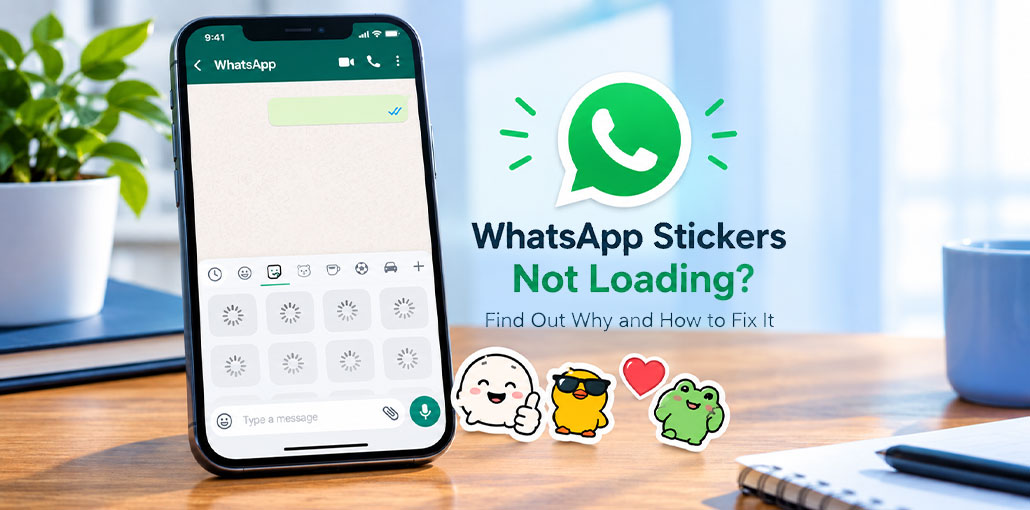
Trying to send a sticker on WhatsApp, but it just keeps loading? You’re not alone. WhatsApp stickers not loading is a common issue, and it can happen even when sending messages.
Sometimes stickers don’t appear, sometimes a sticker pack won’t download, and sometimes the whole sticker section stops responding.
The good news is that WhatsApp stickers not loading are easy to fix. In this guide, we’ll show you 11 simple ways to get WhatsApp stickers working again on Android and iPhone.
Why Are WhatsApp Stickers Not Loading?
There isn’t always one reason behind the WhatsApp stickers not loading problem. It could be your internet connection, an outdated WhatsApp version, low storage, or a temporary app glitch.
Common reasons include:
- Weak or unstable internet
- Outdated WhatsApp
- Low phone storage
- Temporary app bugs
- A sticker pack that didn’t download correctly
- Data Saver restrictions
- Battery restrictions on Android
- Temporary WhatsApp service problems
Before trying complicated fixes, start with the simple ones below.
Also read: Top 14 Tools to Create Custom Emoji
How do I fix WhatsApp stickers not loading on Android or iPhone?
1. Check Your Internet Connection
A weak internet connection is one of the first things to check when WhatsApp stickers not loading. Stickers need a stable connection to download and appear properly. If your messages are also taking time to send, your internet may be the problem. Try switching between Wi-Fi and mobile data.
Steps
- Turn off Wi-Fi and enable mobile data.
- Open WhatsApp and check the stickers.
- If it doesn’t work, switch back to Wi-Fi.
- Try the sticker again.
Note: If other apps are also loading slowly, fix your internet connection first.
2. Close WhatsApp and Open It Again
A small app glitch can sometimes cause WhatsApp stickers not working properly. You don’t always need to change your settings or reinstall the app. Simply closing WhatsApp completely and open it again can refresh the app and get the sticker section working normally.
Steps
- Close WhatsApp completely.
- Remove it from your recent apps.
- Wait a few seconds.
- Open WhatsApp again.
- Open any chat and check your stickers.
Note: This is a quick fix, so try it before changing other settings.
3. Restart Your Phone
If you’re seeing WhatsApp stickers not showing, restarting your phone is another simple fix to try. Temporary system bugs can sometimes affect how apps work. A quick restart gives your phone a fresh start and may fix the sticker problem without changing your WhatsApp account or deleting any data.
Steps
- Turn off your phone.
- Wait for a few seconds.
- Turn it back on.
- Open WhatsApp.
- Check whether the stickers are showing now.
Note: Restarting your phone does not delete your WhatsApp chats or sticker packs.
4. Update WhatsApp
Using an older version of WhatsApp can sometimes cause sticker issues. If you see WhatsApp sticker packs not loading, check whether a new update is available. WhatsApp updates often include bug fixes and improvements that can solve issues when features suddenly stop working.
Steps
On Android:
- Open Google Play Store.
- Search for WhatsApp.
- Tap Update if available.
On iPhone:
- Open the App Store.
- Search for WhatsApp.
- Tap Update if available.
Note: If you only see Open, your WhatsApp app is already updated.
5. Check Your Phone Storage
Your phone needs free storage to download and save WhatsApp media. When storage is almost full, you may notice WhatsApp stickers not downloading, along with problems downloading photos or videos. Checking your available space and removing unnecessary files can give WhatsApp enough space to save new stickers.
Steps
- Open your phone’s Settings.
- Go to Storage.
- Check the available space.
- Delete unnecessary files or unused apps.
- Open WhatsApp and try the sticker again.
Note: Don’t delete important WhatsApp media just to free space. Check your files before removing anything.
Also read: How to Free Up Space on iPhone: 6 Easy and Effective Ways
6. Clear WhatsApp Cache on Android
If you’re using Android, old temporary files may sometimes cause app problems. Clearing the cache can help if you’re facing WhatsApp stickers not loading on Android. Go to Settings, open Apps, select WhatsApp, choose Storage, and tap Clear Cache. Avoid selecting Clear Data unless you understand what it does and have your WhatsApp backup ready.
Steps
- Open Settings.
- Tap Apps or App Management.
- Select WhatsApp.
- Tap Storage.
- Select Clear Cache.
- Open WhatsApp again.
Note: Don’t tap Clear Data unless you know what it does and have a proper WhatsApp backup.
7. Check Data Saver Settings
Your phone may be limiting WhatsApp’s internet access to save mobile data. If this happens, stickers may not download properly. Checking your Data Saver settings can help if you’re still dealing with WhatsApp stickers not loading even though your internet seems to be working normally.
Steps
- Open your phone’s Settings.
- Search for Data Saver.
- Open the setting.
- Check whether WhatsApp is restricted.
- Allow WhatsApp to use background data if needed.
- Open WhatsApp and test the stickers.
Note: Setting names can vary between Android phones.
8. Check Battery Restrictions
Some Android phones restrict background apps to save battery. If WhatsApp is heavily restricted, certain content may not download properly. If WhatsApp stickers not loading on Android continues, checking WhatsApp’s battery settings may help.
Steps
- Open Settings.
- Go to Battery or Battery Usage.
- Find WhatsApp.
- Check its battery restriction settings.
- If it’s heavily restricted, allow normal background activity.
- Reopen WhatsApp.
Note: Don’t disable battery-saving features for every app. Only check whether WhatsApp is being unnecessarily restricted.
9. Try Another Sticker Pack
If only one sticker pack causes the problem, the pack itself may be the issue. Try another pack before changing your phone settings. If other packs work normally, the problem is probably limited to that particular pack. This is especially useful when WhatsApp stickers not downloading happens with only one pack.
Steps
- Open any WhatsApp chat.
- Tap the sticker icon.
- Select another sticker pack.
- Try sending a sticker.
- If it works, remove the problem pack.
- Download that pack again.
Note: If every sticker pack has the same problem, try the other fixes in this guide.
10. Check Your Phone’s Date and Time
Incorrect date and time settings can sometimes cause app connection problems. If you’ve tried the basic fixes and WhatsApp stickers not loading is still happening, check whether your phone is using the correct time automatically. This takes only a few seconds and is worth checking before trying more advanced solutions.
Steps
- Open Settings.
- Search for Date & Time.
- Turn on Automatic Date & Time.
- Close and reopen WhatsApp.
- Test the stickers again.
Note: The exact option may have a slightly different name depending on your phone.
11. Reinstall WhatsApp
If you’ve tried everything and WhatsApp stickers not loading is still a problem, reinstalling WhatsApp can be your final option. Before removing the app, check your backup first. Reinstalling can help if the app has damaged or incorrectly installed files.
Steps
- Open WhatsApp’s settings.
- Check your Chat Backup.
- Make sure your latest backup is available.
- Uninstall WhatsApp.
- Reinstall it from the official app store.
- Sign in with your number.
- Restore your backup when prompted.
- Check the stickers.
Note: Always confirm that your important chats are backed up before uninstalling WhatsApp.
Also read: YOWhatsApp v14.02.0 download APK for ioS, Android, PC and Mac
WhatsApp Stickers Not Loading on iPhone
If you’re facing WhatsApp stickers not loading on iPhone, start with the simple fixes first. Check your internet connection, update WhatsApp, restart your iPhone, and make sure you have enough storage. If the problem continues, test another sticker pack before reinstalling.
Steps
- Check Wi-Fi or mobile data.
- Update WhatsApp from the App Store.
- Restart your iPhone.
- Check available storage.
- Try another sticker pack.
Reopen WhatsApp.
Note: iPhone doesn’t offer the same simple cache-clearing option available on many Android phones.
What If WhatsApp Stickers Are Still Not Showing?
If you’ve tried the fixes above and WhatsApp stickers not loading is still happening, check whether the problem affects every sticker pack or just one.
If only one pack has a problem, remove it and download it again.
If all sticker packs are affected, try switching your internet connection, updating WhatsApp, and restarting your phone.
You can also check whether other people are experiencing the same issue. If the problem is widespread, it may be a temporary issue with WhatsApp rather than your phone.
Final Thoughts
If WhatsApp stickers not loading is driving you crazy, don’t worry—it’s usually a small issue that can be fixed quickly. Start with your internet connection, restart WhatsApp, and check for updates. If that doesn’t work, try the other fixes above. For most users, one simple change is enough to get stickers working again.
FAQs: WhatsApp Stickers Not Loading
Why won't WhatsApp download new sticker packs?
A poor internet connection, low storage, or a temporary WhatsApp issue can prevent new sticker packs from downloading. Check your connection and available storage before trying again.
Can Data Saver stop WhatsApp stickers from loading?
Yes. Data Saver can restrict how WhatsApp uses mobile data in the background. Check your phone's Data Saver settings and make sure WhatsApp is allowed to use data normally.
How do I fix WhatsApp stickers not loading on iPhone?
On iPhone, check your internet connection, update WhatsApp, restart your device, check available storage, and try another sticker pack. If the problem continues, you may need to reinstall WhatsApp after backing up your chats.
What should I do if WhatsApp stickers are still not loading?
If the problem continues after trying the fixes above, check whether all sticker packs are affected or only one. You can also check for WhatsApp updates and try again later if the issue appears to be temporary.






Leave a comment