

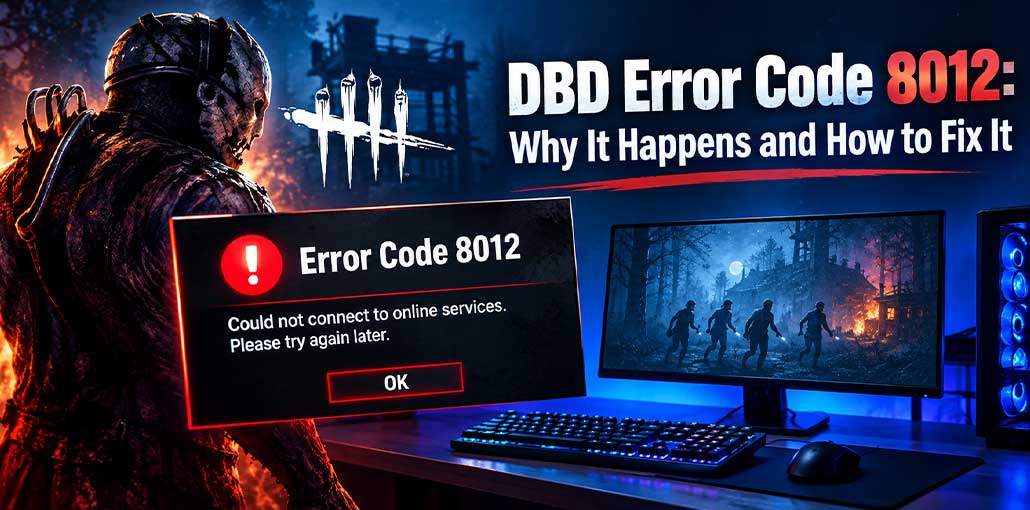
Getting DBD error code 8012 can stop Dead by Daylight from connecting to its online services, preventing you from joining matches. The issue may be caused by server outages, network problems, DNS issues, firewall settings, or corrupted game files. In this guide, we’ll explain why error code 8012 in Dead by Daylight occurs and show you practical ways to fix it.
Here are the main troubleshooting methods you can try to fix DBD error code 8012.
What Does Dead by Daylight Error Code 8012 Mean?
DBD error code 8012 is a connection-related error that can occur when Dead by Daylight cannot properly connect to its online services. The message may indicate that the game is unable to connect to online services and asks you to try again later.
DBD error code 8012 may be caused by server outages, an unstable internet connection, DNS, or an Easy Anti-Cheat problem.
However, DBD error code 8012 does not always mean your game installation is damaged. Before changing advanced settings, check whether Dead by Daylight’s services are experiencing an outage.
Why Does Dead by Daylight Show Error Code 8012?
There can be several reasons for error code 8012 on Dead by Daylight, including:
- Dead by Daylight server outages or maintenance
- An unstable Wi-Fi or internet connection
- Temporary router or modem problems
- DNS cache or network configuration issues
- Problems with the game’s anti-cheat components
- Corrupted or incomplete game files
- Firewall or security software interfering with the connection
Because several different issues can produce similar connection symptoms, it is better to troubleshoot them one at a time instead of immediately reinstalling the game.
Also read: Roblox Error Code 524: The Ultimate Guide to Fixing Joining Issues
How to Fix DBD Error Code 8012
Check Whether Dead by Daylight Servers Are Down
Before troubleshooting your PC or network, check whether the problem is actually on Dead by Daylight’s side.
If the game servers are unavailable or experiencing technical problems, changing your DNS, reinstalling the game, or restarting your computer will not restore the service. In that situation, you need to wait until the online services are available again.
The official Dead by Daylight support site provides technical-support resources and error-code information.
If other players are reporting the same connection problem at the same time, that can also indicate a broader service issue.
If the servers appear to be working normally, continue with the troubleshooting steps below.
Restart Your Internet Connection and Gaming Device
A temporary network problem can sometimes cause DBD error code 8012.
Start by completely closing Dead by Daylight. Then restart your PC or console and your router.
For your router:
- Turn off the router.
- Disconnect its power for around 30 seconds.
- Reconnect the power.
- Wait until the internet connection is fully restored.
- Launch Dead by Daylight again.
You can also try restarting your gaming device before launching the game.
We recommend power cycling both the gaming device and networking equipment as one of the troubleshooting steps for this error.
If other applications and websites are also experiencing connectivity problems, troubleshoot your internet connection before focusing on Dead by Daylight.
Clear the DNS Cache to Fix Connection Problems
A stale or corrupted DNS cache can sometimes contribute to network connection problems. On Windows, you can clear the DNS resolver cache using Command Prompt.
How to flush DNS on Windows
- Open Command Prompt as administrator.
- Enter the following command:
ipconfig /flushdns - Press Enter.
- Wait for Windows to confirm that the DNS Resolver Cache was successfully flushed.
- Restart your PC.
- Open Dead by Daylight and check whether the connection error is gone.
Flushing DNS is one of the troubleshooting methods recommended for error code 8012 DBD.
If the problem continues, move on to the next solution rather than repeatedly flushing DNS.
Repair Easy Anti-Cheat for Dead by Daylight
Easy Anti-Cheat can also be worth checking if you are playing the PC version of Dead by Daylight.
The original troubleshooting guidance for this error recommends repairing the Easy Anti-Cheat installation when it may be corrupted.
To check it:
- Open the Dead by Daylight installation folder.
- Look for the EasyAntiCheat folder.
- Find the Easy Anti-Cheat setup application.
- Run the setup program as administrator.
- Select Dead by Daylight.
- Choose the available repair option.
- Restart your PC.
- Launch Dead by Daylight again.
Keep in mind that Dead by Daylight’s current technical support documentation has evolved, and the game can also have security or anti-cheat compatibility issues involving other software. Its official support site currently documents anti-cheat-related troubleshooting separately.
If you see a specific anti-cheat or launch error rather than error 8012, follow the instructions for that particular message.
Check Your Firewall and Antivirus Settings
Your firewall or antivirus software can sometimes interfere with an online game’s network communication.
If DBD error code 8012 continues after checking your internet connection, review your security software and make sure Dead by Daylight and its required game components are not being blocked.
On Windows, check:
- Windows Security firewall settings
- Third-party antivirus software
- Network protection features
- Application blocking rules
- Any recently added security restrictions
Avoid permanently disabling your firewall or antivirus. Instead, check whether Dead by Daylight has been blocked and add an appropriate exception if necessary.
If the error started immediately after installing or updating security software, that software may be worth investigating first.
Verify Dead by Daylight Game Files
Damaged or incomplete game files can cause different technical problems with DBD error code 8012.
If you play on PC through Steam or another supported launcher, use its built-in game-file verification feature.
For Steam, you can generally find the option by opening the game’s properties and selecting the Installed Files section, then choosing the option to verify the integrity of the files.
Dead by Daylight’s official PC troubleshooting guide specifically recommends verifying game files when troubleshooting crashes and error-related problems.
After verification finishes, restart the launcher and try opening Dead by Daylight again.
Use a Wired Internet Connection for Better Stability
If you normally play over Wi-Fi, try connecting your gaming device directly to your router with an Ethernet cable.
A wired connection can reduce wireless interference and provide a more consistent connection between your device and router. This can be particularly useful when your Wi-Fi signal is weak or unstable.
Trying a wired connection when troubleshooting the Dead by Daylight connection error 8012.
If Ethernet fixes the problem, the underlying issue may be related to your wireless network rather than the game itself.
You can also test another reliable network, such as a different Wi-Fi connection, to determine whether the problem follows your device or remains specific to your original network.
Also read: How to Fix Vanguard Error VAN 57 in League of Legends [2026 Guide]
When Should You Contact Dead by Daylight Support?
If you have checked the server status, restarted your network and device, flushed DNS, checked security software, and verified your game files but DBD error code 8012 continues to appear, contacting official support may be the next step.
Before submitting a ticket, collect useful information such as:
- Your gaming platform
- The exact error message
- When the problem started
- Whether other online games work normally
- Whether the issue occurs every time you launch Dead by Daylight
- A screenshot of the error, if possible
- Any troubleshooting steps you have already tried
Dead by Daylight’s official support team asks players to provide as much detail as possible when reporting an error. Its support system also allows players to submit a request and provide information about their platform and error code.
This information can help support identify whether the problem is related to your account, platform, connection, or the game itself.
Final Thoughts
DBD error code 8012 usually points to a problem connecting Dead by Daylight with its online services. The first thing to check is whether the game’s servers are available. If there is no known service problem, restart your router and gaming device, try a more stable connection, flush the DNS cache, check your security software, and verify the game files.
Following these steps should help you determine whether error code 8012 in Dead by Daylight is caused by the game’s servers or something on your own network or device.
FAQs: DBD Error Code 8012
Is DBD error code 8012 caused by server problems?
Yes, server outages or maintenance can cause connection errors such as DBD error code 8012. Check the official Dead by Daylight support channels for service-related issues.
Why does DBD error code 8012 keep appearing?
If the error repeatedly appears, the cause may be an ongoing server issue, unstable network, DNS configuration, firewall interference, or another platform-specific problem.
Does reinstalling Dead by Daylight fix DBD error code 8012?
Reinstalling the game may help if the installation is damaged, but it is better to try simpler troubleshooting methods and verify the game files first.
How long does DBD error code 8012 usually last?
There is no fixed duration. If the problem is caused by a server outage, you may need to wait until the service is restored. Local network issues can often be resolved more quickly.






Leave a comment