

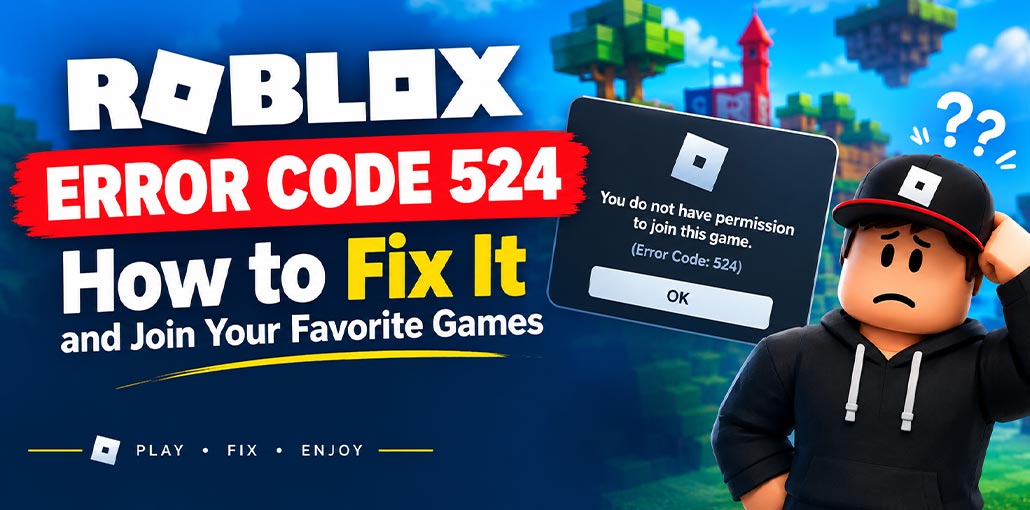
Are you trying to join a Roblox game but seeing the message, “You do not have permission to join this game. (Error Code: 524)? This problem can be frustrating, especially when your friends are already playing and you cannot join them.
Roblox Error Code 524 usually means that you do not have permission to join a particular experience or private server. This can happen because of privacy settings, server invitations, account restrictions, or temporary server problems.
The good news is that this error can often be fixed with a few simple steps. In this guide, we will explain why Roblox Error Code 524 happens and show you how to fix it so you can get back to playing your favorite games.
Why Does Roblox Error Code 524 Happen?
There are several reasons why you may encounter Roblox Error Code 524 while trying to join a game.
- Private Server Restrictions: You may not be invited to the private server.
- Privacy Settings: Your Roblox account settings may prevent you from joining certain servers.
- Age Restrictions: Some accounts have limitations on private server access.
- Server Issues: Temporary Roblox server problems may cause joining errors.
- Network Problems: An unstable internet connection can interfere with joining a game.
- Game Restrictions: Some experiences require special permissions or group membership.
Understanding these causes can help you find the right solution and fix Roblox Error Code 524 more quickly.
How to Fix Roblox Error Code 524
If you are unable to join a Roblox game, try the following solutions one by one.
1. Ask the Server Owner to Invite You
One of the most common reasons for Roblox Error Code 524 is that you are trying to join a private server without permission.
If your friend owns the server, ask them to add your Roblox username to the server’s member list.
Here is what the server owner should do:
- Open Roblox and go to the game.
- Select the Servers section.
- Find the private server.
- Open the server configuration settings.
- Add your Roblox username to the allowed players list.
- Save the changes.
After the owner updates the settings, try joining the server again.
Tip: Make sure your friend uses your correct Roblox username instead of your display name.
Also read: How to Reduce Lag on Roblox?
2. Check Your Roblox Privacy Settings
Privacy settings can affect your ability to join private servers and other experiences.
To check your settings:
- Open Roblox.
- Go to Settings.
- Select Privacy and content restrictions.
- Review your private server and visibility settings.
- Make sure the appropriate joining permissions are enabled.
Some accounts may have additional restrictions depending on age and account settings.
If you cannot change a particular option, it may be controlled by your account’s age or parental settings.
3. Check If the Game Requires Special Access
Not every Roblox experience is available to everyone.
Some games require group membership, special permissions, or access from the game creator. If you are trying to join a restricted experience, check whether you meet its requirements.
You can also ask the game owner whether the experience is currently open to players.
If Roblox Error Code 524 happens only in one game, the problem may be related to that experience rather than your account.
4. Restart Roblox and Your Device
Sometimes, a temporary app or device glitch can cause problems when joining a Roblox server.
Try restarting the app before making major changes.
- Close Roblox completely.
- Reopen the application.
- Try joining the game again.
- If the error continues, restart your device.
- Open Roblox and test the server once more.
This simple solution can help clear temporary problems and may resolve Roblox Error Code 524.
5. Check Your Internet Connection
A weak or unstable internet connection may interfere with joining Roblox experiences.
Try these troubleshooting steps:
- Restart your Wi-Fi router.
- Switch to another network if available.
- Check whether other Roblox games are working.
- Avoid unstable VPN or proxy connections.
- Restart your device’s internet connection.
If other games work normally but one private server does not, the problem is more likely related to server access.
6. Check Roblox Server Status
Sometimes the issue is not caused by your account or device. Roblox may be experiencing temporary service problems.
To check whether the server is available:
- Try joining another Roblox game.
- Ask your friends if they can access the same server.
- Check Roblox’s official support or status information.
- Wait a few minutes and try again.
If several players are experiencing the same problem, waiting for the service to recover may be the best solution.
Also read: Roblox Error Code 277: Causes, Fixes, and Troubleshooting Guide
7. Update or Reinstall Roblox
An outdated application or damaged installation may cause unexpected problems.
On mobile devices:
- Open the Google Play Store or Apple App Store.
- Search for Roblox.
- Install any available update.
- Open Roblox and try joining again.
On Windows:
- Close Roblox.
- Check for available updates.
- If the issue continues, uninstall Roblox.
- Download and install Roblox again from the official website.
Reinstalling should be a later troubleshooting step, not the first thing you try.
8. Contact Roblox Support
If Roblox Error Code 524 continues after trying the solutions above, contact Roblox Support.
Before submitting a request, prepare the following information:
- Your Roblox username.
- The name of the game or experience.
- Whether you are joining a public or private server.
- The exact error message.
- Your device and operating system.
- The troubleshooting steps you have already tried.
This information can help support understand whether the issue is related to your account, the game, or the server.
How to Prevent Roblox Error Code 524
Although you cannot prevent every Roblox server issue, a few simple habits may reduce common access problems.
- Keep Roblox updated.
- Use a stable internet connection.
- Make sure friends configure private server permissions correctly.
- Review your privacy settings when joining private servers.
- Avoid unofficial or modified Roblox applications.
- Check that you are using the correct game or server link.
These steps can help you avoid unnecessary joining problems.
Wrap Up
Roblox Error Code 524 can prevent you from joining games when access is denied or when a temporary issue affects the server. In these cases, reviewing private server permissions should usually help resolve it quickly.
Ask the server owner to invite you, review your Roblox privacy settings, and restart the app if the error persists. Lastly, for additional support resources, visit Roblox’s official support website.
FAQs: Roblox Error Code 524
Why can’t I join my friend’s Roblox private server?
You may not have been invited to the private server, or your account settings may restrict access. Ask your friend to add your username to the server.
Is Roblox Error Code 524 a ban?
No, Roblox Error Code 524 does not automatically mean your account is banned. It usually relates to permission to join a game or private server.
How long does Roblox Error Code 524 last?
There is no fixed duration. If the problem is caused by server access permissions, it may continue until the owner changes the settings. Temporary server issues may resolve after some time.
How do I fix Roblox Error Code 524 on mobile?
Check your private server permissions, review your privacy settings, restart Roblox, and update the app. If the issue continues, try reinstalling Roblox.





Leave a comment