

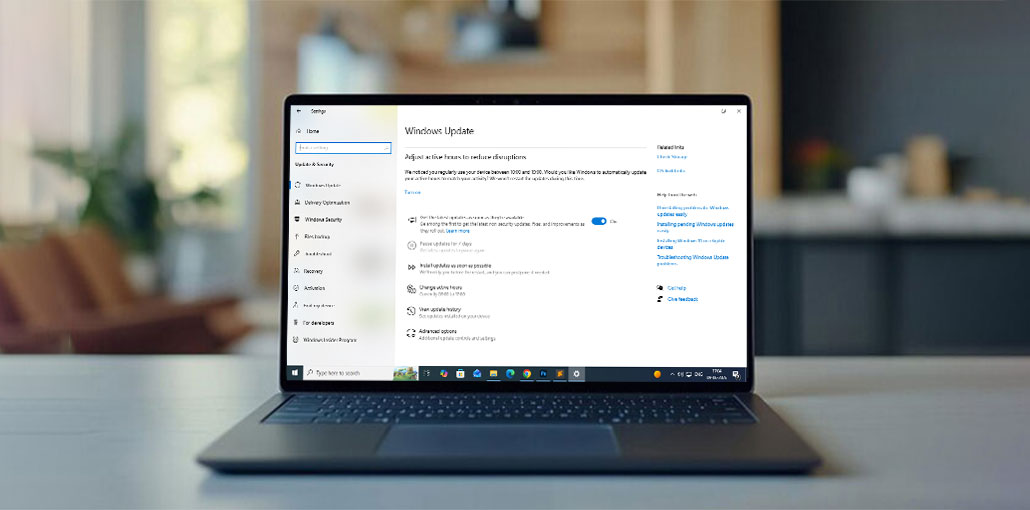
Windows always downloads updates whenever you attempt to shut down your laptop or computer. In general, this can be a major issue for many users. Many users ask if there’s an option to stop Windows updates. In this article, we’ll show you how to stop Windows updates during the process using a variety of methods.
Common Issues with Windows 10 Automatic Updates
Today, many computer users complain that Windows constantly installs updates. They are interested in finding a solution to permanently stop Windows updates, as certain additional problems could arise immediately after a Windows update. For instance, a Windows update may give data loss. Also, a Windows update isn’t installed correctly because of error code 0x800F0830-0x20003.
Do you know how to stop Windows updates from automatically downloading? If not, this post will show you how to stop Windows updates with seven effective options. continue to reading.
How to Stop Windows Update in Windows 10 Without Any Issues
1. Disable Windows Update Service
To turn off Windows updates, you could try disabling the Windows Update service, which automatically downloads and installs Windows 11 updates over the Internet. We’ll explain how to disable Windows Update via the Disabled Windows Update service.
- Press Windows + R
- Type services.msc and press Enter
- Find Windows Update
- Double-click it
- Set Startup type to Disabled
- Click Stop, then Apply → OK
After you’ve completed all the steps, you can restart your computer to begin the process and also disable automatic updates.
Also read: 9 Free Windows Update Blockers to Disable Automatic Updates
2. Change Group Policy to Stop Windows Updates
If you want to know how to stop Windows updates, you could try changing the Group Policy. The steps below will help you modify your Group Policy in detail to stop Windows update downloads.
- Press Windows + R, type gpedit.msc
- Go to:
Computer Configuration → Administrative Templates → Windows Components → Windows Update
Click Configure Automatic Updates - Select Enabled
- Choose Notify for download and auto install
- Apply and restart your PC
After you’ve completed all the steps above, restart your computer to turn off Windows 10 updates.
3. Change the Registry to Stop Windows Update
In this article, we will present the third option on how to stop Windows updates. In fact, you could try disabling the Windows 10 update registry to fix this issue. The following content details the steps in detail.
But the most important thing to remember is that changing your registry can be quite risky, as it could cause irreparable harm to your system if operated incorrectly. Thus, you had better create a system image before proceeding.
- Press Windows + R, type regedit
- Navigate to:
HKEY_LOCAL_MACHINE\SOFTWARE\Policies\Microsoft\Windows\WindowsUpdate\AU - Find or create DWORD: NoAutoUpdate
- Set value to 1
- Then restart your system to stop Windows update downloads.
4. Disable Windows Update Tasks in Task Scheduler
To stop Windows Update, you may try disabling Windows Update Tasks in Task Scheduler. This article will help you disable Windows Update Tasks using a step-by-step guide.
- Press Windows + S and search for Task Scheduler
- Go to:
- Task Scheduler Library → Microsoft → Windows → Windows Update
- Disable all update-related tasks
- Restart your PC
Then, you are close to the Task Scheduler window, and you’ve successfully stopped the Windows 10 update.
5. Set Your Internet as a Metered Connection
If you stop Windows updates in progress, you can try to meter your internet connection. However, be aware that this method works only when connected to Wi-Fi. This means that it does not apply to the Ethernet connection.
Now, we’ll demonstrate how to meter the network connection to block Windows updates.
- Open Settings
- Go to Network & Internet
- Select your Wi-Fi network
- Turn ON Metered Connection
This way, you can cancel Windows updates since it requires a massive network connection.
6. Pause Windows Update for 35 Days
In this section, we will explain how to stop Windows updates by pausing for 35 days. If you want to stop Windows updates, you could try this method.
- Open Settings
- Go to Windows Update
- Click Pause Updates
- Select duration (up to 35 days)
After that, this feature will stop Windows 10 updates for 35 days. After the pause limit is exceeded, you’ll have to install the latest Windows 10 updates to pause again.
Also read: Is Windows Update Stuck? 7 Easy Fixes for Windows Users
7. Restore System to Previous Version
Finally, there’s a method on how to stop Windows updates. This is to restore to the earlier version by using your backup images. The main requirement for this option is that you’ve created an image of your system before.
- Search “Create a restore point” in Windows search
- Open System Properties
- Click System Restore
- Press Next
- Select a restore point before the issue started
- Click Next → Finish
- Wait for the system to restart and restore
Bottom Line
In this article, you will understand a complete guide on how to stop Windows updates. If you’re looking to disable Windows 10 updates permanently, check out these suggestions.
If you have more ideas on how to stop Windows updates for Windows 10, you can post them in the comments.
FAQs: How to Stop Windows Update
Can I permanently stop Windows Update in Windows 10?
Yes, you can permanently stop Windows Update using methods like Services.msc, Group Policy Editor, Registry Editor, or Task Scheduler, but it is not recommended for long-term use due to security risks.
Is it safe to disable Windows updates?
Disabling Windows updates completely is not fully safe, because updates include important security patches and bug fixes. A better option is to pause or control updates instead of fully disabling them.
How long can I pause Windows updates?
You can pause Windows updates for up to 35 days, after which you must install the latest updates before pausing again.
Are Windows 10 and Windows 11 update stopping methods the same?
Yes, most methods are the same, but Windows 11 has stricter control and more limited options compared to Windows 10.









Leave a comment