

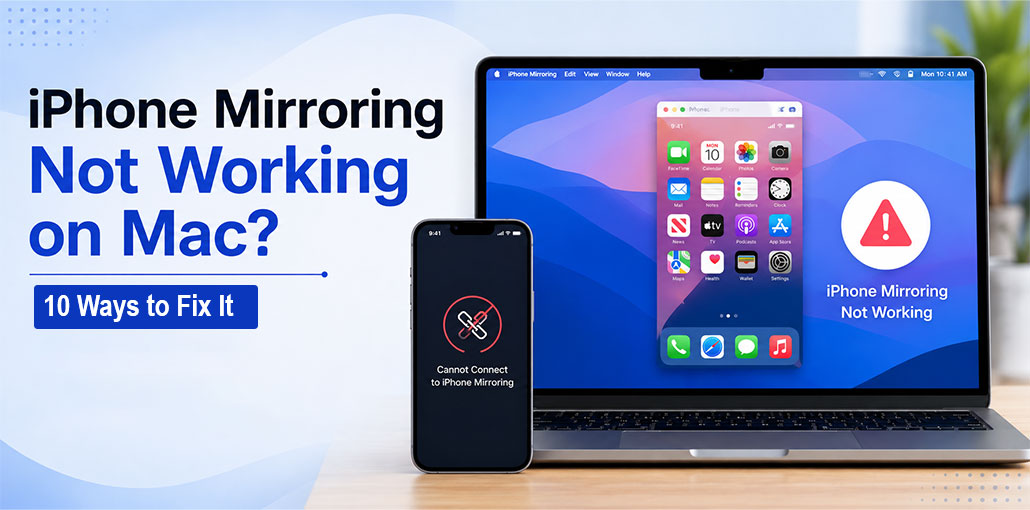
The latest iOS 18 and macOS Sequoia updates offer a handy iPhone Mirroring feature that lets you access your iPhone using your Mac. It’s an extremely useful feature and is quite effective. However, sometimes iPhone mirroring not working on your Mac with iOS 18, and it can be very frustrating. If you want to know the reason and how to fix it, here are 10 methods to solve iPhone mirroring not working issues.
Why Is iPhone Mirroring Not Working?
Before trying complicated solutions, it helps to understand what might be causing the problem.
Common reasons include:
- Your iPhone or Mac doesn’t meet the compatibility requirements.
- Your devices aren’t running the required software versions.
- Wi-Fi or Bluetooth isn’t properly enabled.
- Your iPhone and Mac aren’t using the same Apple Account.
- Your iPhone is unlocked or actively being used.
- Your Mac isn’t selected for iPhone Mirroring.
- A temporary software glitch is affecting the connection.
Try the following fixes one by one. In many cases, you won’t need to go through every step.
Also read: Android Screen Mirroring Guide: 5 Best Apps and Common Fixes
How to Fix iPhone Mirroring Not Working (Step-by-Step Guide)
1. Check Whether Your Devices Are Compatible
The first thing to check when iPhone Mirroring not working is device compatibility.
iPhone Mirroring isn’t available on every iPhone and Mac. The feature requires supported hardware and software, so an older device may not offer the feature even if everything else is configured correctly.
Check whether your iPhone and Mac support the iOS and macOS required for iPhone Mirroring.
If your devices are compatible, move on to the next step to fix iPhone Mirroring not working. If they’re not, changing settings won’t make the feature available.
2. Update iOS and macOS
Outdated software can cause compatibility problems and prevent iPhone Mirroring from connecting correctly. Installing the latest available updates can fix bugs and improve communication between your Apple devices. Always update both devices instead of updating only your iPhone or Mac.
Steps:
- Open Settings > General > Software Update on iPhone.
- Install any available update.
- On Mac, open System Settings > General > Software Update.
- Restart both devices.
3. Use the Same Apple Account
If your iPhone and Mac use different Apple Accounts, the mirroring feature may not work as expected. Checking your account information is especially important if you recently changed accounts or purchased a new device. Make sure both devices are properly signed in.
Steps:
- Open Settings > [Your Name] on iPhone.
- Check the Apple Account.
- Open System Settings on Mac.
- Confirm the same account is being used.
4. Turn On Wi-Fi and Bluetooth
Wireless connectivity is essential for iPhone Mirroring. If Bluetooth or Wi-Fi is disabled, your Mac may fail to detect or connect to your iPhone. Refreshing both wireless connections can also resolve temporary communication problems between the two devices.
Steps:
- Turn on Wi-Fi on your iPhone.
- Turn on Bluetooth.
- Enable Wi-Fi and Bluetooth on your Mac.
- Keep both devices nearby.
- Try connecting again.
5. Keep Your iPhone Locked
One commonly overlooked requirement is keeping the iPhone locked while using the mirroring feature. Unlocking and actively using the phone can interrupt the session. If iPhone Mirroring not working after you pick up your phone, lock it again before reconnecting.
Steps:
- Close the iPhone Mirroring session.
- Lock your iPhone.
- Leave the iPhone locked.
- Open iPhone Mirroring on your Mac.
- Try connecting again.
6. Restart Both Devices
A temporary software or wireless glitch can make iPhone Mirroring not working unexpectedly. Restarting your iPhone and Mac clears temporary processes and refreshes their wireless connections. This simple solution is worth trying before changing advanced settings or resetting your network configuration.
Steps:
- Restart your iPhone.
- Restart your Mac.
- Turn Wi-Fi and Bluetooth back on.
- Lock the iPhone.
- Launch iPhone Mirroring again.
7. Disconnect AirPlay or Sidecar
If you’re using AirPlay or Sidecar at the same time, another Apple device may be occupying the wireless connection. Temporarily disconnecting these features can help determine whether they are interfering with iPhone Mirroring and preventing your Mac from establishing a stable connection.
Steps:
- Stop any active AirPlay session.
- Disconnect Sidecar if enabled.
- Close iPhone Mirroring.
- Lock your iPhone.
- Open iPhone Mirroring again.
8. Select the Correct iPhone
If you have multiple iPhones connected to your Apple Account, your Mac (In macOS Sequoia) may be attempting to connect to the wrong device. Selecting the correct iPhone can resolve connection problems without requiring a reset. This is particularly useful after adding a new iPhone.
Steps:
- Open System Settings on your Mac.
- Go to Desktop & Dock.
- Find the iPhone-related settings.
- Select the iPhone you want to mirror.
- Launch iPhone Mirroring.
9. Check iPhone Mirroring Settings
When iPhone Mirroring not working, checking your iOS 18 Continuity settings can help identify whether your Mac is properly recognized. If the Mac isn’t listed, reconnecting the device may restore communication. This method is useful when the feature previously worked but suddenly disappeared.
Steps:
- Open Settings on your iPhone.
- Go to General > AirPlay & Continuity.
- Select iPhone Mirroring.
- Check the available Mac.
- Reconnect if necessary.
Also read: How to Mirror iPhone to MacBook: 5 Best Methods
10. Contact Apple Support
If iPhone Mirroring not working after trying every basic solution, your issue could involve an account, software, or device-specific problem. Apple Support can investigate problems that standard troubleshooting cannot resolve. Have your device models, software versions, and error messages ready before contacting support.
Quick Checklist for iPhone Mirroring Problems
If you want to troubleshoot the problem quickly, go through this checklist:
- Check iPhone and Mac compatibility.
- Update iOS and macOS.
- Use the same Apple Account on both devices.
- Enable Wi-Fi and Bluetooth.
- Connect both devices to the same Wi-Fi network.
- Restart your iPhone and Mac.
- Keep the iPhone locked.
- Disconnect AirPlay.
- Disconnect Sidecar if you’re using it.
- Select the correct iPhone on your Mac.
- Check the iPhone Mirroring device list.
- Contact Apple Support if nothing works.
Wrap up
Follow these troubleshooting steps to fix iPhone Mirroring not working issues and connect your iPhone’s contents to your Mac. Let us know which solution helped you fix it. If you’re having any difficulties, leave a comment, and we’ll try to assist you as well.
FAQs: iPhone Mirroring Not Working
Why is iPhone Mirroring not connecting?
Make sure both devices are nearby, connected properly, signed in with the same Apple Account, and running supported software. Restarting both devices can also help.
Why is iPhone Mirroring not showing on my Mac?
Your Mac or iPhone may not meet the compatibility requirements, or the required settings may not be enabled. Check your software versions and iPhone Mirroring settings.
Does iPhone Mirroring work when my iPhone is locked?
Yes. In fact, your iPhone is intended to remain locked while you control it through your Mac.
What should I do if iPhone Mirroring still fails after troubleshooting?
If basic troubleshooting fails, restart both devices. If the issue persists, contact Apple Support for hardware or account-level troubleshooting.






Leave a comment