

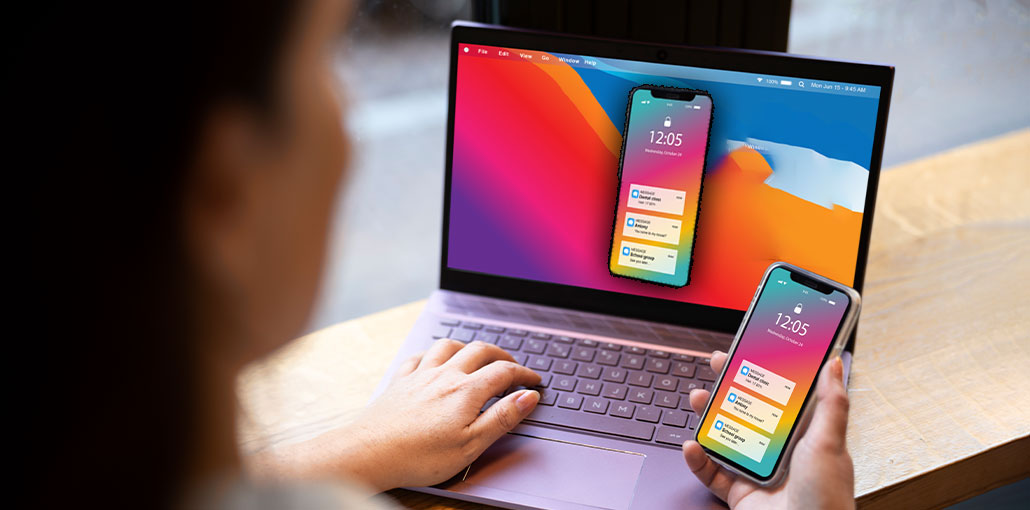
Nowadays, most people have more than one electronic gadget to keep them entertained. One of the latest digital entertainment methods is screen mirroring from an iPhone to a bigger screen, such as a MacBook.
Many users want to know how to mirror iPhone to MacBook for various reasons. For instance, presenting a business presentation with a bigger screen can make the work more productive; playing games is more enjoyable, sharing personal photos with family and friends, and transferring videos and photos from iPhone to Mac can create a more welcoming feeling, and watching movies on a bigger screen will be an amazing experience.
Here we’ll walk you through the best five ways to screen mirror iPhone to MacBook. Let’s get started!
How to Mirror iPhone to MacBook: 5 Best Methods
Learn how to mirror iPhone to MacBook using AirPlay, QuickTime, and third-party apps. Step-by-step guide to screen mirror iPhone to MacBook without WiFi or with wireless methods easily in 2026.
How to Mirror iPhone to MacBook Using AirPlay
Apple’s built-in AirPlay is the easiest way to screen mirroring iPhone to MacBook.
Steps:
- Make sure both devices are on the same Wi-Fi network
- On your MacBook, open System Settings
- Go to General → AirDrop & Handoff
- Enable AirPlay Receiver
- On your iPhone, open Control Center
- Tap Screen Mirroring
- Select your MacBook name
- Enter the code if prompted
Your iPhone screen will now appear on your MacBook.
Also read: How to Fix AirPlay Not Working on Roku: 9 Easy Tips
How to Mirror iPhone to MacBook Using QuickTime Player
Apple has introduced a handy feature in OS X Yosemite that lets users use their iPhone screen on their Mac using the Lightning USB connector. This technique has virtually no delay and doesn’t require WiFi connectivity.
To mirror iPhone to Mac via USB, you’ll need an iPhone running iOS 8 or later, and a Mac with OS X Yosemite or later.
Steps:
- Connect iPhone to MacBook using USB cable
- Open QuickTime Player
- Click File → New Movie Recording
- Click dropdown next to record button
- Select iPhone as camera source
Your iPhone screen will instantly appear on MacBook with zero lag.
How to Mirror iPhone to MacBook Using 5KPlayer
5KPlayer is the easiest method to record audio and motions on your iOS 13 device or Mac by improving AirPlay Screen recording and mirroring (Catalina, Mojave, High Sierra, El Capitan, Yosemite, Mavericks). 5KPlayer uses an AirPlay server that supports iPhone screen mirroring to a Mac running iOS 13. Additionally, it can stream music and movies via iPhone to Mac/PC to Apple TV, expanding your audio and visual experience without any loss of quality.
Steps:
- Download and install 5KPlayer on MacBook
- Connect iPhone and MacBook to the same WiFi network
- Open Control Center on iPhone
- Tap Screen Mirroring
- Select MacBook (via 5KPlayer)
How to Mirror iPhone to MacBook Without WiFi Using AnyMirror
Although Apple allows screen sharing between an iPhone and Apple TV, there is no direct built-in option to mirror an iPhone screen to a Mac. However, thanks to third-party software like AnyMirror, the feature is now available. It lets you replicate the contents of your iPhone to the Mac without Wi-Fi. It also lets you mirror iPhone cameras and mics simultaneously when you want to.
Steps:
- Install AnyMirror on MacBook
- Launch the software
- Connect iPhone via USB or supported connection method
- Select screen mirroring mode
- Start mirroring your iPhone screen
How to Mirror iPhone to MacBook Using AirServer
Apple also lets you replicate an iPhone on your Mac through Bluetooth when you are unable to connect the device to the same connection or have connectivity issues. This feature is also accessible through third-party apps like AirServer.
Of course, Bluetooth-enabled devices and AirServer must be used to replicate the iPhone to Macs via Bluetooth.
Steps:
- Install AirServer on MacBook
- Open the application
- Connect both devices to the same network
- Open Control Center on iPhone
- Tap Screen Mirroring
- Select your MacBook
Also read: Android Screen Mirroring Guide: 5 Best Apps and Common Fixes
Troubleshooting iPhone to MacBook Mirroring Issues
| Problem | Possible Cause | Solution |
|---|---|---|
| MacBook not showing in Screen Mirroring list | Devices not on same WiFi network | Connect both iPhone and MacBook to the same WiFi network |
| AirPlay not working | AirPlay Receiver disabled on Mac | Go to System Settings → General → AirDrop & Handoff → Enable AirPlay Receiver |
| Lag or poor connection | Weak WiFi signal | Move closer to router or switch to a stronger network |
| iPhone not connecting to Mac | Outdated software | Update iOS and macOS to the latest version |
| Screen mirroring option missing | Compatibility issue | Ensure Mac supports AirPlay and is running supported macOS version |
| QuickTime not detecting iPhone | Faulty USB cable or connection | Use original Lightning cable and reconnect device |
| Black screen during mirroring | App conflict or system glitch | Restart both devices and close background apps |
| Audio not working | Sound settings not enabled | Check Mac sound input/output settings and enable audio capture |
| AirPlay keeps disconnecting | Network interference | Disable VPN and reduce network congestion |
| Mac not appearing on iPhone | AirPlay disabled on Mac | Turn on AirPlay Receiver in Mac settings |
Conclusion
Now you clearly understand how to screen mirror iPhone to MacBook using multiple methods. Controlling the functions remotely and taking advantage of the bigger screen should be an unforgettable experience, made possible through screen mirroring.
FAQs: How to Mirror iPhone to MacBook
Can I mirror iPhone to MacBook without WiFi?
Yes, you can use QuickTime Player with a USB cable to mirror your iPhone to MacBook without WiFi.
Why is my MacBook not showing in Screen Mirroring?
Make sure both devices are connected to the same WiFi network and AirPlay Receiver is enabled on your Mac.
Can I record iPhone screen on MacBook while mirroring?
Yes, you can record your screen using QuickTime Player or third-party apps like AnyMirror and 5KPlayer.
Do I need any app to mirror iPhone to MacBook?
Not always. AirPlay and QuickTime Player are built-in, but apps like AnyMirror or AirServer offer extra features.







Leave a comment