

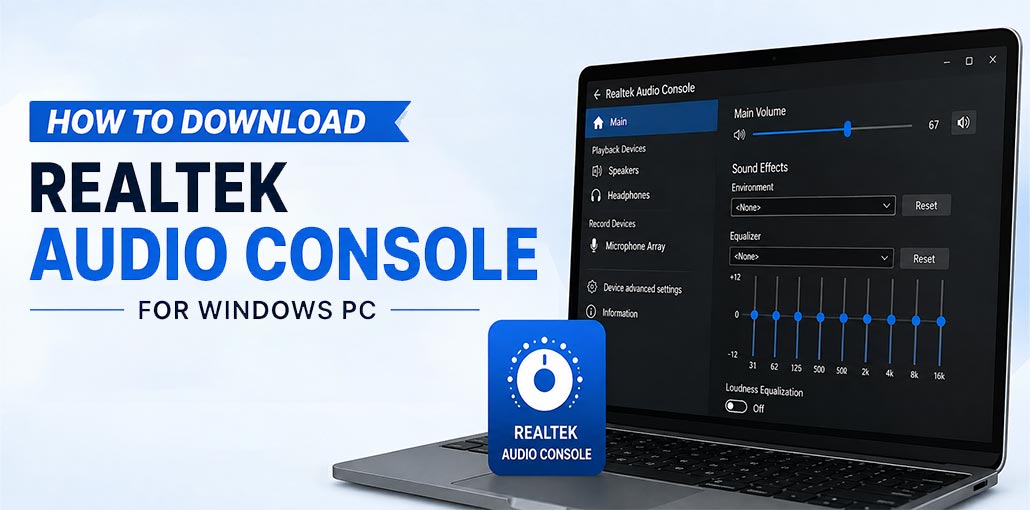
If you want more control over your PC’s sound settings, the Realtek Audio Console can be useful. It lets you manage supported audio features such as speaker settings, microphone options, jack detection, equalizer controls, and other sound effects.
However, installing the Realtek Audio Console is slightly different from installing a regular Windows app. In most cases, you first need the correct Realtek audio driver for your laptop, desktop, or motherboard. Once the compatible driver is installed, you can install the console through the Microsoft Store.
What Is Realtek Audio Console?
The Realtek Audio Console is a Windows app designed to provide additional controls for compatible Realtek audio hardware. Depending on your PC and installed driver, the app may provide options for adjusting sound effects, speakers, microphones, and audio ports.
The available settings can vary between computers because the features depend on the Realtek driver and the hardware manufacturer.
How to Download Realtek Audio Console for Windows PC
Before downloading the app, make sure your computer has a compatible Realtek audio driver. Microsoft recommends getting the latest audio driver from your PC or motherboard manufacturer’s support website when a driver is missing or incompatible.
1. Check Your Realtek Audio Driver
First, check whether your PC already has a Realtek audio driver.
- Press Windows + X.
- Select Device Manager.
- Expand Sound, video and game controllers.
- Look for a Realtek audio device.
- Right-click it and select Properties.
- Open the Driver tab to check the installed driver information.
If you don’t see a Realtek device, you may need to install the correct driver first.
Also read: Windows 11 Media Creation Tool: A Complete Guide to Download and Install
2. Download the Realtek Audio Driver
The safest way to get the driver is through your computer or motherboard manufacturer’s website.
For example, if you use a Dell, HP, Lenovo, ASUS, Acer, MSI, Gigabyte, or ASRock PC or motherboard, open its official support page and search for your exact model.
Then:
- Select your Windows version.
- Open the Audio or Driver section.
- Download the latest compatible Realtek audio driver.
- Run the downloaded installer.
- Follow the instructions on the screen.
- Restart your computer when the installation finishes.
Using the correct manufacturer driver is important because the Realtek Console depends on compatible driver components.
3. Open Microsoft Store
After installing the audio driver, open the Microsoft Store on your Windows PC.
Search for Realtek Audio Console.
You can also use Microsoft’s app page directly:
Realtek Audio Console on Microsoft Store
If the app is available for your device, select Get or Install.
4. Install Realtek Audio Console
Wait for Windows to finish installing the application.
Once installed:
- Open the Start menu.
- Type Realtek Audio Console.
- Select the app from the search results.
- Allow it a few seconds to detect your audio hardware.
If everything is compatible, you should see the available audio settings.
Realtek Audio Console Not Showing in Microsoft Store?
Don’t worry if you cannot find Realtek Audio Console by simply searching the Microsoft Store.
The app may depend on the Realtek driver and related software components installed on your computer. Microsoft Q&A discussions note that the compatible manufacturer driver may need to be installed before the Store app becomes available or works correctly.
In this situation, try these steps:
- Install the latest Realtek audio driver from your PC or motherboard manufacturer’s website.
- Restart your computer.
- Open Microsoft Store again.
- Search for Realtek Audio Console.
- Try opening the direct Microsoft Store page.
- Make sure Windows and Microsoft Store are updated.
Also read: Audio Renderer Error: 7 Quick Fixes for Windows Sound Issues
How to Fix Realtek Audio Console Not Installing
If the app refuses to install, the problem may be related to the driver rather than the application itself.
Update the Realtek Driver
Go back to your computer manufacturer’s support page and check whether a newer audio driver is available. Download the version specifically made for your PC model and Windows version.
Restart Your PC
A simple restart can sometimes fix temporary driver or Microsoft Store problems. After restarting, try opening the Store and installing the app again.
Check Device Manager
Open Device Manager and expand Sound, video and game controllers. If your audio device is disabled, right-click it and choose Enable device when that option is available.
Update Windows
Go to:
- Settings → Windows Update → Check for updates
- Install available updates and restart your PC.
Reinstall the Audio Driver
If the Realtek device is still not working correctly, uninstalling and reinstalling the manufacturer’s audio driver may help. Download a fresh driver from the official support page for your exact PC or motherboard model.
Can You Download Realtek Audio Console Without the Audio Driver?
Usually, you should not treat the Realtek Audio Console as a completely independent replacement for the audio driver.
The console is mainly a control application, while the driver allows Windows to communicate properly with the Realtek audio hardware. The available features also depend on the installed driver and your computer’s hardware.
So, if you are setting up a new PC, the better approach is to install the correct Realtek audio driver first and then install the Realtek Audio Console.
Final Thoughts
Downloading Realtek Audio Console on a Windows PC is usually straightforward once the correct audio driver is installed. Start by checking your PC or motherboard manufacturer’s support page, install the compatible Realtek driver, restart Windows, and then install the console from Microsoft Store. This approach is safer than downloading random Realtek installers from third-party websites.
FAQs: Realtek Audio Console
Can I install Realtek Audio Console without a Realtek driver?
Usually, the app needs compatible Realtek audio drivers and components to work correctly. If you install the app without the required driver, some features may not appear or the app may not detect your audio device.
Can I use Realtek Audio Console on any Windows PC?
No. The app is intended for systems with compatible Realtek audio hardware and software. The available controls can also vary depending on your PC manufacturer and installed driver.
How do I install Realtek Audio Console?
First, install the correct Realtek audio driver from your PC manufacturer's support page. After restarting your computer, open Microsoft Store, search for Realtek Audio Console, and install the app.
How do I know if my PC supports Realtek Audio Console?
Open Device Manager → Sound, video and game controllers and look for a Realtek audio device. If your system uses compatible Realtek hardware and drivers, the console may be available through Microsoft Store.






Leave a comment