

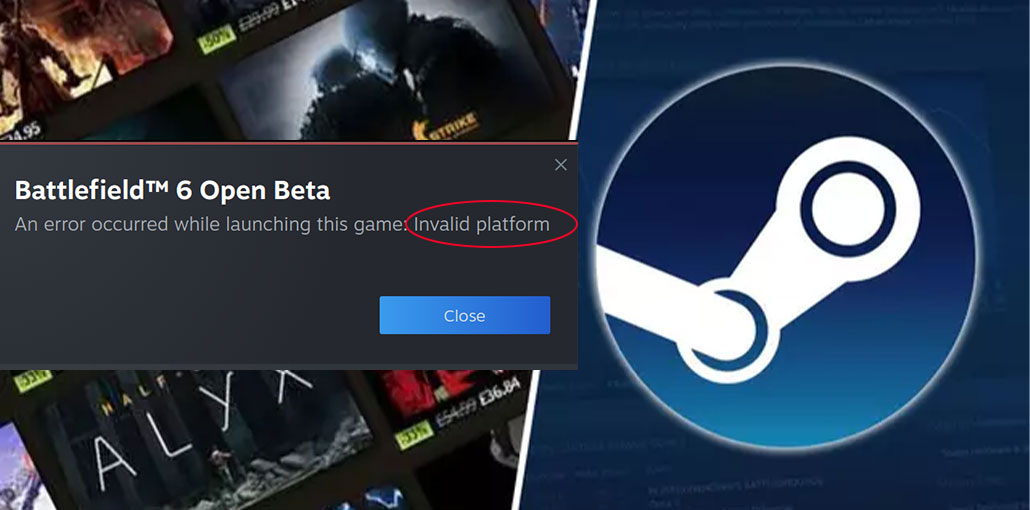
If you’re trying to redeem a gaming key, you may get the Steam invalid platform error displayed on your computer. But don’t fret; in this post, we will provide various methods to fix it.
What Is the Steam Invalid Platform Error?
A Steam invalid platform error means that the program or game you’re trying to add to your Steam library isn’t compatible with your operating system. It can be very frustrating to get this error message whenever you try to play a game on your PC. If you’re facing an invalid platform error on Steam, it is not the only one.
What Causes the Steam Invalid Platform Error?
Several issues can trigger the Steam Invalid Platform Error, including:
- Corrupted Steam cache files
- Incorrect compatibility mode settings
- Outdated Steam client
- Damaged game files
- Incomplete game installation
- Running an unsupported Windows version
- Beta client conflicts
- Corrupted Steam configuration files
Do you see Steam display this error message each time you attempt to launch or update your games? If yes, read the troubleshooting guide to discover solutions to the Steam invalid platform error.
Also read: Steam Overlay Not Working on Windows 10? Easy Fixes That Work
How to Fix Steam Invalid Platform Error
1. Check the Operating System Requirements
Steam requires a 64-bit operating system to function properly. If you’re running a 32-bit version of Windows, then you’ll need to upgrade to a 64-bit version of Windows and then reinstall Steam. Also, make sure that your system is running at minimum Windows 7, since Steam has ceased support for Windows XP and earlier versions.
2. Verify the Integrity of Game Files
One of the simplest ways to do this is to verify the integrity of your game’s files. Corrupted or missing files can occasionally result in the Steam invalid platform error. To check this:
- Launch the Steam client and then go to the Library.
- Right-click the game that causes the Steam incorrect platform error and select Properties.
- Go to the Local Files tab, and then click Verify the integrity of game files.
- Restart your computer and then relaunch Steam to see whether the issue has been resolved.
3. Force the Use of a Specific Steam Play Compatibility Tool
A few players have reported that enabling the Force the Use of a Specific Steam Play compatibility tool on Steam for the game, which causes the Steam invalid platform error, has helped them resolve the issue. Here’s how you can fix it:
- Open Steam, and then go into Your library.
- Right-click on the game that triggers the issue and then select Properties.
- Click on the Compatibility tab, and then check the box to force the use of a specific Steam Play compatibility tool.
- Select a compatible version from the dropdown menu.
- Save the changes and restart Steam.
4. Opt Out of Steam Beta Participation
Steam Beta builds occasionally introduce bugs that lead to the Steam Invalid Platform Error.
To leave the beta program:
- Open Steam.
- Select Steam > Settings.
- Open the Interface tab.
- Locate the Client Beta Participation option.
- Choose No Beta Chosen.
- Restart Steam.
5. Update Steam to the Latest Version
An outdated Steam client may cause compatibility issues with newer games.
To update Steam:
- Open Steam.
- Click Steam in the upper-left corner.
- Select Check for Steam Client Updates.
- Install any available updates.
Restart Steam after updating.
6. Reconnect Your External Hard Drive
If your application is stored on an external drive and you’re encountering a Steam invalid platform error, try launching the Steam game that’s not stored on the same drive. If the game is running without issue, then the issue could be due to the external drive.
To resolve this issue, simply disconnect the external hard drive and turn off your PC. Take a moment or two, then plug it back in.
7. Clear Steam Download Cache
As stated above, damaged files may cause a Steam invalid platform error. Alongside game files, Steam also has cached files on your PC. If the files become damaged, it can affect Steam’s operation. Thus, it is recommended to clear Steam’s download cache.
- Start Steam and then navigate to the Settings menu.
- Visit and click on the Downloads tab.
- Then, at the bottom, press the Clean Cache button that is next to the ” Clear Download Cache option.
- When a window appears, click on the Confirm button. After you have cleared the cache, Steam requires a reboot, and your next update or download should go effortlessly, without problems previously experienced.
Also read: Steam No License Error? Here’s How to Solve It Fast
8. Reinstall the Affected Games or Steam
Last but not least, consider reinstalling your infected game or the Steam client to reset the game and then fix the issue. Follow the steps for doing it:
To reinstall the game:
- Start Steam and browse through the Library. library.
- Right-click on the game and select Control >> Remove.
- Select the uninstall option to verify removal.
- Then, you can click on the uninstalled game in the Library sidebar.
- Select the install button.
To reinstall Steam:
- Press Windows + I to open Windows Settings and go to Applications.
- Under the Apps & Features tab, scroll down until you find and click Steam.
- Select the Uninstall button.
- After uninstalling, download Steam again.
How to Prevent Steam Invalid Platform Error
You can reduce the chances of seeing the Steam Invalid Platform Error by following these best practices:
- Keep Steam updated.
- Install Windows updates regularly.
- Avoid running Steam in compatibility mode.
- Verify game files after crashes.
- Use official Steam game installations.
- Avoid unstable beta versions unless necessary.
Conclusion
The possible solutions mentioned above are likely to fix this Steam invalid platform error for most users. These are fixes that Steam users say have been successful. You can also reach Steam’s technical support service on the Support page if more fixes are required.
FAQs: Steam Invalid Platform Error
Why am I getting the 'An error occurred while launching this game: Invalid Platform' message?
This error typically appears because of unsupported operating systems, corrupted game files, damaged Steam cache, compatibility mode conflicts, or issues with Steam itself.
Does Steam require a 64-bit operating system?
Yes. Modern versions of Steam and many newer games require a 64-bit version of Windows 10 or Windows 11 for proper functionality.
Can Steam Beta versions cause the Invalid Platform Error?
Yes. Some Steam Beta builds may contain bugs or compatibility issues that can trigger the error. Switching back to the stable version may help.
Is Steam Invalid Platform Error a Steam issue or a game issue?
It can be either. Sometimes the problem originates from Steam client files, while in other cases it is caused by corrupted game files or unsupported system requirements.









Leave a comment