

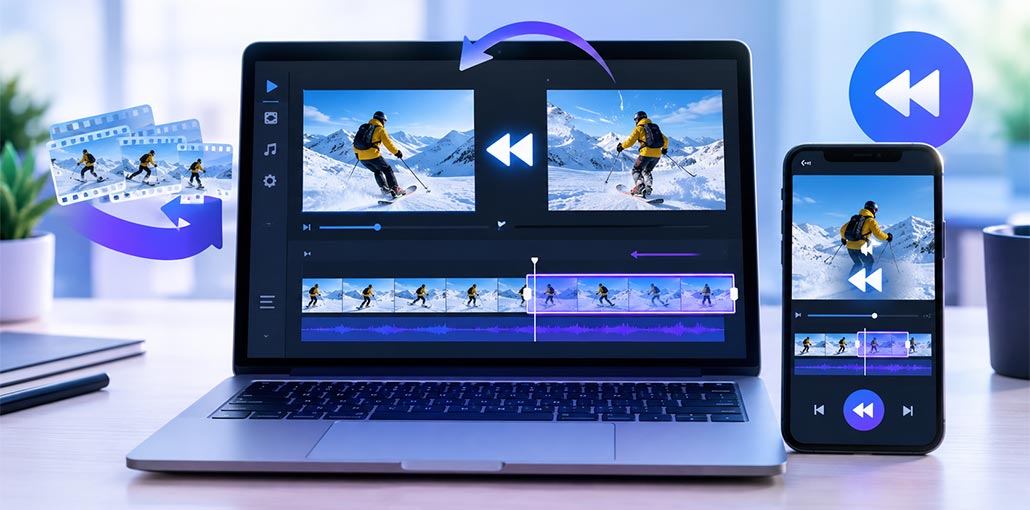
Are you looking for the best video reverser to play your videos backwards? A video reverser makes it easy to reverse videos and create engaging, innovative, and captivating content. If you search to reverse videos online, create social media content, or even add an original look to a project, the right tool will help you save time.
In this guide, we’ve rounded up the top video reverser tools worth trying.
What Is a Video Reverser?
A video reverser is a tool that plays your video from the end to the beginning. For example, a person jumping can appear to land and then jump backward into the air.
Many video reverser online tools are easy to use. You normally just upload your clip, choose the reverse option, preview it, and save the finished video.
Top 10 Video Reverser Tools
1. Kapwing
Kapwing is a browser-based video editor that is easy to use, even if you have little editing experience. You can upload a video, edit it, and create a reversed clip without installing software on your computer.
It also includes tools for trimming, adding text, subtitles, effects, and other elements. This makes it useful when you want to do more than simply reverse a video.
Pros:
- Easy to use
- Works directly in a browser
- Includes several editing tools
Cons:
- Some features require a paid plan
- Free exports may have limitations
Best for: Beginners and content creators.
Also read: How to Remove Background Music from Video: 5 Quick & Easy Methods
2. Clideo
Clideo is a simple video reverser online that focuses on making basic video editing quick and straightforward. You can upload your clip and apply the reverse effect without needing professional editing skills.
The clean interface is especially useful when you only need to reverse a short video. It also offers other basic tools for editing and converting video files.
Pros:
- Simple interface
- Beginner-friendly
- No software installation
Cons:
- Limited advanced features
- Free plan has restrictions
Best for: Quick video reversing.
3. Canva
Canva is widely used for graphic design, but it also has useful video editing features. It can be a good choice if you want to combine your reversed video with text, graphics, animations, or templates.
Its simple interface makes it popular with social media creators. You can create a video and work on other design elements in the same project.
Pros:
- Easy to learn
- Lots of templates
- Useful design features
Cons:
- Some features require Pro
- Not mainly designed as a video reverser
Best for: Social media posts and marketing content.
4. CapCut
CapCut is a popular choice for creating short videos for platforms such as TikTok, Instagram, and YouTube Shorts. It offers a wide range of editing tools that can be used alongside the reverse effect.
You can add transitions, music, text, effects, and speed changes to your footage. This makes it a good option if you want to create more creative reversed videos.
Pros:
- Easy editing tools
- Good selection of effects
- Great for short-form content
Cons:
- Some features may have restrictions
- Can feel overwhelming for new users
Best for: TikTok, Reels, and Shorts.
5. Adobe Premiere Pro
Adobe Premiere Pro is professional video editing software that gives you detailed control over your footage. It is a good choice if you need more than a basic video reverse tool.
You can reverse clips, adjust playback speed, edit audio, add effects, and work with multiple layers on a professional timeline. It is better suited to experienced editors than people looking for a quick online solution.
Pros:
- Professional editing features
- Detailed speed controls
- Suitable for large projects
Cons:
- Takes time to learn
- Subscription required
Best for: Professional editors and filmmakers.
6. VEED
VEED is an online video editor designed for people who want to create and edit content in their browser. Its simple interface makes it easy to work with videos without installing desktop software.
Besides reversing and editing videos, you can work with text, subtitles, effects, and other content tools. It can be useful for creators who regularly publish online.
Pros:
- Works in a browser
- Easy to use
- Includes useful editing tools
Cons:
- Some features are paid
- Free plan has limitations
Best for: Content creators and marketers.
7. Ezgif
Ezgif is a collection of simple online tools for working with GIFs and videos. It is a good option when you want to make a quick edit without downloading a large video editing program.
The interface is fairly basic, but that can actually be helpful for simple tasks. If you only need to reverse a clip and don’t need advanced effects, Ezgif can get the job done.
Pros:
- Simple and lightweight
- Easy to access
- Useful for quick edits
Cons:
- Basic interface
- Fewer advanced editing options
Best for: Simple video and GIF tasks.
8. InVideo
InVideo is an online video creation platform with a variety of editing tools and templates. It is aimed at users who want to create videos quickly without spending a lot of time learning complicated software.
You can use its editing features to work on social media videos, promotional content, and other projects. It is especially useful when video reversing is just one part of a larger editing project.
Pros:
- Many templates
- Browser-based editing
- Useful for marketing videos
Cons:
- Some features require a paid plan
- May offer more tools than needed for simple reversing
Best for: Marketers and content creators.
9. Adobe Express
Adobe Express is designed for users who want simple tools for creating social media posts, graphics, and videos. Its straightforward interface makes it easier for beginners to start editing without dealing with a complicated timeline.
It can be useful when you want to combine video with text, graphics, templates, and other creative elements. It is a good choice for quick content creation.
Pros:
- Beginner-friendly
- Useful templates
- Good for social media
Cons:
- Limited advanced editing
- Some features require a premium plan
Best for: Beginners and small businesses.
10. DaVinci Resolve
DaVinci Resolve is a powerful desktop video editor used for professional video production. It provides detailed controls for editing, speed, color correction, audio, and visual effects.
If you need a video reverser as part of a larger professional project, DaVinci Resolve gives you plenty of control. However, beginners may need some time to understand all of its features.
Pros:
- Powerful editing tools
- Advanced color and audio features
- Good for professional projects
Cons:
- Steeper learning curve
- Requires a capable computer
Best for: Professional editors and advanced users.
Also read: Top 10 Video Frame Extractors to Capture Perfect Frames
How to Reverse a Video Online
Using a video reverser online is usually quite simple. Most tools follow a similar process:
- Choose a video reversing tool.
- Upload your video.
- Find and select the Reverse option.
- Let the tool process your video.
- Preview the reversed version.
- Make any additional edits.
- Export or download the finished video.
The exact steps can vary from one tool to another, but you generally don’t need any professional editing experience.
Why Use a Video Reverser?
Reversing a video is a simple way to make ordinary footage more interesting. A reversed clip can work well for social media posts, funny videos, creative transitions, music videos, and other projects.
For example, you can reverse a video of someone jumping, water pouring, an object being thrown, or a person performing a trick. The backward movement can create an unexpected effect that catches attention.
How to Choose the Best Video Reverser?
Before choosing a video reverser, consider these important points:
- Is it easy to use? Choose a simple and beginner-friendly tool.
- Does it keep good quality? Make sure the output stays clear.
- Is it fast? Pick a tool that processes videos quickly.
- Does it support your device? Check Android, iPhone, desktop, or online support.
- Does it have extra features? Look for effects, text, music, and trimming.
- Is it free? Check for watermarks, limits, and paid features.
- Is it safe? Choose a trusted tool that protects your uploaded videos.
Video Reverser Online vs. Desktop Software
An online video reverser is convenient because you don’t have to install anything. You can open the website, upload your clip, reverse it, and save the result.
Desktop software is the best option if you require more control. Professional programs provide sophisticated editing, audio tools, effects, color correction, and detailed speed control.
For a quick project, reverse video online tools are often enough. For professional work, desktop editing software may be the better choice.
Conclusion
The tools mentioned above allow you to reverse videos on desktop, Android, iPhone, or online. Each one offers different options, so pick the one that fits your requirements. If you want a video reverser with more editing options, you should look for features like effects, transitions, text, music, and basic controls.
FAQs: Video Reverser
Which video reverser is best for beginners?
CapCut, Canva, and Clideo are good options for beginners because they have simple interfaces and easy-to-use editing controls.
Can I reverse a video online without installing software?
Yes. Kapwing, Clideo, VEED, and Ezgif are browser-based options, so you can edit videos without installing desktop software.
Can I reverse a video without losing quality?
Yes. Most video reverser tools keep good quality when you export with suitable settings. Adobe Premiere Pro and DaVinci Resolve also provide more control over export quality.
Do free video reverser tools add a watermark?
Not always. Some free video reverser tools may add a watermark, while others allow watermark-free exports. Check the tool’s free-plan limits before exporting your video.





Leave a comment