

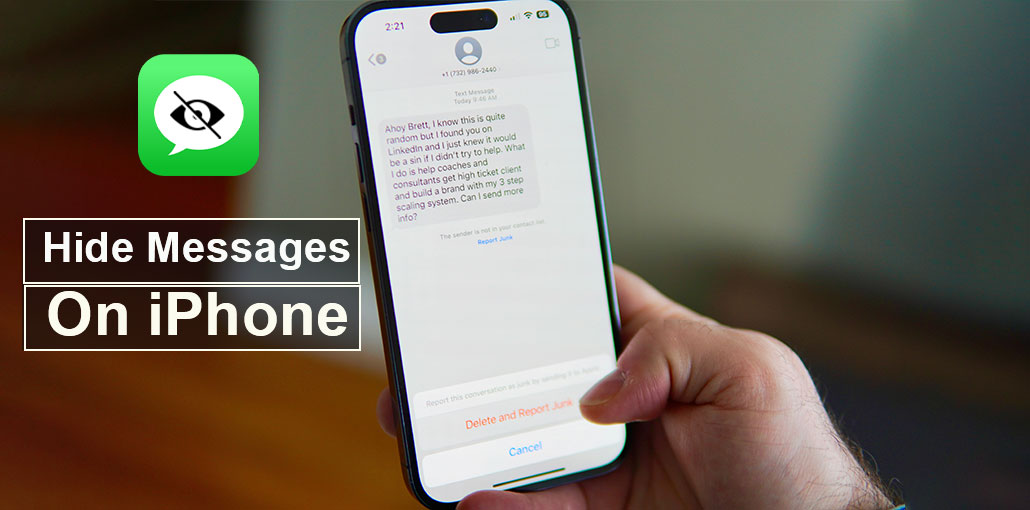
The Internet has become the primary driver for humanity and the world at large; it is becoming more challenging for people to keep their privacy. While tech experts are trying to provide users a safe experience, we also have a responsibility to protect our privacy. In other words, instead of displaying the messages on our screens, it is better to hide them so that no one can read our private conversations. In this article, we’ve created a comprehensive guide on how to hide messages on iPhone and keep your private conversations safe.
Can You Hide Messages on iPhone?
Before we do that, we need to know whether you know how to hide messages on iPhone. The answer is yes. Apple has a feature that lets you hide a text message and forward it to someone else. The message is hidden behind bubbles (or an alternative animation) until users clear any animations by wiping them clean. Although this feature isn’t compatible with any advanced security, you can still use it to ensure the privacy of your conversations.
How to Use Invisible Ink to Hide Messages on iPhone
Apple’s iMessage feature includes an effect called Invisible Ink, which hides a message behind a blurry animation until the recipient reveals it.
- Open the “Messages” app on your iPhone.
- Now start the thread, and type in the message you would like to transmit.
- Hold and press the red “Send” button for a duration of. After that, select “Send With Effect” and select “Send With Invisible Ink” from the menu.
- Once you press”Send” and then tap the “Send” icon, the message (with an animation covering it) will be sent to the recipient.
Also read: iPhone Not Receiving Texts? 12 Fixes to Get Messages Back
How to Hide Text Messages on iPhone Without Deleting Them
You can now modify the settings on your iPhone and decide when your phone will display message alerts. This lets you manage the message alerts and ensure that your phone displays text messages when your device is in use.
- Open the “Settings” app on your iPhone.
- Tap “Notifications” and then tap the “Messages” option.
- Under the”Options”, click the “Options” tab, use the drop-down menu to choose “When Unlocked”.
It’s that simple; your iPhone will only show messages when it’s activated and locked.
How to Hide Messages on iPhone Lock Screen
It’s worth noting that you can also hide messages on iPhone without deleting them from the lock screen. This is an excellent option for people who wish to receive message alerts, but don’t want other users to view the messages.
- Once again, open”Settings” and then click on “Notifications”.
- Afterwards, choose “Messages” and look for the “Include” option.
- You’ll notice the “Show Preview” option. Turn off the switch to disable this feature.
As of now, the iPhone will no longer display text messages on the lock screen, and no one can read the messages without your consent.
How to Hide Messages From One Person on iPhone
Another method to hide messages on iPhone from a particular sender. This is an ideal solution for you if you need to hide conversations from specific people, whether it’s your friend or an office colleague. Take these solutions to hide messages on your iPhone from gf/bf.
- Open “Messages,” then click the “Contact” whose messages you wish to hide.
- Click the “Face” icon, then click the “Info” button.
- On the next page, flip the switch to the “Hide Alerts” option.
This will block all messages sent to the specific contact, and you won’t be able to see them unless your device is not locked.
How to Hide iMessage Conversations on iPhone
Alongside the normal text messages, you can hide iMessage conversations on your iPhone. Many users have enabled text forwarding in their iMessage application. It sends messages to all iDevices synced to an iCloud account. This means that anyone can view messages without trouble. Therefore, if you’d like to ensure your messages are secure, you can switch off iMessage forwarding on your device.
Here’s how to hide the iMessage conversations on an iPhone.
- Open the “Settings” app on your iPhone and then click “Messages”.
- Click on”Follow” to access the “Text Message Forwarding” option.
- Finally, you must disable the selected devices to disable text forwarding.
Refresh the home screen, and your messages won’t be redirected to any other synced iDevices.
Also read: How to Block No Caller ID on iPhone (2026 Easy Guide)
Best Apps to Hide Text Messages on iPhone
Although Apple does not provide a specific method to hide messages on iPhone in its official application, there are a couple of alternatives you can install to do so.
1. Wire
Wire is a secure messaging app designed for private communication. It uses end-to-end encryption to protect messages, calls, and shared files.
Key Features:
- End-to-end encrypted messaging
- Secure voice and video calls
- Cross-device syncing
- Private file sharing
- Strong privacy protection
2. AnyTalk
AnyTalk helps users keep conversations private across iPhone, iPad, and Mac devices. The app focuses on secure syncing and encrypted chats.
Key Features:
- Encrypted text messaging
- Safe cross-device synchronization
- Private chat protection
- User-friendly interface
- Fast and secure communication
3. iDiscrete
iDiscrete is one of the most popular privacy apps for hiding messages and sensitive data on iPhone. It includes advanced security tools for maximum protection.
Key Features:
- PIN and password protection
- Hidden message storage
- Touch sequence security
- Fake loading screen
- Advanced privacy controls
Tips to Keep Your iPhone Messages Private
Here are a few extra privacy tips:
- Never share your iPhone passcode
- Enable two-factor authentication
- Keep iOS updated
- Avoid opening suspicious links in messages
- Use encrypted messaging apps whenever possible
Final Words
Can you hide messages on iPhone? Yes, you have the right answer. We’ve provided solutions to hide messages on iPhone. It doesn’t matter if you’re looking to hide all messages from everyone or protect selected conversations; the solutions above will keep all your messages private.
FAQs About How to Hide Messages on iPhone
Can you hide text messages on iPhone without deleting them?
Yes, you can hide text messages on iPhone without deleting them by turning off message previews, hiding alerts, or disabling lock screen notifications.
What is Invisible Ink on iPhone?
Invisible Ink is an iMessage effect that hides the message behind a blur animation until the recipient swipes to reveal it.
Which apps are best for hiding messages on iPhone?
Popular apps include, Wire, and iDiscrete because they offer encryption and extra privacy features.
What is the easiest way to hide messages on iPhone?
The easiest method is turning off lock screen previews through Settings > Notifications > Messages > Show Previews.






Leave a comment