

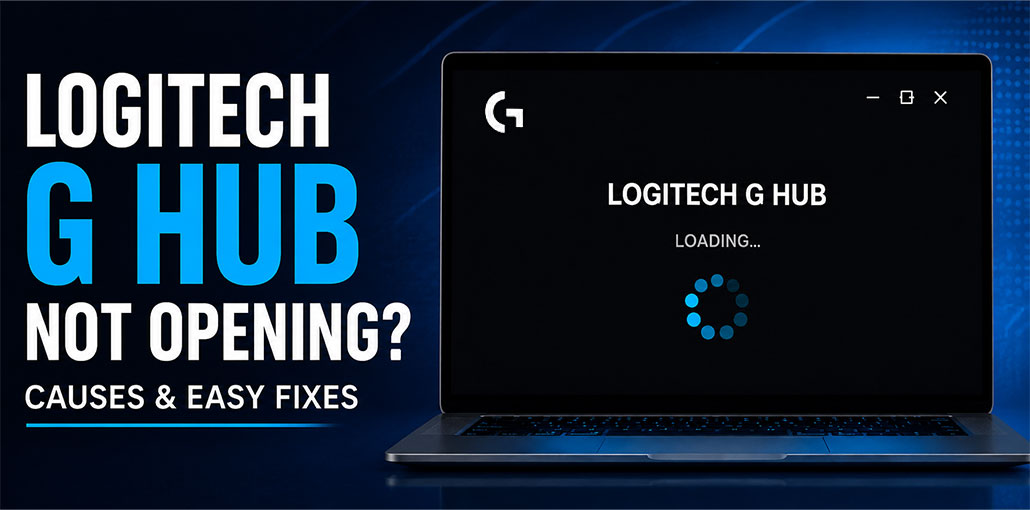
You may have issues with Logitech G Hub on Windows 10/11, such as it won’t open. Why is Logitech G Hub not opening/loading/sucking on loading? What do you do if Logitech G Hub is not working? Here are solutions to fix it effectively.
What Is Logitech G Hub?
Logitech G Hub offers a single portal that lets users customize and optimize Logitech peripherals, including mice, webcams, speakers, keyboards, and headsets. But Logitech G Hub not opening can occur on Windows 11/10. Specifically, it is stuck on the loading screen, and it isn’t loading.
Why is Logitech G Hub Not Opening or Loading?
Logitech G Hub not opening issue could be due to software glitches, restricted access to the system’s files, insufficient memory, failing to install an update on the fly, etc. Although it can be difficult, the solution isn’t difficult. In this article, we’ll walk through all possible solutions and help you get your Logitech G Hub working properly.
Also read: NVIDIA Control Panel Not Opening: Try These 10 Easy Fixes
How to Fix Logitech G Hub Not Opening/Loading Issue
1. Run Logitech G Hub as Administrator
Some third-party applications require administrator privileges to function correctly. Running Logitech G Hub with elevated permissions may solve the issue immediately.
- Open the Windows Search bar and type Logitech G Hub.
- Right-click the application and select Run as administrator.
- Click Yes when the User Account Control prompt appears.
You can also permanently enable administrator access:
- Navigate to the Logitech G Hub installation folder:
C:\Program Files\LGHUB - Right-click lghub.exe and select Properties.
- Open the Compatibility tab.
- Enable Run this program as an administrator.
- Click Apply and then OK.
Repeat the same steps for:
- lghub_agent.exe
- lghub_updater.exe
- lghub_software_manager.exe
After enabling administrator privileges, restart Logitech G Hub and check whether it
2. End Logitech G Hub Processes
When you’re facing a Logitech G Hub stuck on loading or shutting down issue, the client does not stop all associated processes. Therefore, you must shut them down manually.
- Open Task Manager by using the Win + X menu.
- On the Processes tab, you will find three processes: LGHUB, LGHUB Agent, and LGHUB Updater.
- Select the one you want to complete and choose Finish task.
After exiting, open Logitech G Hub and see whether it can launch. If it is locked and is not open, try the next solution.
3. Free up Memory
To ensure that the application runs smoothly, your PC must have sufficient memory; otherwise, Logitech G Hub won’t open or load.
To free up memory:
- Open Task Manager.
- Check which applications are consuming large amounts of memory.
- Close unnecessary programs and background tasks.
- Try launching Logitech G Hub again.
Also read: How to Clean Up Junk Files and Speed Up Your PC
4. Restart LGHUB Updater Service
The LGHUB Updater Service is responsible for coordinating the driver and software updates. So, be sure to make it work correctly when Logitech G Hub not opening.
- Press Windows + S, type services, and then press Enter to open it.
- Find the LGHUB Updater Service, Right-click it, and select Properties.
- Select Automated in the Startup type Drop-down menu. In addition, if the service is not running, click Start to begin the process.
- Apply these changes.
5. Update or Reinstall Logitech Device Drivers
Incompatible device drivers may also be a reason for Logitech G Hub not opening or loading on Windows. Make sure you rule out the issue by reinstalling or updating the appropriate drivers.
To do so:
- Access Device Manager by pressing Win + X.
- Find the Logitech device based on the category, such as camera, keyboard, mouse, and so on. Right-click it and choose the option to update the driver.
- Tap Search for drivers automatically to allow Windows to determine the best driver available and install it.
You can also visit the official Logitech website for more information, download the necessary drivers, and then install them manually.
6. Reinstall Logitech G Hub
Logitech G Hub not working or Logitech G Hub not opening may stem from errors during installation/software updates or a software conflict. If this is the case, reinstalling will be beneficial.
7. Repair Corrupted System Files
Damaged Windows system files can prevent applications from starting.
Open Command Prompt as administrator and run:
SFC /scannow
Wait for the scan to finish and restart your computer. Windows will automatically repair damaged system files when possible.
8. Update Windows
Windows updates bring the latest patches to fix issues that trigger Logitech G Hub not opening. Don’t forget about them.
After that, go to Settings, where you will find your Windows Update Page to check for Windows updates, including optional updates, then download and install them.
How to Prevent Logitech G Hub Issues
You can reduce the chances of future problems by:
- Keeping Windows updated
- Installing the latest G Hub version
- Avoiding forced shutdowns
- Updating device drivers regularly
- Keeping enough free disk space available
Final Word
We hope these solutions will fix the issue of Logitech G Hub not opening right now. If you have questions or suggestions, please leave a comment below, and we’ll contact you shortly.
FAQs: Logitech G Hub Not Opening
Why is Logitech G Hub using a lot of memory?
Logitech G Hub may consume more memory when multiple device profiles, RGB effects, or macros are active simultaneously.
Will reinstalling Logitech G Hub delete my profiles?
If your profiles are synced to your Logitech account, they will usually be restored after you sign in again following the reinstallation.
How do I fix Logitech G Hub stuck on loading screen?
Yes. Running Logitech G Hub with administrator privileges can resolve permission-related issues that prevent the software from launching properly.
What should I do if Logitech G Hub still won't open after reinstalling?
If Logitech G Hub still doesn't open after reinstalling, update your device drivers, check Windows updates, disable conflicting software, and contact Logitech Support if the issue continues.



Leave a comment