

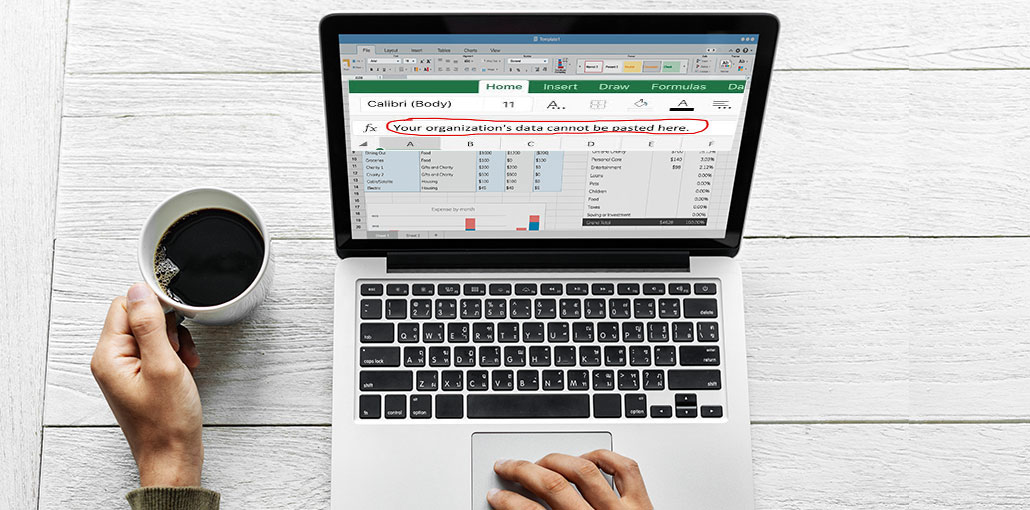
If you encounter the error message “Your organization’s data cannot be pasted here,” data-protection policies block certain actions on the device. This restriction is typically triggered by Microsoft Intune or other management tools set up by your company. Learning the fundamental troubleshooting techniques can help you resolve the issue fast.
This article will describe the significance of this error, it’s there, and how you can resolve it. We’ll also go over a variety of causes, such as data protection policies or limitations implemented by your organization, and provide solutions to these problems.
What Does “Your Organization’s Data Cannot Be Pasted Here” Mean?
If you get the message “Your organization’s data cannot be pasted here,” it indicates that you’re trying to transfer data from an application the organization has authorized (like Microsoft Outlook or SharePoint) to a restricted application. Mobile and desktop devices may be affected by this issue. It is designed to protect sensitive information within specific companies where security is the most important.
“Your organization’s data cannot be pasted here.” The error popped up because of the security feature Microsoft Intune Policy Management (MIPM), which doesn’t allow the data transfer to unknown software within the same system. If data is transmitted to a trusted software, the error can still occur if the Office or Outlook software is outdated.
Why Your Organization’s Data Cannot Be Pasted Here: Error Occurs
Here are a few explanations for the “Your company’s information cannot be displayed here error.
- Microsoft Intune Policy: This error is because of Microsoft Intune’s privacy policies. These policies safeguard the private information. When data is enabled, Intune locks and limits the ability to cut, copy, and paste, so that personal information not accessed by unauthorized persons.
- Data Protection Policies: Organizations have set guidelines for data protection. These policies restrict the exchange of certain kinds of data between apps to safeguard them from security threats. If your application violates one of these rules, an error will appear.
- Outdated Application Versions: Outdated versions of applications, such as Microsoft Office or Outlook, can also trigger an “Your organization’s data cannot be pasted here” error.
- File corruption: If the files uploaded aren’t set securely and errors are triggered, like “Your organization’s data can’t be copied and pasted here. This can be fixed through repair or restoration of the corrupted file.”
- Character restrictions: Every software within the company has an upper limit on characters. If this limit is reached, then an error message such as “Your organization’s data cannot be pasted here” is displayed. The operating system limits the characters that can be in specific programs to protect private information and increase confidence levels in data security procedures. In certain instances, invisible Unicode characters could be introduced through copying and pasting between applications limitations. This tool’s hidden text detection will help you identify these characters.
- Technical Problems: Technical issues on the side that prevent data from being transferred across applications can cause the error “Your organization’s data cannot be pasted here.” These might be due to software conflicts, system updates, or network problems. It is possible to update their software or restart apps to resolve these technical issues and ensure the apps run properly.
Also read: Top 10 Data Entry Software
How to Fix Your Organization’s Data Cannot Be Pasted Here Error.
Here are some simple troubleshooting methods that can assist you in resolving the cannot paste into Outlook issue quickly:
1. Adjust Microsoft Intune Policy (For Admins)
To fix this error, you must alter your Intune App Protection Policy. Follow these steps:
- Enter your admin login details to log in to the Microsoft Intune administration center.
- Choose Apps and then App Protection policy from the admin center.
- Install a suitable app protection policy in the app in case there is an issue. Include all the necessary information to create a new policy here.
- Click on Settings>Data Protection>Data Transfer. Choose Managed or All apps to “Restrict cut, copy, and paste between other apps.”
- After verifying, reboot the device and save the settings you have changed to ensure that the changes take effect.
2. Restart Your Computer
You can try restarting the computer to solve the “Your organization’s data cannot be pasted here” problem. This easy fix usually resolves policy-related restrictions by resetting the system and resolving issues with the copy-paste function of managed programs.
3. Update Microsoft Office
“Your organization’s data cannot be pasted here.” This error can result from an outdated Office or Outlook installed on your system. To update Microsoft Office and resolve the problem, follow these steps.
- Open any Office software, including Word and Excel.
- Select File> Account. Choose Update Options in the heading Product Information.
- To update to the latest version, simply click Update Now.
- Restart the Office app to install the updates.
- Try again, pasting the data to see if the error is fixed.
4. Edit and Save the File
The error message “Your Organization’s data cannot be pasted here” is solved simply by opening up the File and altering it. For instance, you can create a new Excel spreadsheet. Once you have added text in each cell, fill in the remaining blank cells using any color and save the spreadsheet.
If the problem occurs with any Office software and you’re unable to paste it into Outlook, then save the data in a text file or in a not-managed document editor (like Notepad) rather than paste it directly into a managed program (like Outlook). After the new File is saved and opened, you can copy the text and try to paste it into the application you want.
If the issue persists, close the file, close the application, and then wait thirty seconds. Next, open the troublesome File and paste your data again.
5. Create a New Excel Document
Try these steps to fix the issue “Your organization’s data cannot be pasted here” by copying the limited data of your organization in Excel:
- Start Excel and create a new file.
- You can choose any cell to add color or make a small adjustment, like changing the font size or the font.
- This new File will be saved to the OneDrive for Business folder.
- Once the File is saved, you can paste your organization data into it.
6. Use Only Approved Applications
To avoid the error “Your organization’s data cannot be pasted here,” only use software authorized by your organization. This means you must not copy or paste information into applications like Microsoft Outlook or SharePoint. By following these steps, you will reduce the risk of data breaches and ensure security rules are observed.
7. Ensure the File Is Editable
The “Your organization’s data cannot be pasted here” problem can be resolved by choosing “Enable Editing.” It could be read-only if it is opened in Protected View, which means you can not paste your data there or perform other tasks. This restriction is removed when editing is turned on. To enable editing, press the Enable Editing button on the file’s top yellow bar. You can edit the document, save it, and then copy the data from the document.
8. Contact Your IT Admin
If the problem persists, you should contact your administrator for additional assistance. Your IT administrator can fix your “Your organization’s data cannot be pasted here” error by reviewing and changing your Microsoft Intune settings that control device data sharing. It is also recommended to duplicate and copy data with applications with the proper permissions.
The administrator also examines the location of restrictions that could block access to data and updates old software. By identifying and resolving compliance issues, you can reduce the amount of data you transmit while ensuring compliance with privacy guidelines.
Also read: Best way to unlock PST file – PST Password Recovery
What happens if Your Company Blocked This File Error?
“Your organization has blocked this file “Your organization has blocked this file” signifies that your company’s configurations for security or IT policies have blocked access to a specific file or file type. Companies do this to ensure a safe and secure environment and to protect their data. Users may choose to do this for a variety of reasons, like avoiding the disclosure of sensitive data or fighting viruses, and staying up to date with rules and regulations.
How to Fix the Error
To solve this issue, you can take the following steps:
- Contact IT administrator: Contact your IT or the department of administration for more information. They will provide you with valuable information on what causes the system to block the file and if it is possible to remove it.
- Use a different browser: in some instances, switching to another web browser may help you overcome the restrictions. If you are using Chrome, open the same file with Firefox and Edge to test the issue.
- Change the Download Location: You can fix this error by altering the file download settings. To fix the error, you can try changing the default download location.
- Review Security Policies: If you own your device and are still seeing these restrictions, make sure you check any security settings you might have incorrectly set up. You’ll need access to the registry settings or system configurations to enable this.
Best Practices to Avoid This Error
- Always use approved apps and tools
- Keep software updated
- Follow your organization’s data policies
- Avoid transferring sensitive data to personal apps
Ending Notes
In the end, the error “Your organization’s data cannot be pasted here” is caused by Microsoft Intune or other privacy laws. Location-based restrictions, corrupted or damaged files, outdated software, and technical issues could result in this error. Most of the time, updating the software, changing settings, or verifying that you’re using authorized applications can fix copy-paste functionality without risking security.
FAQs: Your Organization’s Data Cannot Be Pasted Here Error
Why am I seeing this error on my device?
The most common reason is data protection policies enforced through tools like Microsoft Intune. These policies restrict how and where company data can be copied or pasted.
Can I disable “Your Organization’s Data Cannot Be Pasted Here”?
No, users cannot disable it themselves. Only IT administrators can modify these restrictions through security policies.
What causes “Your Organization’s Data Cannot Be Pasted Here” on mobile?
On mobile devices, this error is usually caused by Intune app protection policies restricting data sharing between apps.
Is this error a bug or a feature?
It’s a security feature designed to protect organizational data, not a bug.







Leave a comment