

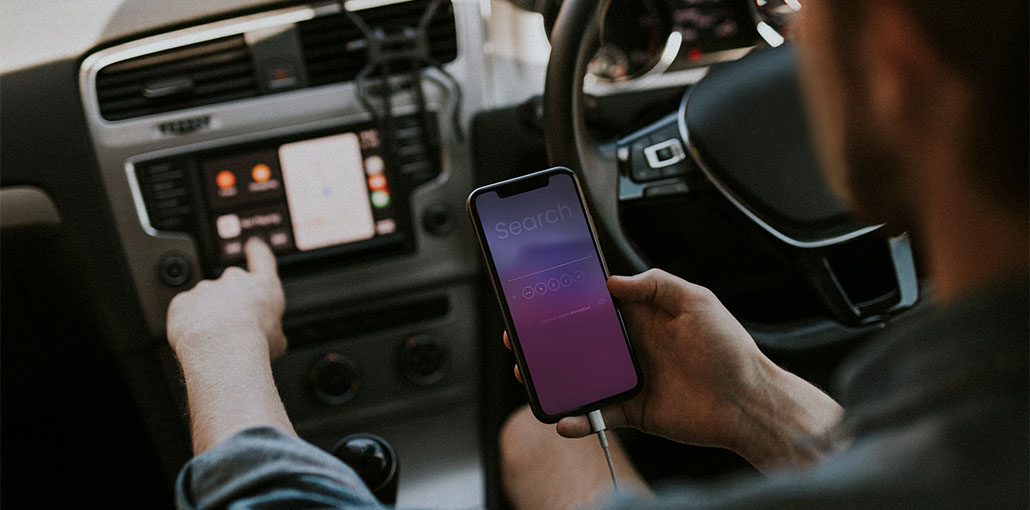
Android Auto is used by millions of users worldwide each day. Thanks to Android Auto, your mobile activities are made much easier to carry out, as you can do almost everything your smartphone can do on the car dashboard. But some users have reported an irritating issue with Android Auto not working.
Some users report that their Android Auto disconnects in a few minutes. Others say that the connection doesn’t establish, and some users claim their Android Auto now works after a reboot.
In this article, we delve deeper into the reasons why Android Auto not working and what you can do to fix it.
Why Is My Android Auto Not Working?
Before we discuss ways to fix problems with Android Auto not working, let’s look at possibilities for finding the answer to the question, “Why is my Android Auto not working in my car?”
- Bad USB cable: Use a high-quality data cable.
- Outdated Android Auto: Update Android Auto and your phone.
- Bluetooth issue: Turn Bluetooth off and on, then reconnect.
- Wi-Fi issue: Wireless Android Auto needs Wi-Fi enabled.
- Car compatibility: Make sure your car supports Android Auto.
- USB port problem: Try another compatible USB port.
- Connection glitch: Restart both your phone and car.
- Android Auto settings: Make sure Android Auto is enabled
Also read: Apple CarPlay Not Working? Try These Quick Fix Solutions
How to Fix Android Auto Not Working Issue?
If you’re looking for a solution for Android Auto not working, we’ve got your back. We’ve compiled some of the top troubleshooting tips to determine the problem and how to fix Android Auto issues.
1. Restart Your Phone and Car
A simple restart can solve temporary connection and software glitches. Android Auto communicates between your smartphone and the car’s infotainment system, so restarting both devices can refresh the connection and remove minor errors that may prevent the service from launching correctly.
Steps:
- Disconnect your phone from the car.
- Restart your Android phone.
- Turn off the car.
- Wait for a few seconds.
- Start the car again.
- Connect your phone and test Android Auto.
2. Check the USB Cable
A damaged, loose, or charge-only USB cable can stop Android Auto from transferring data. Your phone may continue charging even when the cable cannot establish the data connection required for Android Auto.
Steps:
- Disconnect the current USB cable.
- Check the cable for damage.
- Use a high-quality data cable.
- Connect it directly to the car.
- Avoid USB adapters or hubs.
- Check whether Android Auto starts.
3. Try Another USB Port
Many cars have multiple USB ports, but some ports are designed only for charging. If your phone charges without launching Android Auto, try using a different compatible USB port to resolve the connection issue.
Steps:
- Disconnect your phone.
- Locate another USB port.
- Connect your phone using a data cable.
- Wait for the connection notification.
- Select Android Auto if prompted.
- Check the car’s display.
4. Update Android Auto and Your Phone
Outdated software can cause compatibility problems and unexpected connection failures. Keeping your Android phone and related applications updated ensures that you have the latest bug fixes and improvements available for your device.
Steps:
- Open the Google Play Store.
- Search for Android Auto.
- Install any available update.
- Open your phone’s software-update settings.
- Install available Android updates.
- Restart the phone.
- Try connecting again.
5. Check Bluetooth and Wi-Fi
When Android Auto wireless not working, Bluetooth and Wi-Fi should be checked first. Wireless connections require the phone and vehicle to communicate correctly. Temporary wireless glitches, disabled connections, or incorrect pairing can prevent Android Auto from starting even when your phone is otherwise working normally.
Steps:
- Turn Bluetooth on.
- Turn Wi-Fi on.
- Turn both connections off and on again.
- Check that your car is paired.
- Start the vehicle.
- Try connecting wirelessly again.
6. Check Android Auto Settings
Incorrect settings can prevent your vehicle from connecting automatically. Checking the Android Auto settings on your phone can reveal whether your vehicle is recognized, blocked, or incorrectly configured.
Steps:
- Open Settings on your Android phone.
- Search for Android Auto.
- Open the Android Auto settings.
- Check connected vehicles.
- Make sure your car is allowed.
- Reconnect the phone.
7. Forget and Reconnect Your Car
If Android Auto not connecting after previously working correctly, the saved connection may be causing the problem. Removing the old pairing and connecting the phone again creates a fresh connection, which can resolve Bluetooth, wireless, or saved-device configuration errors.
Steps:
- Open your phone’s Bluetooth settings.
- Select your car.
- Tap Forget or Unpair.
- Remove the phone from the car’s device list.
- Restart both devices.
- Pair the phone again.
Test Android Auto.
8. Clear Android Auto Cache
Temporary application files can occasionally cause Android Auto to behave incorrectly. Clearing its cache removes temporary data and can resolve problems without requiring you to completely reset the application or phone.
Steps:
- Open Settings.
- Select Apps.
- Find Android Auto.
- Open Storage.
- Tap Clear Cache.
- Restart your phone.
- Connect it to your car again.
9. Check Phone and Car Compatibility
Compatibility is another important factor when troubleshooting connection problems. Different vehicles and Android phones can support different Android Auto features, particularly when comparing wired and wireless connections.
Steps:
- Check your phone’s Android version.
- Check your vehicle’s infotainment system.
- Confirm that your car supports Android Auto.
- Check whether wired or wireless Android Auto is supported.
- Install available system updates.
- Try connecting again.
Also read: The Best Apps Every Car Users Should Have
10. Test Android Auto With Another Phone
If Android Auto not working continues after trying the previous methods, connect another compatible Android phone to your vehicle. This simple test can help identify whether the problem is caused by your original phone, its settings, the cable, or the car’s infotainment system.
Steps:
- Use another compatible Android phone.
- Connect it to your car.
- Test Android Auto.
- If it works, troubleshoot your original phone.
- If it also fails, check the car’s infotainment system.
- Consider contacting the vehicle manufacturer if necessary.
Prevention Tips
These simple habits can help prevent Android Auto not working issues and maintain a stable connection.
- Keep Android and Android Auto updated.
- Use a high-quality USB data cable.
- Keep USB ports clean and damage-free.
- Keep Bluetooth and Wi-Fi enabled for wireless connections.
- Check phone and car compatibility.
- Replace damaged or loose cables.
- Restart your phone if connection problems appear.
- Keep Android Auto permissions enabled.
- Update your car’s infotainment system when available.
- Avoid unnecessary pairing and connection changes.
Conclusion
Android Auto helps you stay on the road while you get all the relevant information from your car’s infotainment system. However, the annoying issue of Android Auto not working can make the whole experience suffer.
FAQs: Android Auto Not Working
Why is wireless Android Auto not working?
Make sure Bluetooth and Wi-Fi are enabled, your phone is paired with the car, and both devices support wireless Android Auto.
Can an outdated Android version cause Android Auto problems?
Yes. Outdated Android or Android Auto software can cause compatibility and connection problems. Check for available updates and install them.
How do I fix Android Auto not working with USB?
Try a different high-quality USB data cable and another compatible USB port. Then restart your phone and car before reconnecting.
Does restarting Android Auto delete my settings?
A normal phone or car restart generally does not delete your saved settings. Clearing app data or removing a paired vehicle is different and may require setup again.
Why isn't Android Auto available in my car menu?
The feature may be disabled, unsupported, or unavailable for the connected device. Check your vehicle's smartphone-integration settings and compatibility information.







Leave a comment