

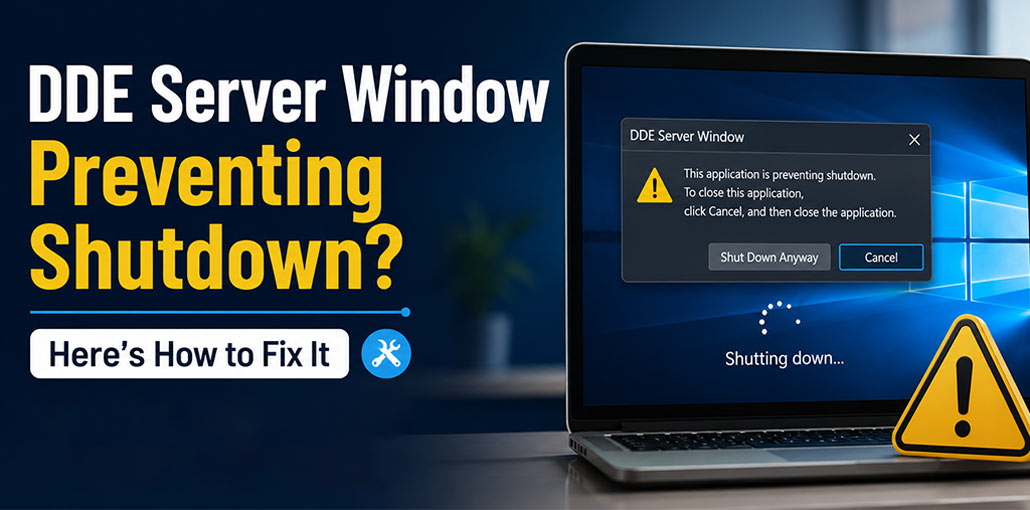
Windows 10 is a popular OS for Windows users. But it has plenty of bugs that create various errors. One of these errors can be the DDE Server Window: explorer.exe Application Error that happens during the closing sequence. This annoying error affects computers running older versions of Windows 10, preventing them from being shut down.
The error could be caused by a third-party program that is not compatible with the OS. Users running an outdated or incompatible version of Windows 10 frequently encounter this irritating error when they attempt to shut down their computer. Let’s continue reading to learn more about this issue, its causes, and solutions to correct it.
What is Windows DDE Server?
Windows DDE server, also known as Windows Dynamic Exchange Server. It is a protocol set of messages and guidelines. It enables programs and applications to communicate with one another. It was used in older versions of Windows, including certain variations that were part of Windows 10. Due to its vulnerability to malicious attacks, the program was replaced with OLE, or Object Linking and Embedding.
Most of the apps have shifted away from DDE. However, a few still support the technology and provide backwards compatibility.
What Causes DDE Server to Prevent Shutdown?
Let’s review the possible causes that can stop the Windows 10 computer from shutting down and displaying the “DDE Server Window: explorer.exe Application Error’ message.
- Outdated Windows operating system
- Corrupted Windows system files
- Windows File Explorer not responding
- Third-party antivirus software conflicts
- “Automatically hide the taskbar” enabled
- Corrupted user profile
- Incorrect Windows Registry settings
- Background applications preventing Windows from shutting down
Also read: Force Quit Windows: 5 Easy Ways to Close Frozen Apps and Programs
How to Fix DDE Server Window Error in Windows 10/11
1. Restart File Explorer from the Task Manager.
This is the most straightforward fix you can apply to resolve your DDE Server Window Explorer.exe issue. It is as simple as restarting File Explorer via the Task Manager and then seeing if it solves the issue. Follow the steps listed below:
- Use CTRL + AL + DEL to open the Security Options window.
- Choose the Task Manager from the drop-down menu.
- Select it, and then right-click it.
- Click on Restart.
This will allow you to restart your File Explorer and should fix the issue for Windows 10. Windows 10 computer.
2. Avoid Shutting Down from Start Menu
Some users have reported that switching their system shutdown method stopped the computer from displaying the DDE Server Window error message. There are simple solutions you can use to get rid of this irritating error message.
- Workaround 1: Press WIN + X, Shut down or sign out >Shut down
- Workaround 2 – Press WIN + R > Type shutdown /s > OK
3. Disable/Uninstall Third-Party Antivirus
In some cases, the third-party antivirus running on the system may affect the system settings and files, creating the DDE Server Window: explorer.exe error message to appear at the top of your screen.
If you’ve recently come across this error message, or are often seeing it during the system shutdown sequence, you can disable or uninstall your antivirus to determine whether the error message is visible.
4. Disable ‘Automatically Hide Taskbar’ Option
Many people prefer to hide their taskbars when they work to ensure a clean and uninterrupted screen space. This is why they turn on the “Automatically conceal the taskbar’ feature. This simple change resulted in some Windows PCs displaying the DDE Server Window: explorer.exe error message.
This solution might sound odd; however, some affected users claimed that deactivating the “Automatically hide the taskbar ” option fixed the DDE Server Window: explorer.exe error. You can test this out for yourself by following the instructions below.
- Press the keys WIN + I to open Settings.
- Click on Personalization.
- Click on the Taskbar within the pane to your left.
- Find automatically hide the taskbar in desktop mode, and switch the switch to the off state.
Close the window and see whether this fixed the problem.
5. Create New User Account
In some cases, it is possible that the DDE Server Window error could be caused by an issue in your user account. You could try logging in to another user account by creating a new account to resolve the problem. For this, follow these steps:
- Press Win + I to open Settings.
- Click on Accounts.
- Simply click on Other user in the left pane.
- Select Add another user to this computer.
- Click I don’t have the sign-in details.
- Select “Add a User” without a Microsoft login.
- Fill in the information and click Next to follow further instructions
After the account has been created, sign out of your existing user account and log in to the new account to see whether this has solved the problem.
Also read: How to Fix the User Profile Service Failed The Sign-In Error in Windows
6. Use Registry Editor
When you start the shutdown sequence, your computer needs some time to shut down everything before shutting down the system. However, you will notice that the DDE Server Window: explorer.exe error message is displayed at this point. You can fix this issue by reconfiguring an existing key (WaitToKillServiceTimeout) and creating a new one (AutoEndTask).
To reconfigure the WaitToKillServiceTimeout –
- Press Win + R and type regedit, then press Enter.
- Find the location:
Computer\HKEY_LOCAL_MACHINE\SYSTEM\CurrentControlSet\Control - Select Control in the left pane.
- Double-click on the WaitToKillServiceTimeout and set the Value data to 2000.
- Click “OK,” then close the browser.
- Shut down your computer and verify whether the issue has been resolved.
- If you’re experiencing the same problem, you can set up the AutoEndTask registry.
To build the AutoEndTask registry
- Open the registry editor and go to the following address:
- Computer\HKEY_CURRENT_USER\Control Panel\Desktop
- Right-click on the Desktop, select New, then string value.
- Rename it to AutoEndTask
- Double-click the entry to change the value information to 1.
- Click “OK” and then check whether this resolved the problem.
7. Update Windows OS
Windows Updates are a great way to get new features and fix bugs and issues. Running an outdated Windows OS could eventually cause random errors to happen on your computer. Updating your Windows 10 computer to the latest version is the best way to end this DDE Server Window error. Follow the steps below to update your device driver and Windows OS.
To update Windows OS –
- Press the keys WIN + I to open Settings.
- Click on Update & Security.
- Go to Windows Update and then check for any updates.
How to Prevent DDE Server Window Errors
To reduce the chances of encountering this issue again:
- Install Windows updates regularly.
- Keep device drivers up to date.
- Avoid installing incompatible software.
- Use trusted antivirus software.
- Close applications before shutting down your PC.
- Scan your system for malware periodically.
- Create regular system restore points.
Wrap Up
Window DDE Server error prevents a system from closing down. It displays a dialogue box with the DDE Server Window: explorer.exe. An application error is mentioned. In this article, we’ve learned more about the error, the root causes, and methods to fix it. We hope the solutions provided in this article will help you find an answer.
FAQs: DDE Server Window
Is DDE Server Window a virus?
No. DDE Server Window is a legitimate Windows component. However, malware can sometimes imitate Windows processes, so running a malware scan is recommended if you notice suspicious behavior.
Why does DDE Server prevent Windows from shutting down?
The error usually occurs because an application or Windows Explorer fails to close during the shutdown process, preventing Windows from completing the shutdown sequence.
Can I disable DDE Server Window?
Generally, no. It is part of Windows' communication system. Disabling it may cause compatibility issues with older applications.
Is it safe to edit the Windows Registry to fix the DDE Server error?
Yes, but only if you carefully follow the correct steps and back up the registry before making any changes. Incorrect registry modifications can affect Windows stability.







Leave a comment