

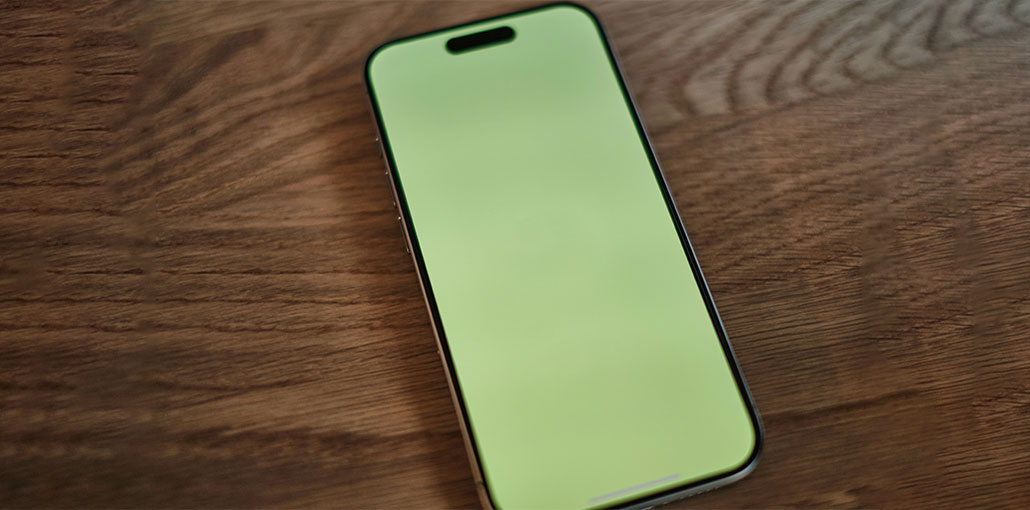
“I purchased an iPhone 13 Pro, and when I started using it, a green screen of death appeared. Despite trying multiple things, I’m struggling to fix this unwanted scare. Why is my iPhone screen turning green, and how to fix it?
Apple has added new features to its recent iOS devices to improve the screen display. This can cause the iPhone screen to appear frozen, inactive, and look odd. If the iPhone green screen issue occurs, it becomes difficult to perform tasks on the iOS device.
No matter the cause of these issues, it’s our goal to present incredible ways to fix the iPhone green screen of death.
Why is My iPhone Screen Green?
The iPhone green screen of death is a frustrating experience. There are a few reasons that could be the cause.
- Temporary iOS software glitch
- Display or color settings
- Color Filters or accessibility settings
- Outdated iOS
- Problematic third-party apps
- Display hardware failure
- Physical or liquid damage
- Previous screen replacement or non-genuine display
How to Tell if the Green Screen Is a Hardware or Software Problem
| Symptom | Likely Cause |
|---|---|
| Green tint appeared after iOS update | Software issue |
| Green screen disappears after restart | Software issue |
| Green screen visible during Apple logo startup | Possible hardware issue |
| Green screen started after a drop | Display damage |
| Green lines or flickering remain after reset | Possible hardware issue |
| Green tint only at low brightness | Display/software issue |
| Screen stays green all the time | Possible display hardware issue |
Also read: iPhone Touch Screen Not Working? Causes + 9 Quick Fixes
How to Fix iPhone Green Screen of Death?
1. Check Color Filters and Display Settings
Incorrect display settings can sometimes cause a green tint on your iPhone screen. Check Color Filters and True Tone to see if they are affecting the display color.
Steps:
- Open Settings.
- Go to Accessibility > Display & Text Size.
- Tap Color Filters and turn it off.
- Check True Tone under Display & Brightness.
- Check whether the green tint disappears.
2. Adjust Display Brightness
A green tint may become more noticeable when your iPhone screen brightness is low. Adjusting the brightness can help determine whether the issue is related to the display settings.
Steps:
- Open Settings.
- Tap Display & Brightness.
- Move the brightness slider up or down.
- Check whether the green tint changes.
- If it remains, continue to the next solution.
3. Check for Physical or Liquid Damage
A green screen can appear after a drop, pressure, or liquid exposure damages the iPhone display or its internal components. Checking for physical damage can help determine whether the issue is hardware-related.
Steps:
- Check the screen for cracks or visible damage.
- Look for signs of liquid exposure around the device.
- Check whether the green screen started after a drop or impact.
- If the screen remains green, contact Apple Support or an authorized repair provider.
4. Force Restart Your iPhone
Hard rebooting your iOS device is an effective way to fix the “iPhone green screen of death” problem. It lets you fix the software issues without wasting any time.
Steps:
- Press and quickly release the Volume Up button.
- Press and quickly release the Volume Down button.
- Press and hold the Side button until the Apple logo appears.
- Release the Side button and wait for your iPhone to restart.
- Check the screen to see if the green tint has disappeared.
5. Reset All Settings
If incorrect system settings are causing the iPhone green screen issue, resetting all settings may help restore the default configuration. This option does not delete your personal data.
Steps:
- Open Settings.
- Tap General.
- Select Transfer or Reset iPhone.
- Tap Reset.
- Choose Reset All Settings.
- Enter your passcode if prompted and confirm the reset.
- Check the screen after your iPhone restarts.
6. Update iPhone
An outdated iOS version can sometimes cause display glitches. Check for available software updates and install the latest iOS version on your iPhone.
Steps:
- Open Settings.
- Tap General.
- Select Software Update.
- Download and install any available update.
After installation, restart your iPhone and test the display again.
7. Uninstall Recently Installed Apps
If you’ve installed a third-party application on your device, it may be the main reason for your iPhone screen turning green. So, you can uninstall these apps and see whether this helps resolve the issue.
Steps:
- Locate the recently installed app.
- Press and hold the app icon.
- Tap Remove App.
- Restart your iPhone.
If the issue disappears, the app was likely the cause.
Also read: iPhone Keeps Turning On and Off? Here Are 6 Easy Fixes
8. Restore iPhone in iTunes
Restoring the iOS device using iTunes is a reliable and effective method to remove the “iPhone green screen” issue. However, this can lead to data loss. Therefore, backing up important data is strongly recommended to ensure that everything is in order before deciding on this option.
Steps:
- Connect your iPhone to a computer.
- Open Finder (Mac) or iTunes (Windows).
- Select your iPhone when it appears.
- Click Restore iPhone.
- Follow the on-screen instructions.
A complete restore can often fix persistent software-related display issues.
When to Contact Apple Support
If the green screen persists after trying the troubleshooting methods above, the problem may be hardware-related. Contact Apple Support or an Apple Authorized Service Provider for further diagnosis and repair.
How to Prevent the iPhone Green Screen Issue
To reduce the risk of future display problems:
- Keep iOS updated
- Avoid excessive heat
- Protect the phone from drops
- Keep the phone away from moisture
- Use reputable repair providers
- Be careful with replacement displays
- Don’t ignore persistent display flickering or color changes
Conclusion
If you’re experiencing the iPhone Green Screen issue, which is preventing you from performing simple tasks on your iOS device, these are 8 reliable and safe ways to fix the iPhone green screen issue, and all the options in this article should be considered.
FAQs About iPhone Green Screen Issue
Can a green iPhone screen be fixed without replacing the display?
Yes, if the issue is caused by a software glitch or display setting. Try checking Color Filters, restarting the iPhone, and updating iOS. If the green screen continues, the display may have a hardware problem.
Can an iPhone green screen get worse?
Yes. If the problem is caused by failing display hardware, it may become more frequent and lead to flickering, touch problems, or complete display failure.
How do I know if my iPhone screen is damaged?
Green lines, flickering, unusual colors, touch problems, or visible cracks can indicate display damage. If the problem started after a drop or liquid exposure, hardware damage is more likely.
Does Apple repair green-line or green-screen problems?
Yes. Apple can inspect your iPhone and determine whether display or other hardware service is required. Repair options depend on the model, warranty or AppleCare coverage, and the cause of the problem.








Leave a comment