


For an iPhone owner, there could be nothing more annoying than having their iPhone keeps restarting. It’s as odd as it might appear, but it’s among the more frequently encountered iOS 18/17 problems that users face on their iPhones. If you’re among those, then you’re in the right spot. In this article, we’ll show various solutions to fix the ” iPhone keeps restarting” problem so you can get back your device. No matter which iPhone version you are using, these methods can help you fix the issue immediately.
Why Does My iPhone Keep Restarting?
Before fixing the iPhone keeps restarting, let’s look at the causes that can trigger an iPhone to restart repeatedly. The problem could be classified into two distinct categories.
- Intermittent Restart: The Intermittent Restart is when you can access your iPhone, but it keeps restarting after a couple of minutes or hours of usage. In this scenario, it’s usually caused by a third-party application or software glitch.
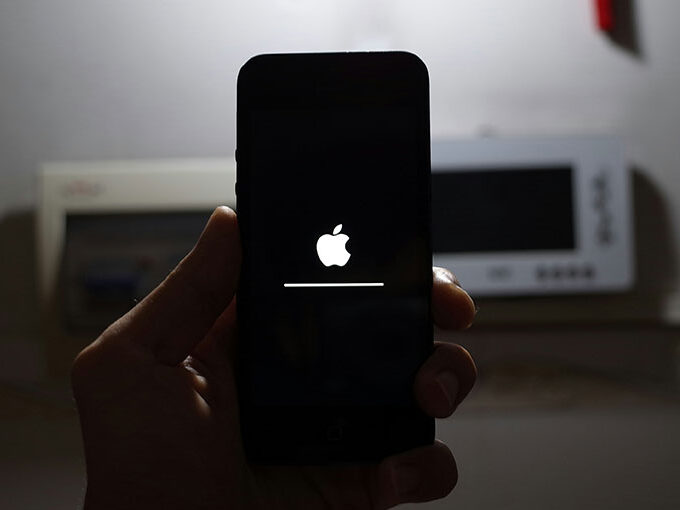
- iPhone Stuck in Restart Loop: This is a significantly more serious situation in which the iPhone gets stuck in the restart loop, and you’ll see only an Apple logo on the screen. Restart loops are typically caused by the network provider or by an insufficient iOS 18/17 upgrade.
Also read: How to Fix iPhone Black Screen of Death (2025 Easy Guide)
How to Fix iPhone Keeps Restarting on iOS 18/17
If you now know the reason my iPhone keeps restarting, discover how to fix the problem. However, it is important to back up your iPhone first before doing any troubleshooting. If your iPhone has a hardware issue, it could be your last opportunity to back up your iPhone data.
1. Update Your iPhone
If you can use your iPhone, the first step is to upgrade it to the latest iOS. There are a variety of situations in which users delay updates, which result in technical glitches. Therefore, before anything else, ensure that you install the latest iOS 18/17 updates on your iPhone to resolve the “iPhone keeps restarting” problem.
- Open Settings
- Tap General
- Select Software Update
- Download and install the latest iOS update
After updating, check whether your iPhone still keeps restarting.
2. Reset All Settings
“Reset All Settings” is an excellent iOS feature that will fix your restarting issue. This will reset all settings on your iPhone if the problem is caused by a software glitch. You will not encounter it anymore. Make sure you back up all your data before going on, as resetting the iDevice erases it clean.
- Go to Settings
- Tap General
- Select Transfer or Reset iPhone
- Tap Reset
- Choose Reset All Settings
Once the reset is complete, monitor your device to see if the restarting issue is resolved
3. Force Restart Your iPhone
The two options above can only be helpful if you can access your iPhone. If, however, your device is constantly shutting down and restarting, it might be more effective to force a restart to solve the issue. If you don’t know how to force restart an iDevice is a way to restart the device using different key combinations. This typically resolves various software-related issues, such as the iPhone keeps restarting and freezing issue. Based on your iPhone model, you can use these key combinations to restart the device.
- For the iPhone 6/6s or later, then press and hold the “Sleep/Wake” & “Home” buttons until the Apple logo appears on the screen.
- For the iPhone 7/7 Plus, press the “Sleep/wake” and “Home” buttons until the Apple logo flashes on the screen.
- If you own the iPhone X or later, first press and hold the “Volume Up” button and let it go after 5-7 minutes. Next, press and hold your “Volume Down” button and release it after a short period. Next, press and hold your “Wake/Sleep” button in the same way and release it when you see the Apple logo on the screen.
4. Try Another Charger, Cable, or Battery
If your iPhone keeps restarting even after charging it, swap out the charger and cable. It could be that the wrong cable or charger isn’t charging your iPhone normally. This is why the device keeps turning off and then coming back on. Additionally, if it appears that the battery is at fault, then you might want to replace it or fix it with an alternative. If your iOS device is under warranty, bring the iPhone charger, cable, or even the iPhone to an Apple customer service, and the staff at the Apple store will examine and resolve the issue.
5. Check Apps and Uninstall Problematic Ones
While Apple has rigorous security procedures to ensure the authenticity of every application available on the App Store, it’s safe to conclude that not all are flawless. That means that if you’ve installed a flawed third-party app on your iPhone, it could cause your device to reboot frequently. If this happens, the only way to resolve the issue is to identify the specific application and uninstall the app from your iPhone.
- Open Settings
- Go to Privacy & Security
- Tap Analytics & Improvements
- Select Analytics Data
Once identified, uninstall the problematic app and restart your iPhone.
Also read: How to Fix iPhone Error 4013 Without Data Loss
6. Remove and Reinsert the SIM Card
As we mentioned previously, the network carrier could cause an iPhone restart loop. If you have not solved the issue, remove your SIM card from your phone and then insert it back. Start the device, and verify if you are experiencing the same issue again or not.
7. Restore iPhone Using iTunes
Another option to fix the iPhone restart loop is to restore it through iTunes. However, this is not the final option since you’ll need to put the device into Recovery Mode. That may be difficult for some users.
Here’s how you can restore an iPhone via the iTunes app.
- First, fire up your computer and install iTunes.
- Then, put the iPhone in Recovery Mode. To do this, long-press the “Home Button” and ensure you are connected to your computer. Then, open the iTunes app and press”Home.
- The device will be put into Recovery Mode. You can now follow the on-screen instructions to restore it using iTunes.
Additional Tips to Prevent iPhone Restart Issues
To reduce the chances of facing the iPhone keeps restarting issue again, follow these best practices:
- Keep iOS updated
- Avoid installing apps from unknown sources
- Use genuine Apple accessories
- Maintain enough free storage space
- Monitor battery health regularly
- Avoid overheating your device
Regular maintenance can improve iPhone performance and system stability.
Solved: iPhone Keeps Restarting issue
“iPhone keeps restarting itself” can be quite a gruelling issue for iPhone users. But, as it’s not a major problem, you can resolve the issue on your own. Use any of the mentioned solutions to access your iPhone without interruption.
FAQs: iPhone Keeps Restarting
Why does my iPhone keeps restarting every few minutes?
Your iPhone may keep restarting because of software bugs, failed iOS updates, faulty apps, battery issues, overheating, or storage problems.
How do I fix iPhone restart loop without losing data?
Try force restarting, updating iOS, or using Recovery Mode before performing a factory reset.
Will updating iOS stop my iPhone from restarting?
In many cases, yes. Installing the latest iOS update can fix bugs and system glitches that cause random restarts.
Can a bad battery cause an iPhone to restart?
Yes, a damaged or degraded battery can cause random shutdowns and repeated restarts, especially if battery health is below 80%.








Leave a comment