

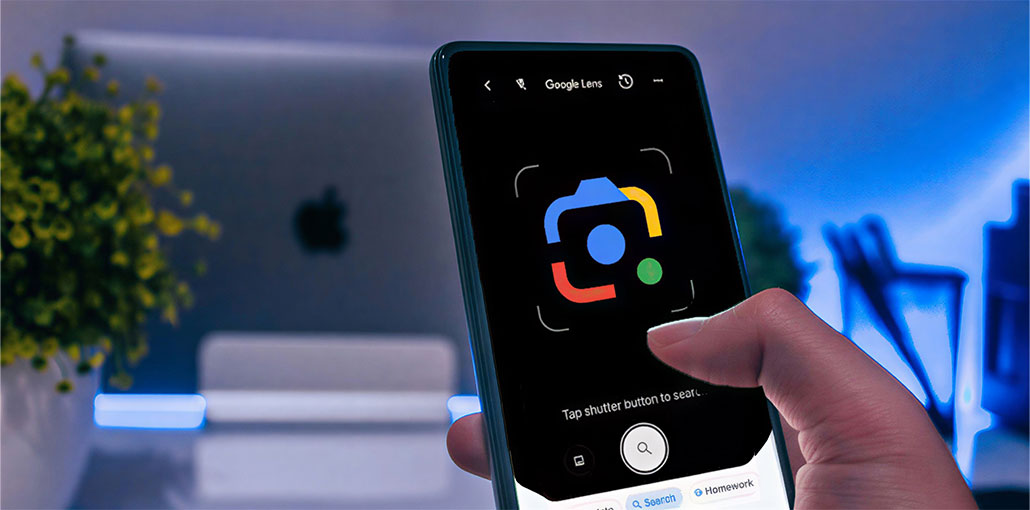
Google Lens is a robust tool that allows you to identify content visually using AI. By using your phone’s camera, you can extract details from captured images, objects, or text. You can search, translate, or scan using your Google Lens app. What happens if it isn’t working when you require it the most? “Many users wonder, ‘Why is Google Lens not working, and how can I fix it?’ In this guide, we’ll cover practical solutions to fix the Google Lens not working.
Why Is Google Lens Not Working?
Have you ever wondered why my Google Lens is not working on iPhone, Android, PC, or Mac? Surprisingly, there’s no one cause for this problem. Here we’ve compiled a list of possible reasons for Google Lens not working correctly. We’ll look them up.
- Corrupted app cache
- Outdated Google app
- Missing camera permissions
- Weak or unstable internet connection
- Camera-related issues
- Software bugs or glitches
- Outdated operating system
- Google account synchronization problems
- Problems with Google Photos integration
- Temporary Google service outages
Also read: Google Maps Not Working on Android? 6 Easy Fixes to Solve It
How to Fix Google Lens Not Working
You now know about the possible reasons that might cause problems for Google Lens. If you’re having problems with the app, this Google Lens Not Working troubleshooting guide will help you.
Below are some practical suggestions to get it back in working order. It will be back to working as new. Learn how to fix Google Lens issues.
1. Clear Google Lens Cache
Accumulated cache may also cause your “Google Lens is not working” issue. It is often the cause of slow response or delays in the application. Additionally, when the cache data is damaged, it may cause Google Lens not working or other problems. This prevents the application from recognizing the images. Here’s how to clean Google Lens cache.
On Android:
- Go to Settings.
- Select Apps.
- Tap Google.
- Choose Storage & Cache.
- Tap Clear Cache.
2. Grant Camera Permissions
If you turn off Google Lens, it will not function as it should. If you don’t allow the permissions, the Google Lens camera not working, meaning you are unable to translate or search for details about an image. Learn the easiest way to grant apps permissions.
Steps
- Open Settings.
- Navigate to Apps > Google.
- Select Permissions.
- Ensure Camera permission is enabled.
Check that permissions are turned on for the Camera, Storage, and Microphone.
3. Check Your Internet Connection
Google Lens functions depend on the internet. Google Lens search not working may be due to a slow internet connection. Here’s how to check and verify a reliable internet connection.
What You Can Do
- Switch between Wi-Fi and mobile data.
- Restart your router.
- Run an internet speed test.
- Move to an area with better signal strength.
4. Force Stop the Google App
Temporary software glitches can cause Google Lens to freeze or stop responding. Force-stopping the Google app can refresh its processes.
Steps
- Open Settings.
- Go to Apps.
- Select Google.
- Tap Force Stop.
- Reopen the Google app and launch Lens.
This quick fix often resolves minor issues.
5. Camera Glitches or Malfunctioning
Camera issues on the phone could also cause Google Lens not working. An internal phone glitch or bug can cause Google Lens to stop working, and you might not be able to search for images, scan a book, or a QR code.
Verify Camera Functionality
- Open your phone’s Camera app.
- Take a photo.
- Check whether the camera focuses correctly.
- Clean the camera lens if images appear blurry.
6. Update Your Device
Are you having issues with Google Lens not working on iOS, PC, or Mac systems, or even in Chrome? Check that the OS is current. When you’ve upgraded your browser or OS to the latest version, you’ll experience the best performance and high compatibility. Also, updating the system on your device can fix bugs that could cause problems with Google Lens. Learn how to update your device.
Steps
- Open Settings.
- Tap System Update or Software Update.
- Download and install any available updates.
- Restart your device.
7. Re-launch or Update the Google Photos App
Opening or updating the Google Photos app may help to resolve the issue of Google Lens not working in Photos. If you update it, you could fix the Google Photos issue and Lens not working. Here are the easy steps to restart and update the Google Photos app.
Steps
- Open the Play Store or App Store.
- Search for Google Photos.
- Tap Update.
- Reopen the app and test Google Lens.
Also read: 8 Best Photo Recovery Apps to Recover Deleted Photos
8. Review Google Server
Sometimes the problem isn’t on your device. Google services may experience temporary outages. We’ll look at the quickest steps to check the server status.
You can:
- Check websites like Downdetector.
- Search social media platforms for outage reports.
- Wait for Google to resolve the issue.
9. Sign Out and Sign in to Your Account
Another way to resolve Google Lens not working on your phone is to sign out and then sign in to your account. This is how to do it.
Steps
- Open the Google app.
- Tap your profile picture.
- Select Manage Your Google Account.
- Sign out of your account.
- Restart your device.
- Sign back in.
10. Restart Your Device
Whatever issue you have with your mobile or PC, the best way to fix it is to restart your device. It usually resolves most of the issues that you cannot solve.
Conclusion
We hope these top 10 solutions to fix Google Lens not working on your phone were helpful. Remember, the secret to success is patience and perseverance. Don’t be discouraged when the first approach does not work. Keep trying until you discover the one that works.
FAQs About Google Lens Not Working
Why is Google Lens not recognizing images?
Google Lens may fail to recognize images if the photo is blurry, poorly lit, or contains an object that is difficult to identify. A weak internet connection can also affect image recognition.
Why is Google Lens not opening?
If Google Lens is not opening, force stop the Google app, clear its cache, and update it to the latest version. Restarting your device may also help.
Why does Google Lens keep crashing?
Google Lens may keep crashing because of software bugs, insufficient storage space, outdated app versions, or corrupted cache files. Updating the app and clearing the cache are common fixes.
Can I use Google Lens without the Google app?
On most Android devices, Google Lens is integrated into the Google app or Google Photos. While some devices offer built-in Lens functionality, the Google app is usually required for the best experience.









Leave a comment