

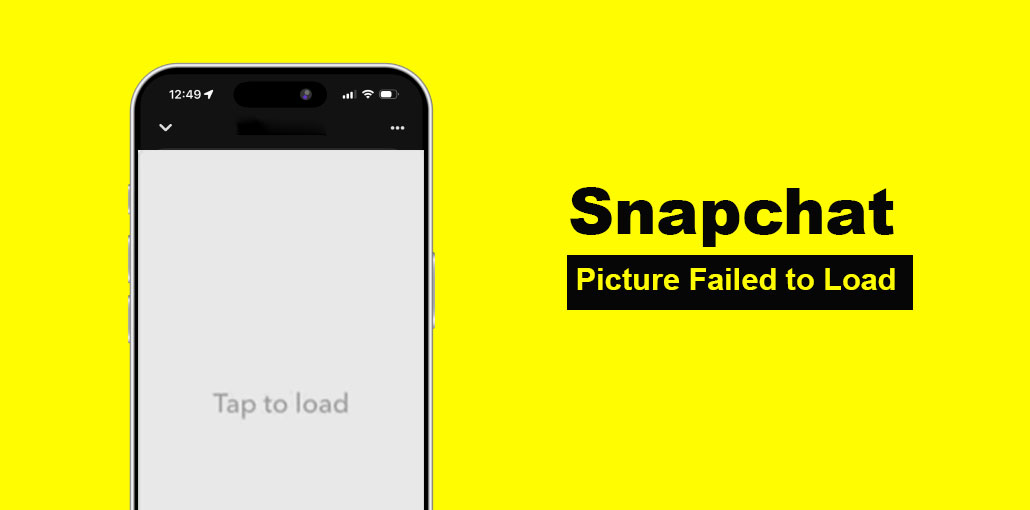
When you tap your Snapchat app, scroll through your saved chats, and then, suddenly, the interface is blank, and there’s no picture. How do you face the Snapchat picture failed to load error? It’s a bit frustrating, and more than that, with important memories. But don’t worry, in this blog, we’ll break down why the Snapchat picture failed to load and how you can fix the problem quickly.
What Does “Snapchat Picture Failed to Load” Mean?
It’s the question that is most important for users. What’s the good news? Most of the problems related to Snapchat picture failed to load in chat are temporary. In many instances, pictures in Snapchat’s cloud or remain cached within your mobile device, but they are temporarily unavailable for use. In other circumstances (such as the deletion of your app cache or the corruption of files), an image could disappear completely unless it’s backed up into Memories and/or the Gallery.
Why Are Snapchat Pictures Not Loading?
Snapchat is a visual communications platform. If Snapchat does not open saved images in a conversation, this can cause some users to panic. Now, the most controversial of them all is being investigated, and what’s Snapchat not loading images?
Common Scenarios for this error:
Here are the most common situations users report:
- Snapchat saved pictures not loading in chat
- Seeing a “Tap to load” message with no result
- Old Snapchat pictures not opening
- Blank or gray placeholders instead of images
Common Causes of Snapchat Images Not Loading
If the saved photos on Snapchat aren’t loading, below are the most likely causes:
- Weak internet connection
- Expired or deleted snaps
- Corrupted image files
- App cache issues
- Storage or permission restrictions
- Outdated Snapchat app
Also read: Top Snapchat Streak Ideas for Snapchat Lover
How to Fix “Snapchat Picture Failed to Load in Chat” Error
Recover your lost photos using these easy-to-follow steps to fix Snapchat picture not loading issue. Before you give up, try this.
1. Check the Internet or Switch Networks
One of the main causes of Snapchat Picture Failed to load on iPhone or Android is poor connectivity.
- If your Snapchat photo isn’t loading, switch between the cellular and Wi-Fi networks.
- Perform a speed test on your internet to check if you’re receiving enough internet.
- Start your router’s Wi-Fi, and attempt to connect to the internet
2. Try Snapchat Web Version
When you’re trying to download a new Snap, look at the Snapchat web interface. Pictures from earlier in chat history generally aren’t displayed; however, it’s worth checking when you’re trying to solve Snapchat not loading snaps.
- Visit Snapchat’s website version and sign in to get help with Snapchat notifications not working in the app.
- Check your chat to see whether Snapchat opens saved images in chat.
3. Clear Snapchat Cache
In a few instances, the issue is with the Snapchat internal cache. Clearing it will ensure that you won’t lose any memories, but you will lose temporary files. It is hoped that this will fix the problem with the Snapchat picture not loading.
- Start Snapchat and navigate to the top-left profile icon.
- Tap Settings (the gear icon) and scroll to “Account Actions”.
- Click on “Clear Cache”, select caches to clear, then confirm by pressing “Clear All”.
4. Enable Camera & Photos Permission for Snapchat
To access your saved content, Snapchat requires access to the gallery and camera on your device.
- Click on “Settings” and navigate to “Snapchat”.
- Switch on “Photos” and “Camera” to enable when Snapchat won’t load pictures in chat.
5. Disable Data Saver or Low Power Mode
Data saver mode and low power could help restrict Snapchat from loading pictures to save data and battery power. By disabling these settings, you can resolve Snapchat picture failed to load problems, and here’s how to do it:
Disable Lower Power Mode:
- Go to “Settings” and “Battery”.
- Disable “Low Power Mode”.
Disable Data Saver:
- Open Settings. Go to “Network & Internet” or “Connections”
- Tap “Data Saver” or “Data Usage”.
- Toggle off “Use Data Saver”.
Also read: 5 Ways to Recover Your Snapchat Account Without Email or Phone Number
6. Reinstall and Relogin the Snapchat App
If you’ve tried all the above solutions and nothing has worked, you should try reinstalling your app to fix bugs and glitches. Here is what you have to do if the Snapchat image doesn’t load on your iPhone:
- Hold and tap Snapchat. Select “Delete App”.
- Then, visit the App Store and download “Snapchat again. Log in to see if the previous image loads normally or not.
When You Can’t Fix It (Reality Check)
Some situations are not fixable, including:
- Expired snaps
- Deleted images
- Severely corrupted files
In these cases, the image is permanently lost.
How to Prevent This Issue in the Future
To avoid facing the Snapchat Picture Failed to Load error again, follow these tips:
- Keep your app updated regularly
- Maintain stable internet connectivity
- Clear cache periodically
- Ensure enough storage space on your device
- Avoid using outdated operating systems
Final Thoughts
Snapchat issues can feel stressful, especially when images disappear abruptly. If it’s a network glitch, an app bug, or image corruption, there’s always a solution if your Snapchat picture failed to load.
FAQs: Snapchat Picture Failed to Load
Why are old Snapchat pictures not loading?
Older Snapchat images may not load because they were never properly saved, have expired, or are no longer stored on Snapchat’s servers.
Why are my Snapchat images not showing in chat?
If your Snapchat images are not showing, it may be caused by slow internet, corrupted cache, or missing app permissions. Sometimes, older or unsaved snaps may also disappear and become unavailable.
Can I recover Snapchat images that are not showing?
You can only recover images if they were saved in Memories or your device gallery. If the snap was deleted or expired, it cannot be restored.
Is Snapchat Picture Failed to Load a common issue?
Yes, it’s a common issue faced by many users and is usually caused by temporary problems like network issues or app bugs.
How can I fix the Snapchat “Tap to Load” error?
To fix Snapchat tap to load error, try switching your internet connection, clearing the app cache, restarting Snapchat, or updating the app. These steps help restore proper image loading in most cases.









Leave a comment