

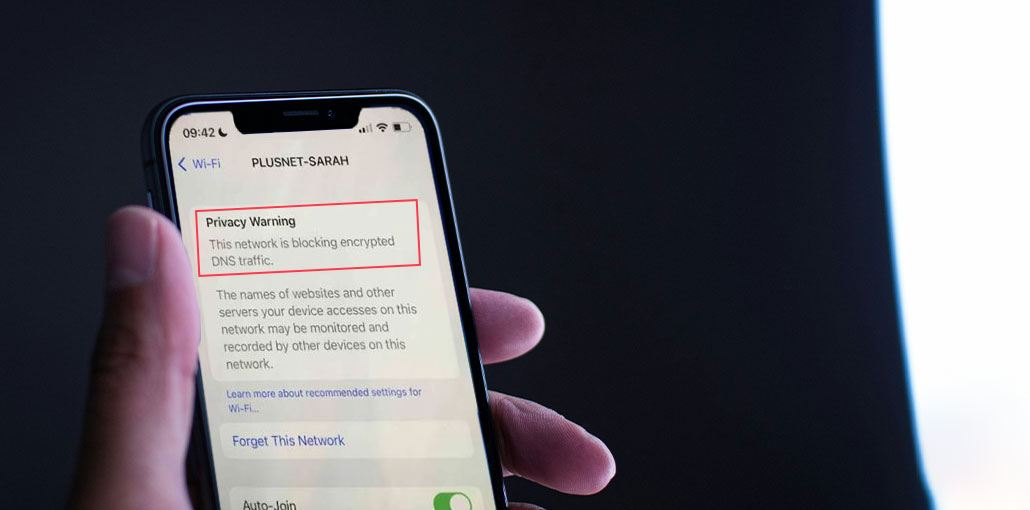
If you’re an iPhone user, you may have seen a privacy warning, “This network is blocking encrypted DNS traffic,” that pops up while connected to WiFi. In this post, we’ll dive into the reasons that cause this message to pop up and what you can do to resolve DNS encryption issues.
What Is Encrypted DNS Traffic?
Encrypted DNS traffic is a secure connection between human-friendly domain names (like nordvpn.com) and machine-friendly IP addresses (like 172.217.5.110) that help you get to the site you’re trying to access. When DNS data is encrypted, your DNS requests are safe from cyber-attacks and other third parties who can monitor your online activity.
Benefits of encrypted DNS include:
- Improved online privacy
- Protection against DNS spoofing attacks
- Reduced tracking by third parties
- More secure browsing on public Wi-Fi networks
Why Does My iPhone Say “This Network Is Blocking Encrypted DNS Traffic”?
If iOS devices attempt to connect to an encrypted DNS but are blocked, and you get a privacy warning on WiFi. The most common reasons for ‘this network is blocking encrypted DNS traffic’ appear on the screen:
- Restrictions on network access, enforced by specific DNS settings
- Certain ISPs prohibit encrypted DNS traffic to control parental access or censorship.
- Some firewalls, VPNs, or antivirus software override DNS settings for monitoring.
- Malware and AdWare could also hinder the encryption used for DNS traffic.
- Public Wi-Fi also blocks encrypted DNS connections. In these scenarios, you could use Personal Hotspot for iPhone to establish an encrypted connection.
Now, let’s look at the best ways to fix the “This Network Is Blocking Encrypted DNS Traffic” warning on your iPhone.
Also read: How to Fix the Cannot Verify Server Identity Error on Your iPhone
How to Fix “This Network Is Blocking Encrypted DNS Traffic” on iPhone
Many users notice that the ” This Network Is Blocking Encrypted DNS Traffic error can occur regardless of using similar networks. practical tips you can apply in everyday life. Here are some tips to solve this problem.
1. Restart Your iPhone and Wi-Fi Router
The easiest way to prevent DNS requests from being blocked is to reboot your iOS device. When you reboot your tablet or phone, all processes and apps on your device restart. It’s an excellent idea to reboot your router:
- Turn off the power.
- Wait for 15 seconds before turning it off again.
- Reconnect your device.
2. Forget and Reconnect to Your Wi-Fi Network
It is possible that the issue does not originate from your device, but rather your Wi-Fi connection. Instead of connecting to WiFi, you should attempt to erase the network first. This will enable you to reset the network’s credentials.
Here are the steps to follow using your iPhone.
- Open Settings from the iPhone and select Wi-Fi.
- Touch the “i” icon next to your network.
- Tap Forget This Network.
3. Update iOS and Router Firmware
Encrypted DNS traffic may have been affected because of a bug in your software or an error. Keeping your software updated can help protect your connection’s security and performance.
To update your router’s firmware, go to your settings and perform a firmware upgrade.
To update your iOS device:
- Go to “Settings,” tap on “General,” and then select “Software update” — the update available should be displayed here.
- Click for “Download and install.”
4. Reset Network Settings
In my search for solutions to solve the “this network is blocking encrypted DNS traffic” problem on Reddit, I noticed people blaming their network settings for the root cause. You can try changing networks on the iPhone. It will eliminate any bugs and allow you to use encrypted DNS.
The steps to reset your network settings are as follows:
- Go to “Settings,” tap on “General,” and then on “Transfer or reset iPhone.”
- Tap on “Reset.”
- Select “Reset network settings.”
- Enter your device passcode.
- Confirm the reset.
5. Configure DNS settings
If the iPhone DNS privacy warning appears, you should set the DNS settings. This can be done by following the steps below:
- Go to “Settings” and tap on “Wi-Fi.”
- Connect to your network by pressing the information button to the right.
- Tap on “Configure DNS.”
- Change “Automatic” to “Manual” and then tap “Add server.”
- Enter the DNS servers’ IP address (for instance, 8.8.8.8 and 8.8.4.4, which are Google’s DNS server addresses) and then tap “Save.”
Also read: DNS Server Not Responding: 11 Simple Solutions Anyone Can Try
6. Use WPA3 Security Protocol
Apple does not support old security protocols. This could be the reason you’re seeing an “this network is blocking encrypted DNS traffic” error. Therefore, you should update your router’s settings to WPA3, the latest generation of Wi-Fi security, with a variety of options to ensure your data is secure. To use WPA3, you need to find the router’s IP address on your iPhone.
To do this, it’s first necessary to find the router’s IP address. This is how you can do that using your iPhone:
Take these actions to complete this:
- Go to Settings in your iPhone > tap Wi-Fi.
- Select the network you want to connect to.
- Scroll down to Router to find your router’s IP address.
- Open a browser and sign in to the router dashboard
- Check”Wi-Fi Security”. Then select WPA3 (or the WPA2/WPA3 mix mode in case some devices do not support WPA3).
- Tap Wireless Security or Security Settings, based on the router model.
- Change the protocol to WPA3.
- Your router will be restarted. Login credentials are required to join the network.
7. Use a VPN
If you are using a VPN, your DNS traffic is routed through a safe, encrypted tunnel or server. No one (except authorized third parties) will be able to track what you do online, take your information, or trace your actual IP address. Be sure to use the best, most reliable, and secure VPN service.
Benefits of using a VPN include:
- Enhanced online privacy
- Encrypted DNS requests
- Protection on public Wi-Fi networks
- Reduced tracking by ISPs and network administrators
Wrapping up
Encountering the ” This network is blocking encrypted DNS traffic” error can be concerning for many users. Everyone wants their privacy and security to be compromised.
Sometimes, however, this error can occur on the network you’re connected to. There are a few quick solutions you can use to fix the encrypted DNS traffic issue. If you’re looking for complete security, you can opt for a VPN.
FAQs: This Network Is Blocking Encrypted DNS Traffic
Is 'This Network Is Blocking Encrypted DNS Traffic' a serious issue?
No, it is usually not serious. It is a privacy warning indicating that encrypted DNS is not working on that network, but your internet may still work normally.
Does resetting network settings fix encrypted DNS traffic issues?
Yes, resetting network settings often fixes the issue by removing incorrect or corrupted Wi-Fi and DNS configurations.
Can a VPN fix 'This Network Is Blocking Encrypted DNS Traffic'?
Yes, a VPN can help because it encrypts your internet traffic and may bypass DNS restrictions on the network.
What is the iPhone DNS Privacy Warning?
The iPhone DNS Privacy Warning appears when your device cannot use encrypted DNS on a Wi-Fi network, meaning your DNS requests may not be fully protected.







Leave a comment