

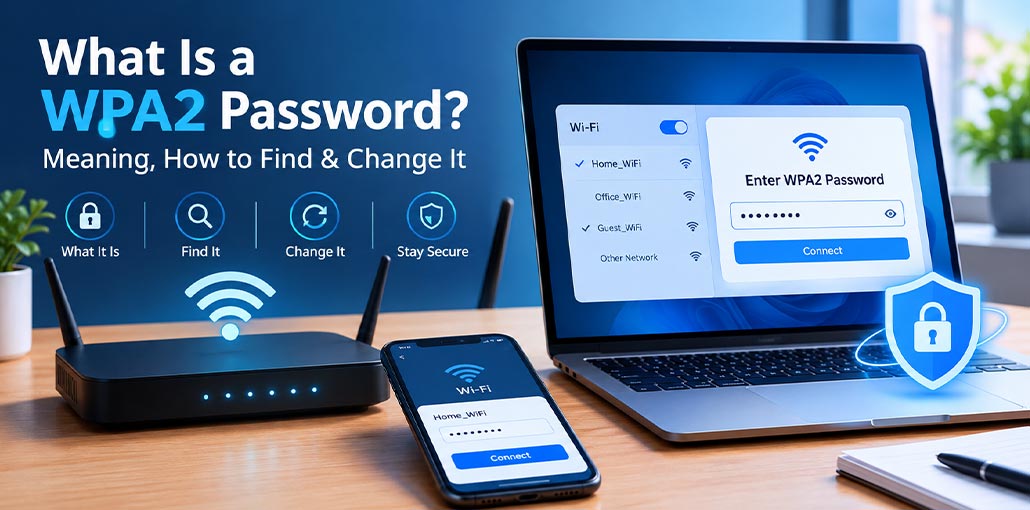
Have you ever looked at your Wi-Fi settings and seen the term “WPA2 password” but had no idea what it meant? Many people see this while connecting a phone, laptop, or smart TV to the internet. The good news is that it is much simpler than it sounds. In this guide, we will explain what a WPA2 password is, how to find it, and how to change it when needed.
What Is a WPA2 Password?
WPA2 means Wi-Fi Protected Access 2. It is a security system created to protect wireless networks from unauthorized access.
Whenever you connect a device to your home Wi-Fi, you usually select your network name and enter a password. If your router uses WPA2-Personal security, the password you enter is known as the WPA2 password.
For example, imagine your Wi-Fi network name is “Home_WiFi.” When you click on this network on your phone, it asks for a password. That password checks whether you are allowed to connect to the network.
Think of a WPA2 password as a lock-and-key system. Your Wi-Fi network is the lock, and the password is the key that allows trusted devices in.
Depending on your router, this password may also be called a:
- Wi-Fi password
- Wireless password
- Security key
- Network key
- WPA key
All of these terms usually refer to the same thing.
Also read: What is the Network Security Key: How to Find for WiFi, Windows and Android
Is WPA2 Password the Same as Wi-Fi Password?
In most home networks, yes. The password you use to connect your phone, computer, or smart TV to Wi-Fi is generally your WPA2 password.
However, many people confuse the Wi-Fi password with the router admin password. These two passwords have different purposes.
The Wi-Fi password allows devices to connect to your wireless network.
The router administrator password allows you to access router settings and make changes, such as updating the Wi-Fi name, changing security settings, or creating a new password.
Some routers use the same password for both, while others keep them separate.
Where Can You Find Your WPA2 Password?
If you forgot your WPA2 password, you can check a few different places.
Check the Router Label
The easiest place to start is your router itself. Many routers have a sticker placed on the back, bottom, or side.
This label may include information such as:
- Wi-Fi name (SSID)
- Wireless password
- WPA key
- Security key
- Network password
If you have never changed the original password, the one printed on the router may still work.
While checking the label, be careful with similar-looking characters. For example, the letter “O” and the number “0” can easily be confused.
Check Router Settings
If you changed your WiFi channel or password before, the password printed on the router may no longer be correct.
You can usually find the current password by opening your router settings. Connect your device to the network, open a web browser, and visit your router’s management page.
After logging in, look for options like:
- Wireless Settings
- Wi-Fi Settings
- WLAN
- Wireless Security
Here you can usually view or update your Wi-Fi password. Some routers may hide the password until you select a “show password” option.
Ask the Network Owner
If you are using Wi-Fi at someone else’s home, school, office, or another location, the network owner or administrator will have the correct password.
They may have changed the default password or use a different security setup.
How to Change a WPA2 Password
Changing your WPA2 password is a good idea if many people know your Wi-Fi password or you want better network security.
The exact steps depend on your router model, but the general process is similar.
First, connect your phone or computer to the router. Open a browser and enter your router’s setup address.
Log in using your router administrator details. Then open the Wi-Fi or Wireless Settings section.
Find the security option and look for settings such as:
- WPA2-Personal
- WPA2-PSK
- Wireless Password
Enter your new password and save the changes.
After changing the password, all connected devices may disconnect. You will need to reconnect them using the new password.
How to Create a Strong WPA2 Password
A strong Wi-Fi password helps protect your network from unwanted users.
Avoid using simple passwords like:
- 12345678
- password123
- your name
- your mobile number
- your birthday
Instead, create a longer password that contains a mix of words, numbers, and special characters.
A memorable phrase can make a good password. Just make sure the password is unique and not something others can easily guess.
Remember, anyone who gets access to your Wi-Fi may use your internet connection. In some cases, they may also be able to interact with other devices connected to the same network.
Also read: Top 4 Tips to Secure Your WIFI Network
What to Do If Your WPA2 Password Does Not Work
Sometimes you enter the correct password, but your device still refuses to connect. This can happen for several reasons.
First, check the password carefully. Wi-Fi passwords are case-sensitive, meaning uppercase and lowercase letters are treated differently.
For example: MyWifi123/ mywifi123 are two different passwords.
Also check for typing mistakes, especially with numbers and special characters.
Make sure you are connecting to the correct Wi-Fi network. Many places have multiple networks with similar names.
If the problem continues, try these steps:
- Forget the Wi-Fi network on your device
- Restart your phone or computer
- Restart your router
- Try connecting again
These simple steps often solve temporary connection problems.
WPA2-Personal vs WPA2-Enterprise
WPA2 security is commonly divided into two types: WPA2-Personal and WPA2-Enterprise.
WPA2-Personal is mainly used in homes and small offices. It uses one shared password that everyone enters when connecting their devices. Most home Wi-Fi users use this security type.
WPA2-Enterprise is designed for larger organizations such as businesses, schools, and universities.
Instead of one shared password, users may need individual login information or another authentication method.
This system provides more control over who can access the network.
Final Thoughts
Understanding your WPA2 password makes it easier to manage your home Wi-Fi and keep your connection protected. Whether you forgot the password, need to update it, or are troubleshooting a connection issue, knowing where to check can save time. Use a strong password, avoid sharing it unnecessarily, and keep your network secure for a better online experience.
FAQs About WPA2 Password
Why is my WPA2 password not working?
Your WPA2 password may not work because of typing mistakes, incorrect capitalization, connecting to the wrong Wi-Fi network, or saved old network settings on your device.
Can I use the same WPA2 password on multiple devices?
Yes, you can use the same WPA2 password to connect multiple trusted devices, such as phones, laptops, tablets, and smart TVs.
Can someone access my Wi-Fi without knowing my WPA2 password?
Normally, WPA2 security prevents unauthorized access without the correct password. However, using a weak password can make your network easier to attack.
Should I change my WPA2 password regularly?
Changing your WPA2 password is a good idea if you think someone else knows it or if you notice unknown devices connected to your network.







Leave a comment