

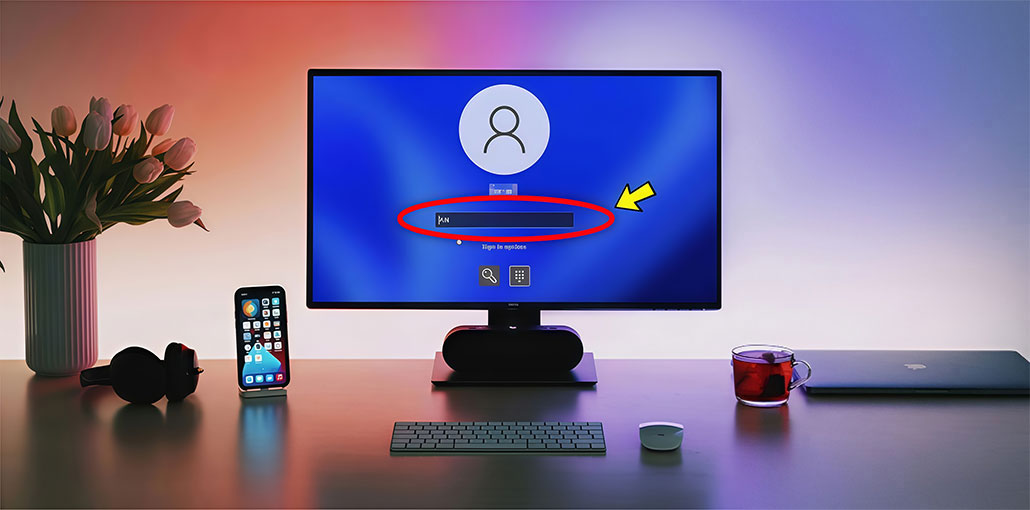
Why does it say something happened and your PIN isn’t available? What do you do if something happens, and your PIN isn’t available for Windows 11/10? For reasons and solutions to resolve this issue on your computer, you can continue to read this article.
Something Happened and Your PIN Isn’t Available Windows 11/10
If you have a Windows 10 or 11 PC, you can use the PIN as a password to sign in. A PIN is composed of several numbers or a combination of numbers and letters that you select. Using a PIN can be an easy and secure method for Windows login.
Your PIN may not be available for a reason. On the computer screen, you’ll get the message “Something happened and your PIN isn’t available . Click to set up your password again”. Sometimes, you will see a different version of the error message that reads “Something went wrong and your PIN isn’t available (status: 0xc000006d)”.
Common Causes of the Windows PIN Not Available Error
- Corrupted system files
- Issues with the Windows PIN service
- Damaged NGC folder data
- Incorrect account credentials
- Windows update conflicts
- TPM configuration problems
- Microsoft account synchronization issues
Also read: How to Solve “This App Can’t Run on Your PC” on Windows 10 Easily
Fix “Something Happened and Your PIN Isn’t Available” in Windows 11/10
1. Reset Your PIN
If your computer is linked to a Microsoft account, you can reset your PIN, and you will need an internet connection to verify your account. Learn the steps to follow:
Steps:
- Click Set up my PIN or Create my PIN on the login screen.
- Sign in using your Microsoft account credentials.
- Complete the verification process if two-factor authentication is enabled.
- Confirm that you want to reset your PIN.
- Create a new PIN and click OK.
2. Sign In Using Your Account Password
If you are using a password and PIN to sign in to Windows access, you can test the password if something happened and your PIN isn’t available. You can reset the login PIN to solve the issue.
Steps:
- On the lock screen, click Sign-in options.
- Select the Password option (key icon).
- Enter your account password.
- Go to Settings > Accounts > Sign-in options.
- Select PIN (Windows Hello).
- Remove the existing PIN.
- Click Add PIN or Set up PIN.
- Verify your account password and create a new PIN.
3. Delete the NGC Folder
Windows stores all details related to the PIN settings within the Ngc folder. If the Ngc folder is damaged, you cannot sign in using your PIN. When you open your screen, you will run into the problem – Windows 10 or 11. Something happened and your PIN isn’t available. Click to create your password again. To fix the issue, remove this folder.
You can use a password to log in to your computer. After that, follow the instructions below:
Steps:
- Sign in using your account password.
- Open File Explorer.
- Enable hidden files:
Windows 10: Click View > Hidden items
Windows 11: Click View > Show > Hidden items - Navigate to:
C:\Windows\ServiceProfiles\LocalService\AppData\Local\Microsoft
- Locate the Ngc folder.
- Delete the folder.
- Restart your PC and create a new PIN.
4. Uninstall Recent Windows Updates
If your PIN isn’t available after a Windows update, you may try uninstalling the latest update. If you are using an account password to log in to Windows and you want to uninstall the update.
Using Windows Desktop:
- Open Control Panel.
- Click Programs > View Installed Updates.
- Find the most recent update.
- Right-click it and select Uninstall.
Using Windows Recovery Environment (WinRE):
- Boot into WinRE.
- Select Troubleshoot > Advanced Options > Uninstall Updates.
- Choose Uninstall latest quality update.
- Follow the on-screen instructions.
5. Enable TPM
The TPM chip keeps your PC safe. If enabled, it will display the”Not Available PIN” error when you log in. You can check to see whether your TPM is in use.
Steps:
- Enter Windows Recovery Environment (WinRE).
- Navigate to: Troubleshoot > Advanced Options > UEFI Firmware Settings
- Click Restart.
- Open BIOS/UEFI settings.
- Locate the Trusted Platform Module (TPM) option.
- Ensure TPM is enabled.
- Save the changes and restart your PC.
Also read: TPM Device Not Detected: 5 Proven Fixes That Work
6. Reset Your PC
If none of these methods fails to resolve Windows 11/10 issues, or if something happened and your PIN isn’t available, you can try to reset your computer. Before the procedure, be sure to back up your most important data with a reliable backup software
Steps:
- Open WinRE.
- Select Troubleshoot > Reset this PC.
- Choose either:
- Keep my files
- Remove everything
- Follow the instructions to complete the reset.
Preventing PIN Errors in the Future
To reduce the likelihood of seeing the “Something happened and your PIN isn’t available” message again:
- Keep Windows updated.
- Use a strong and memorable PIN.
- Avoid improper shutdowns.
- Enable account recovery options.
- Back up important data regularly.
- Monitor Windows security notifications.
Final Words
Solve something happened and your PIN isn’t available on Windows 11/10? After reading this article, you’ll discover several useful solutions. Consider them in light of your particular situation.
FAQs: Something Happened and Your PIN Isn’t Available
Why does Windows say Something Happened and Your PIN Isn't Available?
This error usually occurs due to corrupted PIN data, damaged system files, Windows updates, TPM issues, or problems with your Microsoft account synchronization.
Can I sign in without my PIN?
Yes. If you remember your account password, click Sign-in options on the login screen and choose the password sign-in method.
How do I reset my PIN when Windows says it isn't available?
Click Set up my PIN or I forgot my PIN on the sign-in screen, verify your Microsoft account, and follow the prompts to create a new PIN.
Is the Something Happened and Your PIN Isn't Available error harmful?
No. The error itself is not harmful, but it can prevent access to your Windows account until the underlying issue is resolved.




Leave a comment