

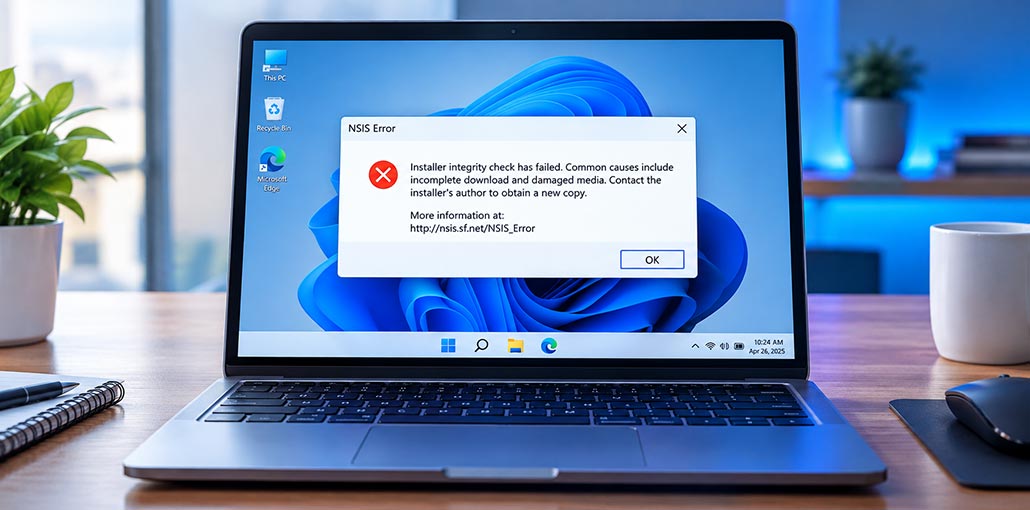
Are you getting an NSIS Error when trying to install software on your Windows computer? This problem usually appears when an installer fails its integrity check or when something prevents the setup file from running correctly.
The good news is that you can usually troubleshoot the problem without reinstalling Windows. In this guide, you’ll learn how to fix NSIS errors using methods, including downloading the installer again, checking Windows Security, repairing system files, and more.
What Is NSIS Error?
NSIS stands for Nullsoft Scriptable Install System, a system used to create Windows software installers.
An NSIS Error generally occurs when the installer cannot successfully complete an integrity check or encounters a problem while starting the installation.
One common message is:
Installer integrity check has failed.
The message may also suggest that the download is incomplete or that the installer has been damaged.
The error does not automatically mean your computer has a virus or that Windows is permanently damaged. The cause can range from a corrupted download to antivirus interference, disk problems, or Windows system issues.
Why Does NSIS Error Occur?
There are several possible reasons for an NSIS Error, including:
- Incomplete software download
- Corrupted installer file
- Unstable internet connection
- Antivirus or Windows Security interference
- Insufficient permissions
- Complicated file paths
- Storage or file-system problems
- Damaged Windows system files
- Outdated Windows components
- Modified or unofficial installer files
Before trying advanced solutions, determine whether the problem affects one program or multiple programs.
If only one installer produces the error, a fresh download is usually the first thing to try. If many installers fail, you should investigate Windows, storage, security software, and other system-level causes.
Also read: Top 10 Tips and Tricks for Windows 11
How to Fix NSIS Error on Windows
Below are the most useful troubleshooting methods. Follow them in order, starting with the simplest solution.
1: Download the Installer Again
An incomplete or corrupted download is one of the most common reasons for an NSIS Error. Downloading a fresh installer from the official software website can replace the damaged setup file and fix the installation problem. Delete the old installer first and make sure the new download finishes completely without interruption.
Steps to Download the Installer Again
- Delete the existing installer from your computer.
- Open your web browser.
- Visit the software developer’s official website.
- Download the latest version of the installer.
- Wait until the download is finished.
- Locate the new .exe file.
- Double-click the installer.
- Check whether the software installs successfully.
Important: Avoid downloading software installers from unknown third-party websites. If the developer provides an SHA-256 or other checksum, you can compare it with your downloaded file to verify its integrity.
2: Run the Installer as Administrator
Windows permissions can sometimes prevent an installer from accessing required files or system locations. Running the setup file as administrator may resolve an NSIS Error caused by restricted permissions. This method is simple and safe when the installer comes from a trusted source. Always verify the software before granting administrator access.
Steps to Run as Administrator
- Locate the installer.
- Right-click the .exe file.
- Select Run as administrator.
- Click Yes when User Account Control appears.
- Follow the installation instructions.
- Wait for the installation to finish.
If the installer now works, the problem may have been related to Windows permissions.
3: Move the Installer to a Simple Folder
A long file path, unusual characters, or a complicated folder location can sometimes contribute to an NSIS Error. Moving the setup file to a simple folder can eliminate potential path-related problems. Using a short filename also makes it easier to run the installer through Command Prompt if additional troubleshooting is required.
Steps to Move the Installer
- Open File Explorer.
- Open the C drive.
- Create a folder called Temp.
- Move the installer into the folder.
- Rename the installer to setup.exe.
- You should now have a path similar to:
C:\Temp\setup.exe - Double-click the installer.
- Try the installation again.
4: Check Windows Security
Windows Security or third-party antivirus software can sometimes block or interfere with software installers. If you continue seeing an NSIS Error, check your security software’s protection history for the setup file. If the installer came from the official developer, carefully review any detection before taking action. Never run suspicious or untrusted executable files.
Steps to Check Windows Security
- Open Windows Security.
- Select Virus & threat protection.
- Click Protection history.
- Look for the installer.
- Check whether Windows Security blocked or quarantined the file.
- Verify that the installer came from a legitimate source.
- Follow the security software’s recommended action.
Do not permanently disable antivirus protection just to install unknown software.
Also read: Who is Better For Security: VPNs vs. Firewalls vs. Antivirus
5: Check Your Internet Connection
An unstable internet connection can create an incomplete installer and result in an NSIS Error. If the setup file repeatedly fails its integrity check, download it again using a stable connection. You can also try another browser or network. A complete and undamaged download may resolve the common installer integrity problem.
Steps to Check Your Connection
- Check whether your internet connection is working normally.
- Restart your router if necessary.
- Delete the existing installer.
- Open another browser.
- Download the installer again.
- Do not pause or interrupt the download.
- Wait until the download is complete.
- Run the new installer.
If other large files also fail to download correctly, investigate your network connection.
6: Check Your Hard Drive
If several different programs display an NSIS Error, the problem may be related to your storage drive rather than a particular installer. Windows includes the CHKDSK utility for checking file-system problems. Running a disk scan can identify storage-related issues that may prevent installers from reading or writing files correctly.
Steps to Check Your Drive
- Open the Start menu.
- Search for Command Prompt.
- Right-click it.
- Select Run as administrator.
- Enter:
chkdsk C: /scan - Press Enter.
- Wait for the scan to finish.
- Follow any recommendations provided by Windows.
- Restart your computer.
- Try the installer again.
7: Update Windows
Outdated Windows components can sometimes cause compatibility problems when installing applications. If you are experiencing an NSIS error during a Windows 11 or Windows 10 installation, check Windows Update for available updates. Installing supported updates and restarting your computer can help eliminate operating-system compatibility issues affecting software installation.
Steps to Update Windows
- Open Settings.
- Select Windows Update.
- Click Check for updates.
- Install available updates.
- Restart your computer.
- Try running the installer again.
If the problem continues after updating Windows, move on to the next troubleshooting method.
8: Repair Windows System Files
Damaged Windows system files can sometimes interfere with applications and installers. If the NSIS Error continues after downloading a fresh setup file, use Microsoft’s built-in DISM and System File Checker tools. These utilities can identify and repair certain Windows system-file problems that may affect software installation and cause repeated installer errors.
Step 1: Run DISM
- Open Command Prompt as administrator.
- Enter:
DISM.exe /Online /Cleanup-image /Restorehealth - Press Enter.
Wait until the process completes.
Step 2: Run SFC
- After DISM finishes, enter:
sfc /scannow - Press Enter.
- Wait for the scan to reach 100%.
- Restart your computer.
- Try installing the software again.
9: Use the NSIS /NCRC Command
Some NSIS installers support the /NCRC command, which disables the installer’s CRC integrity check. This may help diagnose an NSIS Error, but it does not repair a corrupted setup file. Because the integrity check is being bypassed, use this method cautiously and only with an installer obtained from a trusted official source.
Steps to Use /NCRC
- Move the installer to:
C:\Temp - Open Command Prompt.
- Enter:
cd C:\Temp - Press Enter.
- Enter:
setup.exe /NCRC - Press Enter.
- Check whether the installer starts.
Also read: Stellar Repair for QuickBooks: An Excellent Tool to Repair Corrupt QBW Files
10: Perform a Clean Boot
Background applications and startup services can sometimes interfere with software installation and contribute to an NSIS Error. A Windows clean boot starts the system with a minimal set of services and startup programs. This can help determine whether another application is conflicting with the installer and preventing it from running correctly.
Steps to Perform a Clean Boot
- Press Windows + R.
- Type:
msconfig - Press Enter.
- Open the Services tab.
- Select Hide all Microsoft services.
- Click Disable all.
- Open the Startup tab.
- Open Task Manager if prompted.
- Disable unnecessary startup applications.
- Restart your computer.
- Try running the installer again.
If the installation works after a clean boot, another background program may be interfering with the setup.
How to Prevent NSIS Installer Error
Once you fix the NSIS installer error, you can reduce the possibility of this issue happening again.
Follow these practices:
- Download applications from official websites.
- Avoid modified or unofficial installers.
- Keep Windows updated.
- Use a reliable internet connection.
- Do not interrupt downloads.
- Maintain enough free storage space.
- Keep security software updated.
- Do not modify executable installer files.
- Verify checksums when software developers provide them.
- Keep important Windows system files healthy.
Ending Notes
Getting an NSIS Error can be frustrating, but you usually don’t need to reinstall Windows. Start by downloading the installer again, running it as administrator, and checking Windows Security. If the problem continues, try repairing system files or checking your drive. Follow these simple fixes one by one to get your software installation working again.
FAQs: NSIS Error
Why am I getting an NSIS Error when installing a program?
An NSIS Error may occur if the installer is corrupted, incomplete, modified, or damaged during download. Antivirus software, storage problems, or Windows system issues can also prevent the installer from running correctly.
What does Installer integrity check has failed mean?
This message means the installer failed its integrity check. The setup file may have been corrupted, incompletely downloaded, or changed after it was created. Downloading a fresh copy from the official software website is usually the first step to try.
Can I fix an NSIS Error using /NCRC?
The /NCRC option can skip the installer's CRC integrity check when the installer supports it. However, it does not repair a corrupted setup file. Only use this option with software downloaded from a trusted official source.
Why does NSIS Error keep appearing?
If the error keeps appearing, the problem may be related to the installer, Windows Security, your storage drive, Windows system files, or the software itself. Try the troubleshooting methods in this guide one by one.







Leave a comment